

Event management software for students and young professionals is generally a mobile-first productivity app that combines calendar events, tasks, time tracking, and lightweight team coordination into one place. The core benefit is fewer missed deadlines and less time spent jumping between apps to figure out what is due and when. A certain provider of task and time management tools for this audience put together this guide to explain what these apps actually do and how to pick one.
TL;DR:
- The most crucial feature is two-way Google Calendar sync, ensuring deadlines and events automatically update across platforms without manual re-entry.
- Recurring tasks should be easy to set and editable, with schedule propagation allowing automatic adjustment of dependent deadlines and study sessions.
- Collaboration tools like shared tasks with comments and file attachments are vital for group projects, reducing confusion and reliance on external messaging apps.
- Data privacy and import capabilities from learning platforms matter, with options to export, delete, or use the app offline before committing to a subscription.
- The best app is one that minimizes setup and ongoing maintenance, with simple recurring tasks, calendar sync, and shared comments, rather than just a long feature list.
Table of Contents
- What Problem Does This Kind of App Actually Solve?
- What Features Actually Matter in a Student-Focused App
- How to Put These Features to Work This Semester
- How Do You Choose the Right App Without Overthinking It
- Optiostation’s Take on Building for This Audience
- Features That Go Beyond the Calendar
- Different Tools for Different Kinds of Events
- Who Actually Benefits and How
- Why This Beats a Planner and a Group Chat
- What Can Go Wrong With These Apps
- Connecting Your App to the Rest of Your Workflow
- What Actually Matters Once You Look Past the Feature List
- Try Optiostation’s Prioritization Station This Week
- Sources
- FAQ
What Problem Does This Kind of App Actually Solve?
This guide covers personal and team productivity software: apps that manage your calendar events, tasks, time estimates, and small-group coordination from your phone. It does not cover software for running conferences, weddings, or corporate events with ticketing and attendee registration, which is a separate category built for a different job entirely.
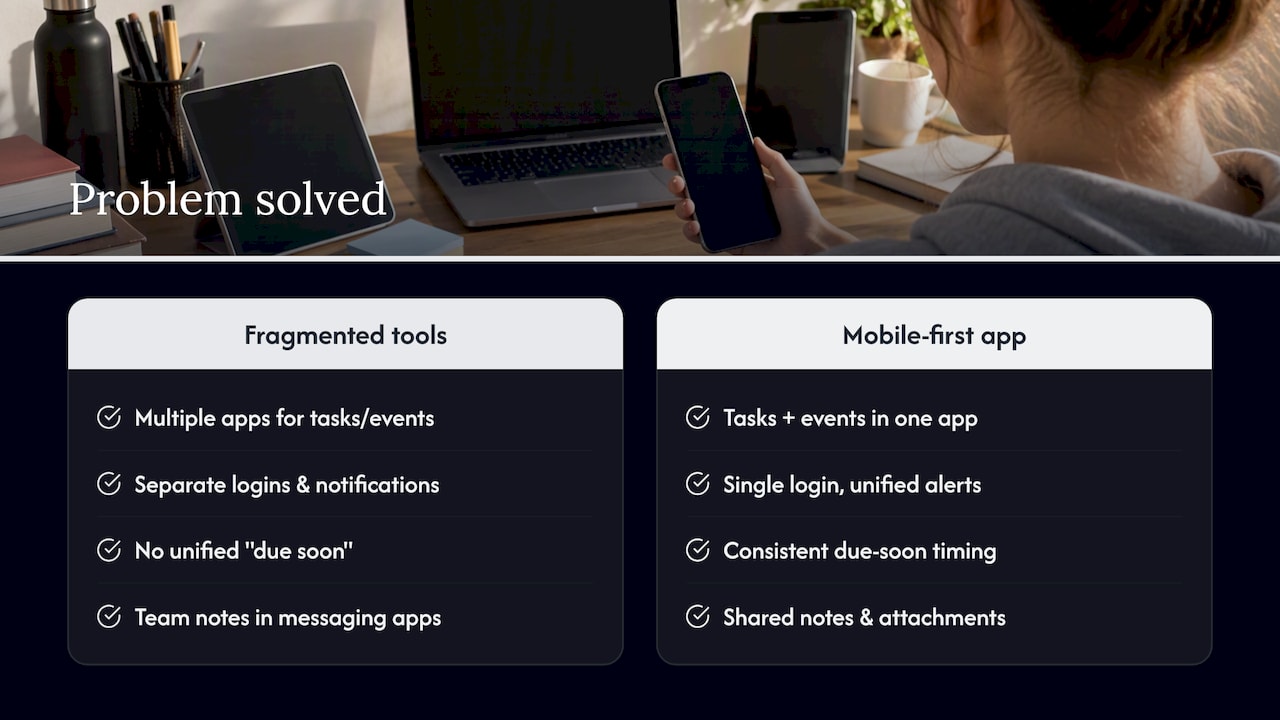
The real problem for students and young professionals is fragmentation. Assignments live in Canvas or Blackboard, meetings live in email threads, deadlines live in a syllabus PDF, and personal commitments live in whatever calendar app came preinstalled on the phone. Every one of those systems has its own login, its own notification style, and its own idea of what “due soon” means. Switching between them costs attention, and attention is the one resource a busy student or early-career professional cannot get back.
A mobile-first productivity app centralizes the pieces that matter: tasks with due dates, calendar events, rough time estimates for how long something will take, and a shared space where a small team, a study group, a project squad, can leave notes and attachments without opening a separate messaging app. The goal is not to add another tool to check. It is to replace four or five half-used tools with one that actually gets opened every day.
What Features Actually Matter in a Student-Focused App
Not every feature marketed as “event management” earns its place on your phone. A few matters enough to check for before you commit to an app.
- Calendar integration, ideally two-way sync with Google Calendar, so a change made in one place shows up in the other without manual re-entry.
- Rich task cards that hold attachments, subtasks, and comments, so a group project does not need a separate document to track who is doing what.
- Recurring tasks that propagate across your schedule, protecting a Tuesday study block or a weekly check-in without you rebuilding it every week.
- Time tracking and duration estimates that learn from past behavior, with an easy way to adjust an estimate that turns out to be wrong.
- Collaboration tools like @mentions, file sharing, and shared task ownership, built into the task itself rather than bolted on.
- Import and export, especially aggregation from learning platforms, so a syllabus does not have to be retyped by hand.
- Mobile-first design: quick-add for capturing a task in seconds, color-coding for different areas of life, and more than one view (list, calendar, board).
A large majority of users on leading task-management platforms report using the software as a central hub specifically to cut down on context-switching between apps, according to G2’s task management category data. This adoption pattern lines up with high average satisfaction scores on the same platforms. Centralizing tasks and calendar events in one interface is not a nice-to-have. It is the feature that determines whether an app gets used past the first week. For a deeper feature-by-feature walkthrough, see this guide to event management software.
How to Put These Features to Work This Semester
Reading a feature list is not the same as using one well. Here is a sequence that turns the features above into an actual routine.
- Import your syllabus deadlines at the start of the term and mark the high-stakes ones (finals, project milestones) as placeholders you will refine later.
- When a deadline shifts, use schedule propagation to move any study sessions or subtasks that depend on it, instead of manually rebuilding your week.
- Block recurring study time on your calendar and give each block a realistic time estimate rather than the optimistic one.
- For group assignments, create a shared task with simple permissions, then use in-task comments and file attachments instead of a separate group chat.
- Use quick-add on your phone to capture a task the moment it comes up, so it does not have to live in your head until you get to a laptop.
Pro Tip: Set your first few recurring study blocks slightly longer than you think you need. It is easier to shrink an overestimate than to recover from a missed one.
Learniverse, a student-focused prototype project, found that combining syllabus import with placeholder tasks and schedule propagation reduced the friction that normally causes deadlines to slip through the cracks. For more on centralizing your class schedule specifically, see this guide to class schedule management.
How Do You Choose the Right App Without Overthinking It
You do not need weeks of research to pick a productivity app. A short checklist and a one-week trial tell you almost everything you need to know.
Look for mobile-first calendar sync, syllabus or import capability, low-friction recurring tasks, and an onboarding flow that takes minutes, not an afternoon. On the privacy side, check what academic data the app stores and whether you can export or delete it. U-Wick, an academic planning assistant built as a graduate capstone project, emphasized data minimization and user control over sensitive academic information as a design priority, which is a reasonable bar to hold any app to.
- Confirm calendar sync works in both directions before you commit to anything.
- Test recurring tasks with a real weekly commitment, not a placeholder.
- Share one task with a teammate or classmate to see how collaboration actually feels.
- Ask whether you can export your data and use the app offline before a subscription decision.
| Day | What to test |
|---|---|
| 1 to 2 | Import syllabus or key deadlines, connect calendar sync |
| 3 to 4 | Set up two recurring tasks and one time estimate |
| 5 | Share a single task with a teammate and test comments |
| — | Check notifications, offline access, and export options |
Optiostation’s Take on Building for This Audience
One example app is built around a Prioritization Station and a Roman theme, positioning itself as a second-in-command (an “Optio”) to users it calls Centurions. That framing is not just a stylistic choice. It reflects a focus on helping students and young professionals decide what to do next, not just where to store what they already know they have to do.
Low-friction onboarding and simple recurring-task setup are priorities because psychological research on personal productivity systems warns that frequently reorganizing your system carries a real cognitive cost. A tool that requires constant re-setup works against the habit it is supposed to build. Aggregation matters for the same reason: pulling deadlines and events into one place reduces the number of systems a Centurion has to check every day.
The apps that stick are the ones that ask the least of you to keep running, not the ones with the longest feature list.
Features That Go Beyond the Calendar
Calendar sync and tasks cover personal and team productivity, but it helps to know where this category’s edges are. Full-scale event management platforms, the kind built for conferences, weddings, or corporate events, include registration management, ticketing, and attendee tracking. Those features solve a different problem: managing a crowd of people who need to check in, pay, or receive updates about a single scheduled gathering.
For a student managing coursework or a young professional managing a small team’s workload, none of that machinery is relevant. What matters instead is whether the app handles the volume of small, recurring commitments that make up a normal week: classes, assignments, one-on-ones, and personal goals. Registration systems solve for scale and one-time events. Personal and team productivity apps solve for frequency and continuity. Knowing which problem you actually have keeps you from paying for, or fighting with, a tool built for the wrong job.
Different Tools for Different Kinds of Events
Software built to manage events splits into a few clear categories, and it is worth knowing which one you are looking at before you download anything. Large-scale platforms exist for conferences and trade shows, with registration and badge printing built in. Others focus on weddings or private gatherings, centered on guest lists and vendor coordination. Corporate event platforms handle internal meetings and company-wide gatherings at a different scale entirely.
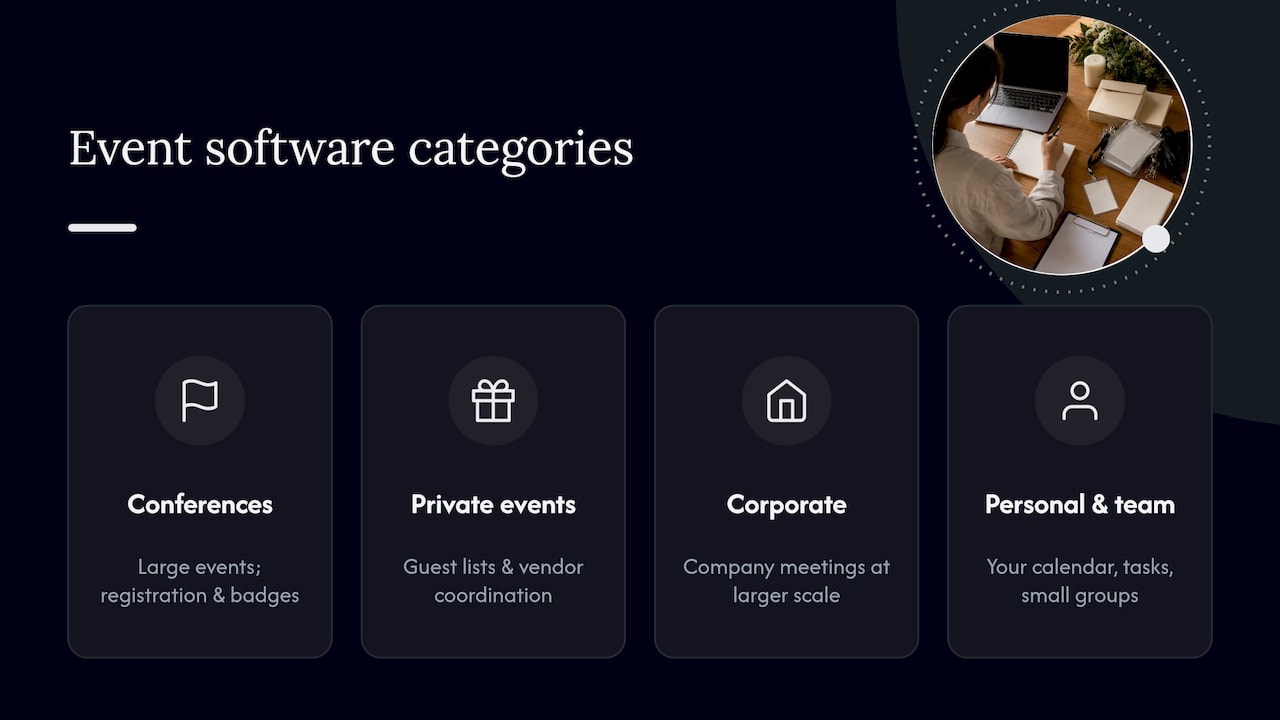
None of those match what a student or young professional needs day to day. The tools relevant to this audience are personal and team productivity apps: built around your own calendar, your own tasks, and a small group of collaborators rather than a guest list or an attendee database. If you are comparing options, the first filter is simple: are you managing your own schedule and a handful of teammates, or are you managing an audience? That answer alone rules out most of what shows up in a general search for event software.
Who Actually Benefits and How
The benefits of this kind of app shift depending on who is using it. A student juggling five classes gets the most value from syllabus import and recurring study blocks, since the recurring cost in their week is coursework, not meetings. A young professional managing a small team benefits more from shared task ownership and in-task comments, since their main friction is coordinating other people’s work, not just their own.
Group projects sit in between: shared tasks with simple permissions cut down on the “who’s doing what” confusion that normally eats up a group chat. Individuals working solo, freelancers, or anyone managing personal goals outside of work benefit mainly from time estimates and recurring tasks, since their challenge is protecting focused time rather than coordinating other people.
Across all of these cases, the same underlying benefit applies: fewer systems to check, less time spent re-explaining a deadline that already exists somewhere else, and a lower chance that something slips because it lived in an app nobody opened that day.
Why This Beats a Planner and a Group Chat
Manual planning methods, a paper planner, a shared spreadsheet, a group chat pinned message, work until the volume of commitments outpaces the effort required to keep them updated. A paper planner cannot send a reminder. A spreadsheet cannot propagate a deadline change to the three tasks that depend on it. A pinned chat message gets buried the moment the conversation moves on.
Digital productivity apps solve the update problem specifically: when a deadline moves, dependent tasks and study sessions move with it, rather than requiring you to hunt down every place that date was written. Reviews of general work-management tools consistently point to mobile access, multiple views, and centralized communication as the features that cut down on the back-and-forth manual methods require, according to G2 Learn’s review of monday.com. The trade-off is that a manual system requires zero setup and no login, while a digital one requires a few minutes of onboarding in exchange for that ongoing time savings. For most students managing more than two or three classes, that trade pays off within the first week.
What Can Go Wrong With These Apps
No productivity app is free of friction. The most common complaint is over-customization: an app with too many settings, tags, and views can turn organizing your week into its own time-consuming task. Research on personal productivity systems points to a related cost, frequent, large-scale reorganizing of your system carries a real cognitive toll, so an app that encourages constant restructuring can work against the habit it is meant to support.
Machine-learned time estimates carry their own limitation. Duration-prediction models can reach classification accuracies approaching 80% on large-scale calendar data, according to research published in ACM/WSDM proceedings, but that still leaves a meaningful share of estimates wrong. The fix is not to distrust the feature but to treat every estimate as editable rather than final, and to lock in a realistic number once you know your actual pace for a recurring task. A final limitation is data privacy: any app that imports academic or work data should make clear what it stores and how to remove it, a standard the U-Wick capstone project treated as a design requirement rather than an afterthought.
Connecting Your App to the Rest of Your Workflow
For students and young professionals, the integrations that matter most are narrower than what a corporate event platform needs. Google Calendar sync is the baseline, since it means a change made in your productivity app shows up wherever else you check your schedule. Import from learning platforms, syllabi, and course pages matters just as much, since it removes the manual re-entry that causes deadlines to get missed in the first place.
Email marketing and CRM integrations, common in full-scale event platforms, are not relevant here: a student is not sending campaign emails or managing sales pipelines. What is relevant is whether a group project’s shared tasks can hold file attachments and comments without needing a separate cloud drive or chat app open at the same time. The fewer external tools a workflow depends on, the less likely something falls through a gap between them.
What Actually Matters Once You Look Past the Feature List
The conventional advice on productivity apps treats more features as automatically better: more views, more automation, more integrations. That advice does not hold up well for students and young professionals, whose real constraint is not a missing feature but limited time to maintain any system at all. An app with fifteen settings you never touch is not more capable than one with five you use every day. It is more likely to sit unopened by week three.
What the evidence in this guide actually supports is narrower: low-friction recurring tasks, a working calendar sync, and shared tasks that hold comments and files without a separate chat app. Everything past that is a matter of taste, not a decisive advantage. If you are choosing between two apps and one has a longer feature list, that is not the tiebreaker it looks like. The tiebreaker is which one you will still be opening in October.
— Optiostation
Try Optiostation’s Prioritization Station This Week
If the features in this guide sound useful, Optiostation is built around exactly that combination: Google Calendar sync, task placeholders for deadlines you have not finalized, and a prioritization workflow through the Prioritization Station that helps you decide what to work on next instead of just listing what is due.
Try a seven-day test before deciding whether an app fits: import your syllabus or current task list on day one, set up two recurring study blocks by day three, share a single task with a classmate or teammate by day five, and check your notifications and offline access by day seven. If the app has earned a place on your phone by then, it is worth keeping. For a deeper look at comparing task tools before you commit, this task management software guide covers the broader landscape.
Sources
- Task management software category | G2
- Task duration estimation study (ACM/WSDM proceedings)
- Learniverse – CSE 440 project
- U‑Wick academic planning assistant capstone (2026)
- Research on cognitive cost of constant reorganization (PMC)
FAQ
What does event management software do for students specifically?
For students, this kind of app centralizes tasks, calendar events, and time estimates so deadlines from different classes do not get lost across separate systems. It also supports small-group collaboration through shared tasks, comments, and file attachments for group projects.
How is this different from software used for planning conferences or weddings?
Personal and team productivity apps manage your own schedule, tasks, and a small group of collaborators. Software for conferences or weddings manages registration, ticketing, and attendee tracking at a much larger scale, which is not a feature students or young professionals typically need.
How accurate are the time estimates these apps generate?
Machine-learned duration models can reach classification accuracies approaching 80% on large-scale calendar data, according to research published in ACM/WSDM proceedings. Because a meaningful share of estimates still miss, the best practice is to treat every suggestion as editable and adjust it once you know your actual pace.
What should I check before trusting an app with my academic data?
Look for clear statements on what data the app stores and whether you can export or delete it, a standard emphasized by the U-Wick capstone project. Data minimization matters more than a long feature list when sensitive academic information is involved.
Does Optiostation offer this kind of app for students?
Yes, Optiostation’s Prioritization Station combines calendar sync, task management, and prioritization tools built for students and young professionals. Pricing details are available directly on the Optiostation site.
