

TL;DR:
- A framework-first workflow significantly reduces presentation prep time and improves team coordination.
- Using the right productivity tools at each phase enhances efficiency and minimizes revisions.
- Proper rehearsal, planning, and role assignment are essential to overcoming presentation anxiety and technical issues.
Blank slides and a blinking cursor. Sound familiar? Most students and young professionals spend hours wrestling with presentations, jumping straight into design before they even know what they want to say. The result is revision spirals, missed deadlines, and team miscommunication. A structured 4-5 phase process changes everything. This guide walks you through a framework-first workflow, the right productivity tools for each stage, and collaboration strategies that actually work. By the end, you will know exactly how to cut your prep time, sharpen your message, and coordinate your team without the chaos.
Table of Contents
- Understanding the presentation planning workflow
- Choosing the right productivity tools for each stage
- Streamlining teamwork and collaboration
- Overcoming common challenges and edge cases
- Why most presentation planning advice misses the mark
- Discover tools to optimize your workflow
- Frequently asked questions
Key Takeaways
| Point | Details |
|---|---|
| Framework-first workflow | Structuring your presentation before drafting slides can cut prep time by up to 75%. |
| Productivity tool selection | Using the right apps for each stage boosts collaboration and speeds up planning. |
| Practice reduces anxiety | Rehearsals and specific techniques can lower presentation anxiety by nearly half. |
| Collaboration best practices | Assigning roles and using digital platforms ensures smooth teamwork and fewer conflicts. |
| Avoid common mistakes | Skipping structure and practice leads to wasted time and less effective presentations. |
Understanding the presentation planning workflow
Most people open PowerPoint first and ask questions later. That single habit is responsible for more wasted hours than any other mistake in presentation prep. The smarter move is to think before you build, and that is exactly what a framework-first workflow forces you to do.
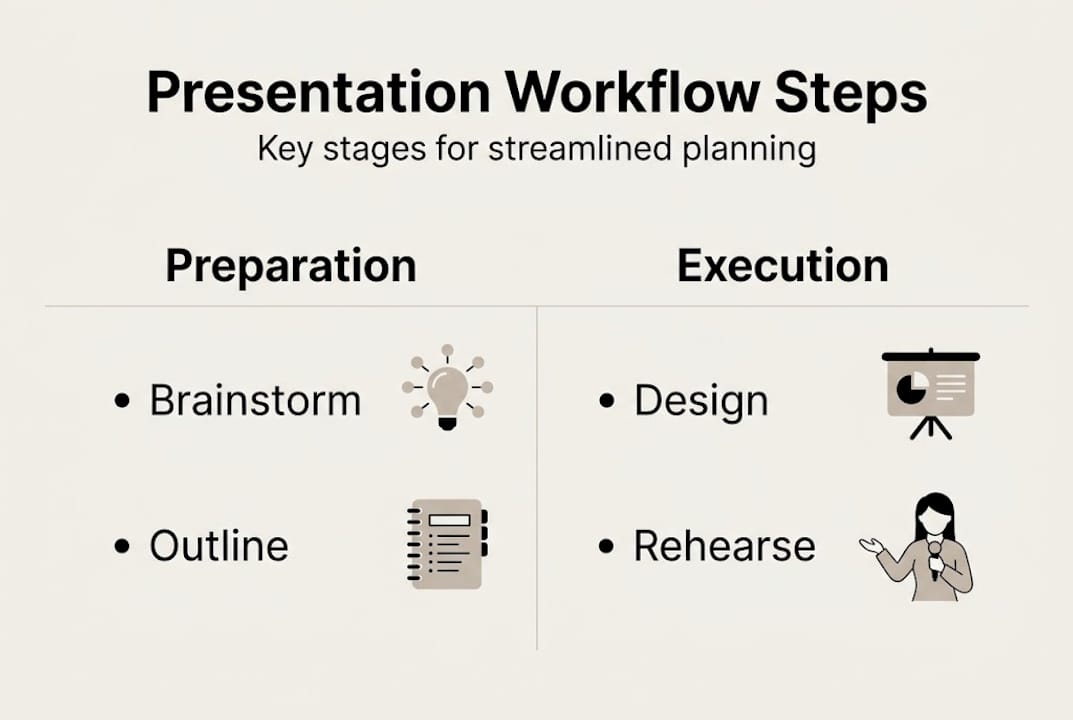
The process breaks into four clear phases:
- Clarify purpose and audience: Define your goal and who you are speaking to before writing a single word.
- Outline the structure: Map your key points, flow, and transitions on paper or a digital whiteboard.
- Draft content: Write your narrative, gather data, and assign slide topics.
- Polish and rehearse: Refine visuals, tighten language, and run full practice sessions.
This sequence matters because each phase feeds the next. Skipping the outline phase, for example, means your draft will almost certainly need a full restructure, doubling your workload.
Workflow comparison: slide-first vs. framework-first
| Factor | Slide-first | Framework-first |
|---|---|---|
| Starting point | Open design tool immediately | Define purpose and audience |
| Revision cycles | 3-5 major rewrites common | 1-2 minor tweaks typical |
| Team alignment | Frequent confusion | Clear shared structure |
| Total prep time | 6+ hours for 10 slides | 1.5-3 hours for 10 slides |
| Stress level | High, reactive | Low, proactive |
The numbers back this up. A framework-first approach reduces prep time by 75% compared to jumping straight into slides. That is not a marginal gain. That is the difference between finishing the night before and finishing a week early.
Time benchmarks also vary by deck size. A standard academic presentation of 8-12 slides takes 4-6 hours manually, but AI-assisted tools can bring that down to 8-30 minutes, a 70-95% time savings. Executive decks for professional settings tend to run 15-20 slides and require more polish, but the framework-first principle still applies.
Understanding what productivity apps do at each phase helps you pick the right one instead of defaulting to whatever you used last time. Pairing the right tool with the right phase is where efficiency really compounds. Students who use organization tools consistently report smoother workflows and fewer last-minute scrambles.
Choosing the right productivity tools for each stage
Not every tool fits every phase. Using a design app during the outline stage is like using a hammer to write an essay. Matching tools to tasks is where serious time savings happen.
Here is a breakdown of the best tools by workflow phase:
Tool recommendations by phase
| Phase | Recommended tools | Best for |
|---|---|---|
| Brainstorming | Miro, FigJam | Visual mind maps, group ideation |
| Outlining | Notion, Google Docs | Structured notes, shared editing |
| Content drafting | Google Slides, PowerPoint | Slide creation, content layout |
| Design and polish | Canva, Beautiful.ai | Visual design, branded templates |
| AI-assisted creation | Pitch, Tome, Gamma | Fast deck generation from prompts |
For solo projects, Notion and Google Slides are a powerful combo. Notion handles your outline and research notes, while Google Slides gives you a clean space to build. For team projects, Miro is excellent for early brainstorming because everyone can contribute simultaneously without overwriting each other’s work.

The academic community widely recommends tools like Canva and PowerPoint for their balance of flexibility and ease, especially when visual consistency matters. AI tools are gaining ground fast. AI-assisted deck creation now cuts prep time to as little as 8-30 minutes for a typical presentation, which is a game-changer for tight deadlines.
Understanding why productivity apps matter goes beyond just saving time. The right tools reduce cognitive load, keep your team aligned, and make the revision process far less painful.
Pro Tip: Start every project with a shared Notion page or Google Doc for your outline. Lock in the structure before anyone opens a design tool. This single habit eliminates the most common source of revision chaos in team presentations.
For collaboration specifically, real-time co-editing tools are non-negotiable. Collaboration tools for teamwork like Google Slides and Canva allow multiple contributors to work simultaneously, leave comments, and track changes without emailing file versions back and forth.
Streamlining teamwork and collaboration
Giving everyone the same blank slide deck and hoping for the best is not a collaboration strategy. Real teamwork requires clear roles, shared tools, and a process for keeping everyone on the same page without constant check-ins.
Start by assigning roles before the project begins. Designate a lead for structure, a content writer, a designer, and a reviewer. Overlapping responsibilities without clarity is the fastest route to duplicated work and hurt feelings.
Top collaboration platforms for presentation teams:
- Google Slides: Real-time co-editing, comment threads, version history.
- Canva for Teams: Shared brand kits, template libraries, simultaneous editing.
- Notion: Central hub for research, outlines, and task tracking.
- Miro: Visual brainstorming and async collaboration across time zones.
When co-editing, a few simple rules prevent most conflicts. Assign each person specific slides or sections. Use the comment feature instead of making direct edits to someone else’s work. Schedule a sync review before the final polish phase so everyone sees the full deck together.
Boosting group results consistently comes down to accountability. When each person owns a defined piece, the whole team moves faster. Looking at group project examples from high-performing teams shows a pattern: structured roles plus shared tools plus regular check-ins equals better outcomes every time.
Teams using AI-assisted platforms report significant gains. Cvent’s team reported 75% time savings after switching to Beautiful.ai for collaborative deck creation. That kind of efficiency is available to student teams too, not just corporate ones.
Pro Tip: Create a shared style guide at the start of every team project. Agree on fonts, colors, and tone before anyone starts designing. This prevents the jarring inconsistency that makes group presentations look like five different people made five different decks.
“One idea per slide. Use assertion-evidence structure. Purposeful pauses are not dead air, they are emphasis.” These expert presentation techniques separate forgettable decks from memorable ones.
For teams serious about group project success, building these habits early pays dividends well beyond the classroom.
Overcoming common challenges and edge cases
Even a solid workflow hits real-world friction. Knowing the most common obstacles in advance means you can plan around them instead of reacting to them under pressure.
- Hybrid and virtual setups: Design slides for two audiences at once. Use larger fonts, high-contrast visuals, and avoid relying on physical gestures. Always run a dual-audience tech check at least 24 hours before the presentation.
- Presentation anxiety: This is more common than most people admit. 61% of students report fear of public speaking, and consistent practice reduces that anxiety by up to 40%. Breathing techniques like the 4-7-8 method (inhale 4 counts, hold 7, exhale 8) work fast.
- Technical glitches: Always have a PDF backup of your deck. Test your clicker, screen resolution, and audio before the room fills up. Never rely on a live internet connection for embedded videos.
- Last-minute team changes: If a teammate drops out, the role assignment system you built earlier makes redistribution straightforward. No one has to start from scratch.
Anxiety management deserves more attention than most guides give it. The 3-5 spaced rehearsal method is the single most effective tool for reducing nerves. Practice out loud, not just in your head. Your brain processes spoken rehearsal differently than silent reading, and the difference shows on delivery day.
Pro Tip: Use focus apps during your rehearsal blocks to eliminate distractions. A 45-minute focused run-through beats three hours of interrupted practice every time.
For hybrid presentations specifically, record a test run and watch it back. You will immediately spot audio issues, awkward pauses, and slide timing problems that you never notice in the moment.
Why most presentation planning advice misses the mark
Here is the uncomfortable truth: most presentation guides focus on aesthetics and ignore process. They tell you to use better fonts and cleaner layouts, but they never address why you are still spending six hours on a ten-slide deck.
The real problem is that slide-first thinking is deeply ingrained. Opening a design tool feels productive. It looks like progress. But without a clear framework, every design decision is provisional, and you end up redesigning the same slides three times as your thinking evolves.
AI tools are not a shortcut around this problem. They are an accelerant on top of it. If your brief is vague, your AI-generated deck will be vague too. The framework has to come first, always.
Practice is the other piece that gets skipped. 3-5 full run-throughs out loud, recorded and reviewed, is non-negotiable for real improvement. Most people do one silent read-through and call it rehearsal. That is not rehearsal. That is wishful thinking.
The productivity hacks that actually work for students and young professionals are not glamorous. They are structured, repeatable, and boring in the best possible way. Framework first, right tools second, deliberate practice third. That sequence is what separates the people who nail presentations from the ones who just survive them.
Discover tools to optimize your workflow
You now have the framework, the tools, and the strategies. The next step is putting them into a system you can use every time, not just for this one presentation.
Optio Station is built for exactly this. As your second-in-command, Optio gives Centurions like you the task management solutions to map every phase of your workflow, assign team roles, and track progress without the chaos. Explore the collaboration tools overview to find the right platforms for your next group project. And when you are ready to build a repeatable system for all your team work, the team collaboration resources at Optio Station have you covered from brainstorm to final slide.
Frequently asked questions
What is the most efficient workflow for planning a presentation?
The most efficient workflow uses a framework-first approach: clarify purpose and audience, outline the structure, draft content, and polish and rehearse. This method cuts prep time by 75% compared to starting with slides.
Which productivity tools are best for collaborative presentations?
Google Slides, Canva, PowerPoint, Miro, Notion, and AI tools like Pitch and Beautiful.ai are top choices. The academic community recommends these platforms for their flexibility and real-time co-editing capabilities.
How do you manage presentation anxiety before delivery?
Running full rehearsals, using 4-7-8 breathing, and gradual exposure are the most effective methods. Consistent practice reduces anxiety by up to 40% in students who apply these techniques regularly.
What are common mistakes in presentation planning?
The biggest mistakes are starting with slides before establishing structure, skipping team role assignments, and not rehearsing out loud. Slide-first workflows routinely cause 6-plus hour overruns on decks that should take under two hours.
How much time should you spend on rehearsing a presentation?
At least 3-5 full run-throughs out loud, spaced over several days, is the recommended standard. Recording yourself and reviewing the footage accelerates improvement significantly.
Recommended
- How to Build a Task Tracking Template for Success – Optio Station: Best Project Management App for Prioritization
- Master Your Weekly Agenda Setup for Success – Optio Station: Best Project Management App for Prioritization
- How to Use Microsoft Teams for Project Management Success – Optio Station: Best Project Management App for Prioritization
- How to Organize Multiple Projects for Maximum Productivity – Optio Station: Best Project Management App for Prioritization
