

A product management project, for our purposes here, is any multi-step outcome you track inside your task and team app: a group report, a semester prototype, an onboarding plan, a campaign launch. If you have one right now, open your app, create a project, add three to five milestones, and assign at least one owner today. This is app-native planning, not a heavy methodology course.
TL;DR:
- Projects should involve multiple deliverables, team members, dependencies, uncertainty, or checkpoints to justify entry in your task app.
- Breaking down deliverables into three to five milestones with clear owners and deadlines enables effective tracking and accountability.
- Proper team charters clarify roles, decision rules, meeting schedules, and file storage locations to prevent common group failures.
- Scheduling milestones as calendar blocks and tying reminders to specific situations improve meeting deadlines and studying consistency.
- Tracking progress based on completion of milestones and next actions, along with pre-identified risks and regular updates, ensures smooth project execution.
Table of Contents
- What counts as a project versus a simple to-do
- Quick checklist: convert a to-do into a project inside your app
- A compact planning blueprint: decomposition, milestones, and dependencies
- Team setup and coordination: charters, roles, and where files live
- Scheduling and study techniques that work
- App-ready templates and workflows
- Track progress and avoid common failures
- Risk management and mitigation strategies
- Stakeholder communication and reporting
- Tools and software commonly used
- How Optiostation thinks about running projects in an app
- Try Optiostation for your next project
- Sources
- FAQ
What counts as a project versus a simple to-do
Not every item on your list deserves a project entry. A single reading assignment or a one-line email is a task. A group report, a semester capstone, a job onboarding plan, or a marketing campaign is a project because it involves several deliverables moving at once.
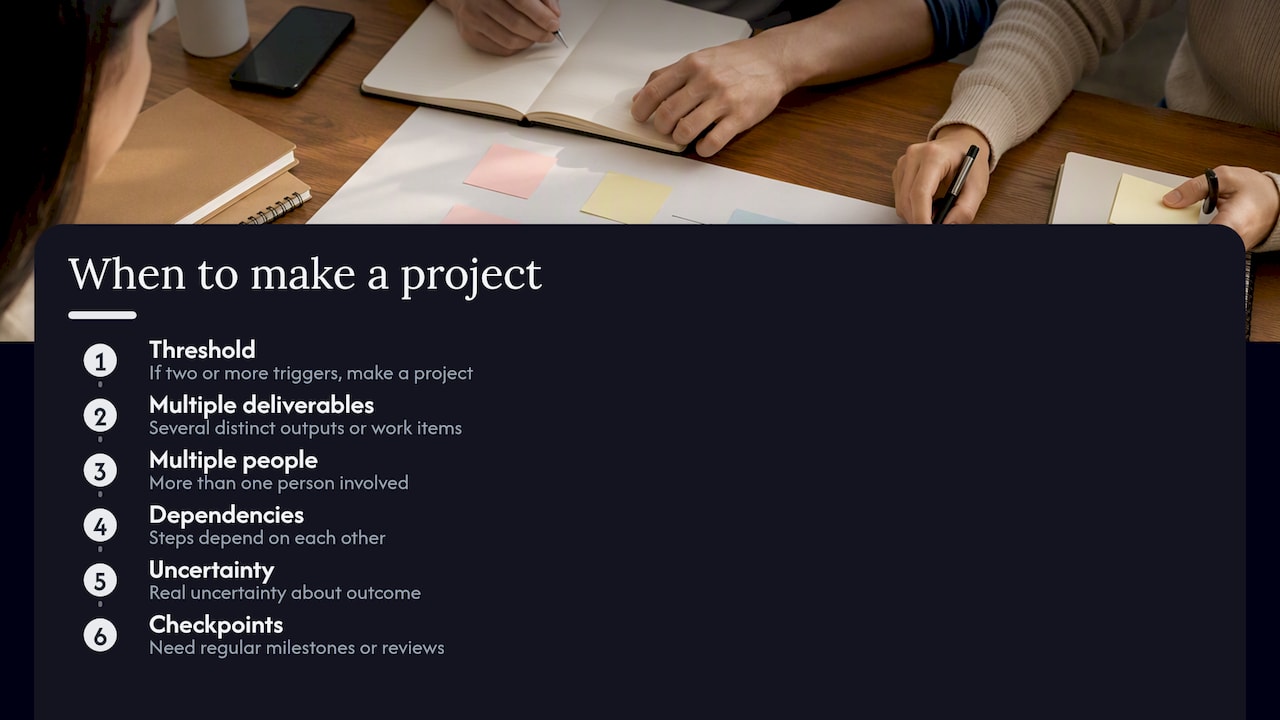
Five triggers tell you a to-do has become a project: multiple deliverables, multiple people, dependencies between steps, real uncertainty about the outcome, and the need for checkpoints along the way. If two or more of these apply, build the project entry instead of a flat task list.
For students, common examples include group coursework reports, semester prototypes, capstone projects, and exam-prep blocks. Northeastern’s guidance on student team projects treats coursework of this kind as full team efforts, not solo tasks. For early-career professionals, onboarding plans, client deliverables, and marketing campaigns fit the same pattern. Each should show up in the app as a project with milestones, named owners, and any attachments the team needs to reference.
Quick checklist: convert a to-do into a project inside your app
Before you build anything, write down the outcome you are aiming for and what “done” actually looks like. Vague to-dos stall because nobody agreed on the finish line.
- Define the deliverable and its definition of done in one sentence.
- Break it into three to five milestones with real deadlines.
- Assign an owner to each milestone, even if that owner is you.
- Set reminders for each milestone and attach relevant docs or links.
- Note any dependencies, such as a draft needing review before final submission.
- Choose recurring blocks for ongoing work or one-off milestones for single deliverables.
- Add tags so you can filter and search the project later.
This sequence mirrors what Clemson University recommends for classroom group projects, which breaks group work into staged milestones such as topic, research, prototype, review, and final submission, each assigned to a named teammate.
A compact planning blueprint: decomposition, milestones, and dependencies
A work breakdown structure, or WBS, is simply a deliverable tree. Instead of listing vague activities like “work on report,” you break the outcome into smaller deliverables, then smaller tasks, until each item is small enough to assign and finish. The NASA Work Breakdown Structure Handbook describes this as a product-oriented family tree that divides scope into manageable elements so schedule, budget, and responsibility can be planned around them.
For a group presentation, a three-level breakdown might look like this:
- Deliverable: final presentation.
- Subdeliverable: slide deck, owned by one teammate, done when every slide has final content and formatting.
- Task: research three supporting sources, owned by another teammate, done when sources are logged and summarized.
Capturing who owns what at the lowest level is a lightweight responsibility assignment matrix, right inside your app. The PMI Practice Standard for Work Breakdown Structures confirms this kind of decomposition applies across agile and predictive work alike, not just formal enterprise projects.
Pro Tip: Name each task with a verb and a deliverable (“draft the intro”), never a vague label (“intro stuff”), so the definition of done is obvious at a glance.
For a deeper walkthrough of breaking projects into smaller pieces on mobile, see how to break down projects and boost your productivity.
Team setup and coordination: charters, roles, and where files live
A short team charter prevents the most common group-project failure: people working from different mental models of the goal. Cornell’s team workflow guidance recommends teams define roles explicitly and agree on where files live before work starts, rather than sorting it out mid-project.
Your charter can live as a pinned note or the first milestone in your project. Include:
- Roles and who holds each one for this project.
- A simple decision rule for disagreements, such as majority vote or lead’s call.
- A recurring meeting or check-in schedule.
- An escalation path when a teammate goes quiet.
Minimal roles for a student or early-career team usually include a project lead, an editor or reviewer, a software or research lead, and a designer. Assign these in the app so every task has an obvious point of contact.
Store deliverables in Google Drive or GitHub and link them from the project entry itself. Cornell’s course guidance has teams keep all files in one shared drive and rotate responsibilities to avoid single points of failure. For more on assigning and rotating roles, see group roles for projects that actually get finished.
Scheduling and study techniques that work
Milestones only help if they sit on a real calendar. Turn each milestone into a calendar block: a two-hour writing session, a Tuesday check-in call, a Friday review. Recurring study blocks work the same way for exam prep, where a weekly slot builds consistency without renegotiating your schedule every time.
For exam-focused projects, implementation-intention planning, known as MCII, gives you a concrete format: “If [obstacle], then [action].” A reminder that says “If I skip Tuesday’s review, then I do 20 minutes of retrieval practice Wednesday morning” beats a vague “study more” goal.
- Build weekly milestones that map to specific calendar sessions, not open-ended days.
- Encode implementation-intention cues as reminders tied to a class or lecture, such as “after Tuesday lecture: 25 minutes retrieval practice.”
- Reserve a buffer block before any final deadline.
- Review progress weekly instead of waiting until the deadline looms.
A 2026 study of 87 students over four weeks found that implementation-intention planning was linked to more concentrated and efficient exam-week study, though it did not necessarily increase how spread out that practice was across the weeks. The takeaway for app users: pair your milestones with specific, situational reminders rather than generic study alerts.
App-ready templates and workflows
Three templates cover most student and early-career projects. A timeline template lists key milestones plus two review checkpoints, one at the midpoint and one near the end. A checklist template breaks the project into owned tasks with deadlines. A recurring-study template repeats a fixed block each week until an exam or deadline passes.
- Use tags or hashtags to group related projects so you can filter by course, client, or team.
- Color-code life aspects so school, work, and personal projects stay visually distinct at a glance.
- Set smart reminders on milestones instead of on every small task, to avoid alert fatigue.
Optiostation’s own project management timeline template and project management checklist template are built for exactly this kind of student and team workflow, ready to copy into a new project rather than build from scratch.
Track progress and avoid common failures
Percent complete is a weak signal. Track progress instead by definition of done and the next visible action: what specifically needs to happen before this milestone can close.
Run a short weekly review: check status against each milestone, surface blockers, reassign work that has stalled, and adjust scope if the deadline is fixed but the workload has grown. When a milestone slips, choose one recovery path from your team charter: a focused sprint to catch up, reassignment to a teammate with more bandwidth, a scope cut, or escalation to an instructor or manager.
Rotating retrospectives and quick peer assessments after each major milestone catch workload imbalance early, before it becomes resentment. A command log or activity history inside your app makes this review faster since you can see what actually happened, not just what was planned. Optiostation’s Command Log feature is built for exactly this kind of after-the-fact review.
Pro Tip: End every weekly review by naming one specific next action per open milestone, not a status label like “in progress.”
Risk management and mitigation strategies
Most student and early-career projects fail for a small number of predictable reasons: a teammate disappears, a source or tool becomes unavailable, or scope grows past the original deadline. Naming these risks early, even briefly, beats discovering them mid-project.
A lightweight risk pass takes ten minutes at project setup. For each major milestone, ask what could realistically stop it and who would need to know if it happened. Write the answer as a note on that milestone rather than a separate document nobody reopens.
Mitigation for a group project usually means redundancy: two people familiar with each deliverable, not one. For a work deliverable, it means a buffer block before the real deadline, so a slipped milestone does not automatically mean a missed submission. The Frontiers review on project team requirements points to risk management, alongside role clarity and documentation, as a factor separating projects that finish smoothly from ones that stall near the end.
When a risk becomes real, your team charter should already say what happens next: reassign, cut scope, or escalate. Deciding this in advance removes the panic of deciding it under deadline pressure. Keep the risk note attached to the milestone it affects, not buried in a separate list, so anyone opening that task sees the caution alongside the work.
Stakeholder communication and reporting
A stakeholder is anyone who needs to know how the project is going without doing the work themselves: an instructor, a manager, a client, or a teammate on a different piece of the deliverable. Reporting to them works best when it is short, scheduled, and tied to milestones rather than ad hoc.
A simple cadence covers most cases: a brief update at each checkpoint stating what is done, what is next, and any blocker that needs their input. This matches what Cornell’s team workflow guidance asks of student teams, which produce a workflow document specifically so an instructor can follow progress without chasing details.
For group work, rotate who sends the update so the reporting load does not fall on one person every time. For a work project, keep the update to three lines: status, next milestone, and anything that needs a decision from the stakeholder. Attach the update to the relevant milestone in your app rather than sending it only by message, so the history stays with the project instead of scattered across a chat thread.
Avoid the common failure mode of reporting only when something goes wrong. A stakeholder who hears nothing until a deadline is missed has no chance to help earlier. Scheduled, brief updates at each checkpoint keep trust intact even when the news is not perfect.
Tools and software commonly used
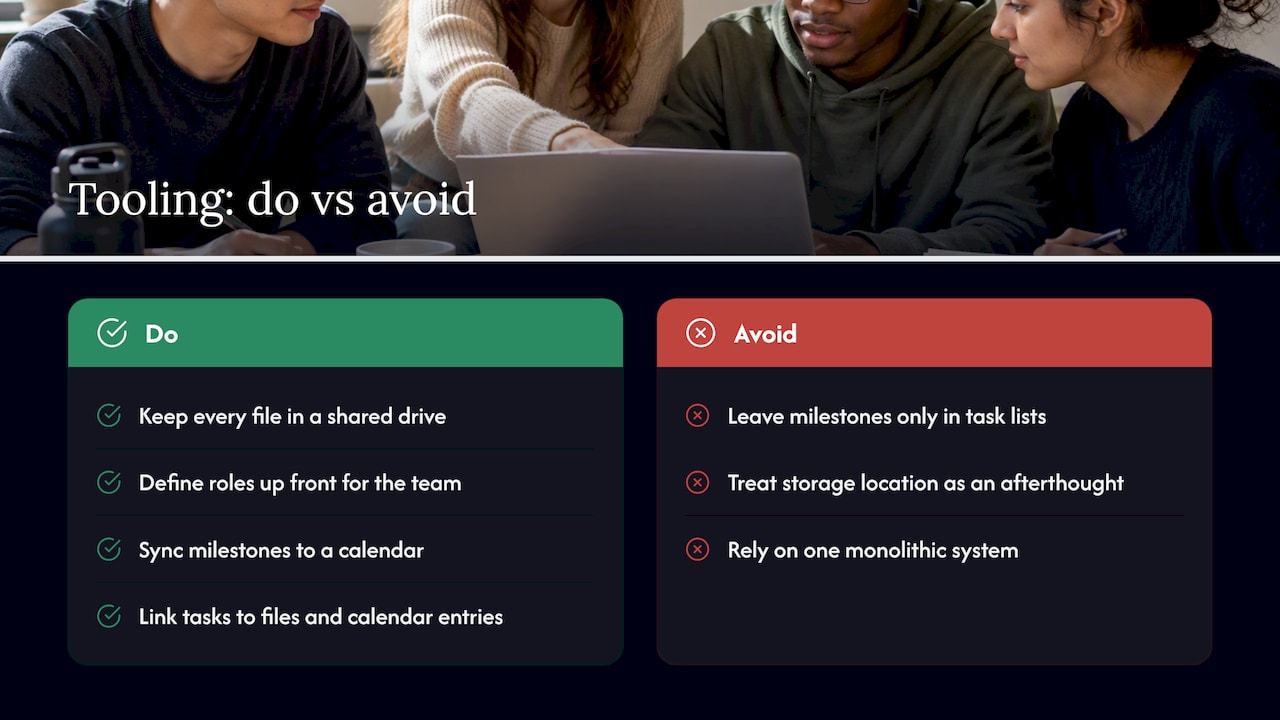
Students and early-career professionals typically combine a handful of tool types rather than one all-in-one system. A task and project app handles milestones, owners, and reminders. A shared drive such as Google Drive or a code repository such as GitHub holds the actual files and version history. A calendar app anchors milestones to real time blocks.
Cornell’s course guidance has student teams keep every file in a shared drive and define roles up front, treating the storage location as part of the project setup rather than an afterthought. For individual academic work, a structured planning workflow can also help sequence research and drafting steps before you touch the task app at all; a six-step content-planning workflow like the one described by Babylovegrowth shows how a similar staged approach applies outside coursework too.
Calendar integration matters more than most students expect. A milestone sitting only in a task list is easy to postpone. The same milestone synced to a calendar with a fixed time slot competes for attention the way a class or meeting does. Whatever combination you choose, link the pieces together: the task app should point to where the files live, and the calendar should reflect the milestones the task app tracks, so you never have to remember which tool holds the current version of anything.
How Optiostation thinks about running projects in an app
Some productivity apps are designed around the idea that planning should stay light enough to actually use daily, not just at the start of a project. A Roman-themed concept positions the user as the leader with the app acting as a second-in-command, handling reminders and structure so focus can remain on the work itself.
Guides and templates, including timeline and checklist templates, may be shaped by user feedback from students and young professionals. If you have a project sitting as a messy to-do list, try using a checklist to give it real milestones.
— Optiostation
Try Optiostation for your next project
The features described here correspond to capabilities commonly found in task and team management apps, including milestones, ownership assignments, hashtag-based search, color-coded life aspects, smart reminders, and calendar integration that links milestones to fixed time blocks.
Starting a free project takes a few minutes: open the app, create a new project, add three to five milestones, and assign owners as described in the checklist above. Our timeline and checklist templates are ready to copy into your first project rather than build from a blank screen. For plan details and the Prioritization Station product line, visit Optiostation directly.
Sources
- Classroom group projects using industry-based communication tools — Clemson University
- NASA Work Breakdown Structure Handbook (SP-3404)
FAQ
What is the difference between a task and a project?
A task is a single action you can finish in one sitting. A project involves multiple deliverables, several people, dependencies between steps, or scheduled checkpoints, which is why it needs milestones and owners rather than a single line item.
How do I break a group project into milestones?
Start by defining the final deliverable and its definition of done, then split it into three to five stages such as research, draft, review, and final submission. Clemson University’s guidance on group projects recommends assigning each stage to a named teammate rather than leaving ownership open.
What is MCII and how does it help with exam prep?
MCII, or implementation-intention planning, means writing specific “If [obstacle], then [action]” cues instead of vague study goals. A 2026 study of 87 students found this approach linked to more concentrated and efficient exam-week study when the cues were tied to concrete situations like a class time or location.
What should a team charter include?
A short team charter should name each person’s role, set a decision rule for disagreements, establish a meeting or check-in schedule, and define an escalation path if someone stops responding. Northeastern’s guidance on student teams treats this kind of early setup as a leading way to prevent mismatched expectations later.
Where should I store project files and documents?
Shared, versioned locations like Google Drive or GitHub work best, linked directly from the project entry in your task app. Cornell’s team workflow guidance has student teams centralize files this way from the start rather than scattering them across individual devices.
