

You can build a working paid time off tracker in Excel with three sheets: a one-row-per-person master list, a leave log where every absence gets its own row, and a balance sheet that calculates what is left with a few formulas. Hours are the safest unit, and the whole thing takes an afternoon. This guide walks through the layout, the exact formulas, the checks that keep it accurate and the policy questions to settle before you type a single header.
TL;DR
- Use three sheets: Employee Master (one row per person), Leave Log (one row per absence) and Balances (formulas only).
- Track in hours, not days, so half days and part-time schedules do not make balances drift.
- Core formulas:
NETWORKDAYS.INTLfor request length,SUMIFSfor hours used, and a monthly accrual rate for earned time. - Confirm plan year, accrual frequency and carryover limits with your employer before you build.
- Update on a fixed weekly schedule, and lock or shade every formula cell so nobody overwrites it.
Table of Contents
- What a good Excel PTO tracker contains
- Set up the Employee Master
- Build the Leave Log
- Calculate accrual and remaining balance
- Show leave on a calendar
- Make the sheet harder to break
- Confirm the rules before you build
- Where a spreadsheet fits, and where your planning happens
- Plan the work around your time off with Optio
- FAQ
- Sources
What a good Excel PTO tracker contains
Start with the smallest useful version. One published guide says the minimum fields are employee name, annual PTO days or hours, and days or hours used, and it suggests adding the usage date, accrual method, request date and approval date as the tracker grows (Oyster). That is a sound foundation, but a single flat table runs into trouble the first time someone takes two separate weeks or a partial day.
A sturdier design separates three jobs:
| Sheet | Job | What you type | What Excel calculates |
|---|---|---|---|
| Employee Master | Who is tracked and on what terms | Name, ID, start date, annual hours, accrual rate, carryover cap | Nothing |
| Leave Log | Record of every absence | ID, leave type, start, end, status, notes | Hours per request |
| Balances | Current position | Nothing | Accrued, used, remaining |
The rule that makes this work: names live in the Employee Master once and nowhere else, as one practitioner’s setup guide puts it (ThePayStubs). Every other sheet looks the person up by ID. That way a misspelled name cannot create a phantom second employee with a full balance.
Why hours beat days
Tracking in hours is more reliable than days for part-time staff and partial-day absences, because it prevents small rounding errors from piling up in the balance (ThePayStubs). A 4-hour dentist appointment is 4 hours. In a days-based sheet it becomes 0.5, then someone with a 6-hour shift takes “half a day” and the numbers no longer match payroll. If your policy is written in days, convert once in the Employee Master (days times the standard shift length) and keep everything downstream in hours.
Set up the Employee Master
Create a sheet named Employees with these columns in row 1:
- A: Employee ID (unique, never reused)
- B: Name
- C: Start date
- D: Annual PTO hours (for example 120 for 15 eight-hour days)
- E: Monthly accrual hours (formula:
=D2/12) - F: Carryover cap (hours)
- G: Carried-in hours (what rolled over from last plan year, entered manually once a year)
Format it as a table (Insert, then Table) so new rows inherit the formulas automatically. Then name the table tblEmp. Named ranges make later formulas readable.
If your employer writes accrual per pay period instead, convert it to a monthly rate. One template guide gives the example of 26 biweekly periods at 0.58 days, which works out to about 1.25 days a month (TableTemplates). Multiply by your shift length to get hours.
Build the Leave Log
The log is your audit trail. Each absence is recorded in its own row that is never overwritten, with employee ID, leave type, start and end dates, total hours and approval status (ThePayStubs). If a request changes, add a new row marked as a correction, or change the status to Cancelled. Never delete the history.
Set up a sheet named Log:
| Column | Header | Notes |
|---|---|---|
| A | Employee ID | Drop-down from the Employee Master |
| B | Leave type | Drop-down: PTO, Sick, Unpaid, Holiday swap |
| C | Start date | Date format |
| D | End date | Date format |
| E | Half day? | Drop-down: No, Morning, Afternoon |
| F | Hours | Formula |
| G | Status | Drop-down: Requested, Approved, Denied, Cancelled |
| H | Notes | Free text |
Another template guide suggests logging each request with employee, department, leave type, start and end dates, half-day flag, status and notes, with only approved rows feeding the balances (Absenca). That status gate matters: a pending request should never reduce a balance, and a denied one should never count at all.
Calculate hours for each request
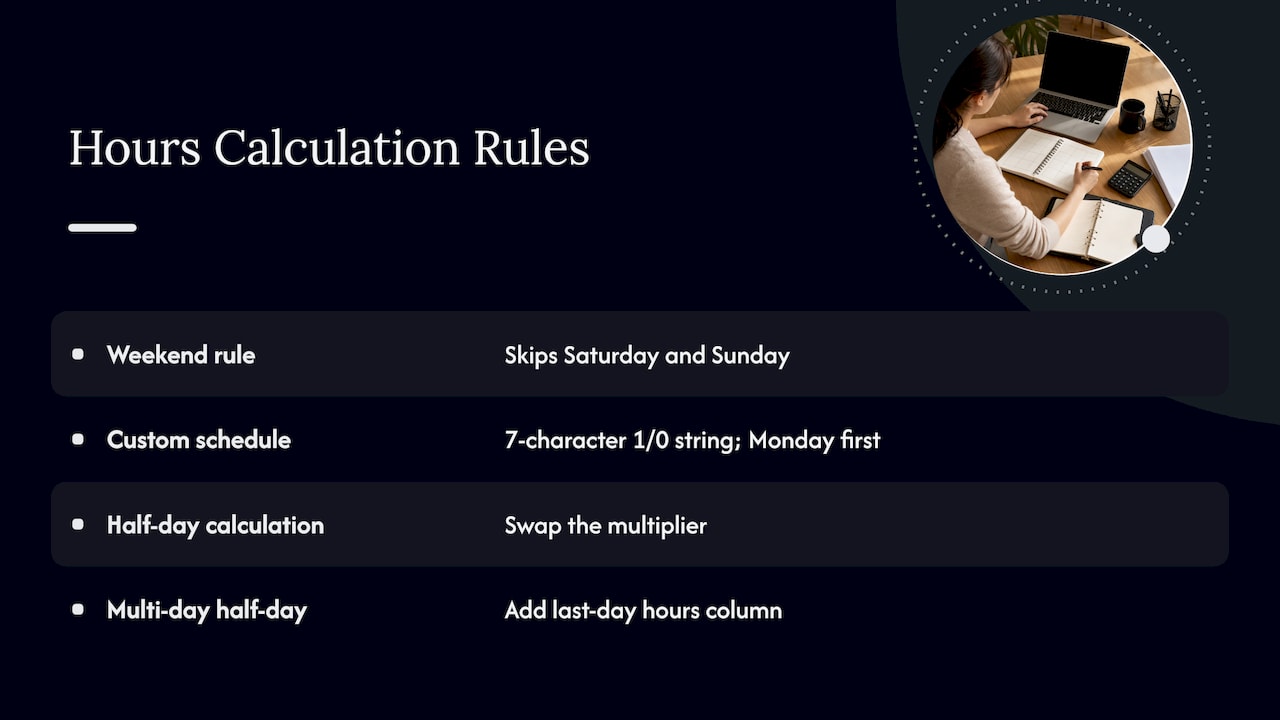
The obvious formula is end minus start plus one, but that counts weekends and public holidays. NETWORKDAYS.INTL measures working days between two dates while skipping weekends and any holiday dates you list in a range (ThePayStubs).
First create a sheet called Holidays with one date per row in column A and name the range Holidays. Then in Log!F2:
=IF(C2="","",NETWORKDAYS.INTL(C2,D2,1,Holidays)*8)
The 1 is the weekend code for Saturday and Sunday. The 8 is the standard shift length in hours. For a half day, swap the multiplier:
=IF(C2="","",IF(E2="No",NETWORKDAYS.INTL(C2,D2,1,Holidays)*8,4))
This assumes a half day is a single date. If your team takes half days at the end of a multi-day trip, add a second column for the hours deducted on the last day.
For employees on a different schedule, such as a four-day week, NETWORKDAYS.INTL also accepts a seven-character string of ones and zeros in place of the weekend code, where 1 marks a non-working day (Monday first). A Monday-to-Thursday worker would use "0000111".
Calculate accrual and remaining balance
On a sheet named Balances, list each employee ID in column A (pull them with =Employees!A2), then use these columns.
B: Months elapsed in the plan year. With the plan-year start date in a cell named PlanStart:
=DATEDIF(PlanStart,TODAY(),"m")+1
The +1 assumes time is credited at the start of each month. Remove it if your policy credits at month end. For someone hired mid-year, use the later of the plan start and their start date in place of PlanStart.
C: Accrued hours this year:
=MIN(Employees!D2, B2*Employees!E2)
The MIN stops accrual from passing the annual entitlement.
D: Carried-in hours, capped:
=MIN(Employees!G2, Employees!F2)
E: Hours used (approved PTO only):
=SUMIFS(Log!F:F,Log!A:A,A2,Log!B:B,"PTO",Log!G:G,"Approved",Log!C:C,">="&PlanStart)
F: Hours pending:
=SUMIFS(Log!F:F,Log!A:A,A2,Log!B:B,"PTO",Log!G:G,"Requested")
G: Remaining balance:
=C2+D2-E2
H: Available after pending requests:
=G2-F2
That last column is the one managers actually use when someone asks, “Can I take next Friday?”
A worked example
Say Maya has 120 annual hours, so 10 hours accrue each month. She carried in 16 hours, under a 40-hour cap. It is the end of June, so the plan year (January start) shows 6 months, or 7 with the +1 rule.
| Item | Hours |
|---|---|
| Accrued (6 months at 10) | 60 |
| Carried in | 16 |
| Approved PTO used (a 5-day week plus a half day) | 44 |
| Remaining balance | 32 |
| Pending request (2 days) | 16 |
| Available after pending | 16 |
If the numbers on your sheet do not reproduce a hand calculation like this, fix the formulas before you add any real data.
Tiers and carryover
Some policies grant more time with tenure. Advanced templates handle tenure tiers and capped carryover without macros (TableTemplates). You can do the same with a small lookup table: years of service in one column, annual hours in the next, and an XLOOKUP or VLOOKUP in the Employee Master’s annual-hours column using =DATEDIF(C2,TODAY(),"y") as the key, with approximate match on.
Show leave on a calendar
A balance tells you what is left. A calendar tells you whether three people are out the same week. A simple month grid works: dates across the top, employees down the side, and an X for each day of approved leave, with weekends shaded (Absenca).
For the X, use this in the first grid cell (employee ID in column A, the date in row 1):
=IF(COUNTIFS(Log!$A:$A,$A2,Log!$G:$G,"Approved",Log!$C:$C,"<="&B$1,Log!$D:$D,">="&B$1)>0,"X","")
Then use Conditional Formatting with a rule =WEEKDAY(B$1,2)>5 to shade weekends and a second rule to fill any cell containing an X. Add a final row counting the Xs in each column and highlight any day above your minimum-coverage threshold.
Make the sheet harder to break
Most PTO spreadsheets fail not on math but on handling. Five habits prevent nearly all of it.
- Use drop-downs for every categorical field. Select the cells, open Data, then Data Validation, choose List, and point to a range. This removes typos like “Aproved” that silently drop a request out of your
SUMIFS. - Validate dates. Set the End date column to accept only dates on or after the Start date: Data Validation, Date, greater than or equal to
=C2. - Protect formula cells. Lock the Balances sheet and the Hours column, and leave only the input columns unlocked before turning on sheet protection.
- Add a checks cell. For example,
=COUNTIFS(Log!G:G,"")counts log rows with no status, and=COUNTIFS(Balances!G:G,"<0")counts negative balances. Put both at the top of the Balances sheet with a red fill when above zero. - Update on a fixed weekly schedule. Refresh balances every week instead of only when someone asks, which keeps errors small and catches them while people still remember the request (ThePayStubs).
Keep a dated backup copy before each plan-year rollover, since that is the moment carryover is entered by hand.
Confirm the rules before you build
A tracker only reflects policy if you know the policy. Before building, settle the plan year (calendar or anniversary), accrual frequency and carryover limits so the sheet encodes rules that can actually be enforced (FirstHR). Ask your HR contact or read the handbook for:
- Plan year: January to December, or each person’s hire anniversary?
- Accrual: per pay period, monthly, or granted up front?
- Carryover: is there a cap, or a use-it-or-lose-it date?
- Payout: is unused time paid at separation? This varies by employer and by state, so ask HR rather than assuming.
- Leave types: is sick time separate from PTO, or pooled?
- Holidays: which company holidays are not charged to PTO?
Allowances and public holidays also differ by country, and Oyster recommends an allowance column unless PTO is unlimited (Oyster). The same source notes that Excel suits a small team in a single country but gets harder to keep accurate once employees are spread across several countries with different holidays and legal allowances. If you manage a distributed team, give each country its own Holidays range and its own weekend code.
Where a spreadsheet fits, and where your planning happens
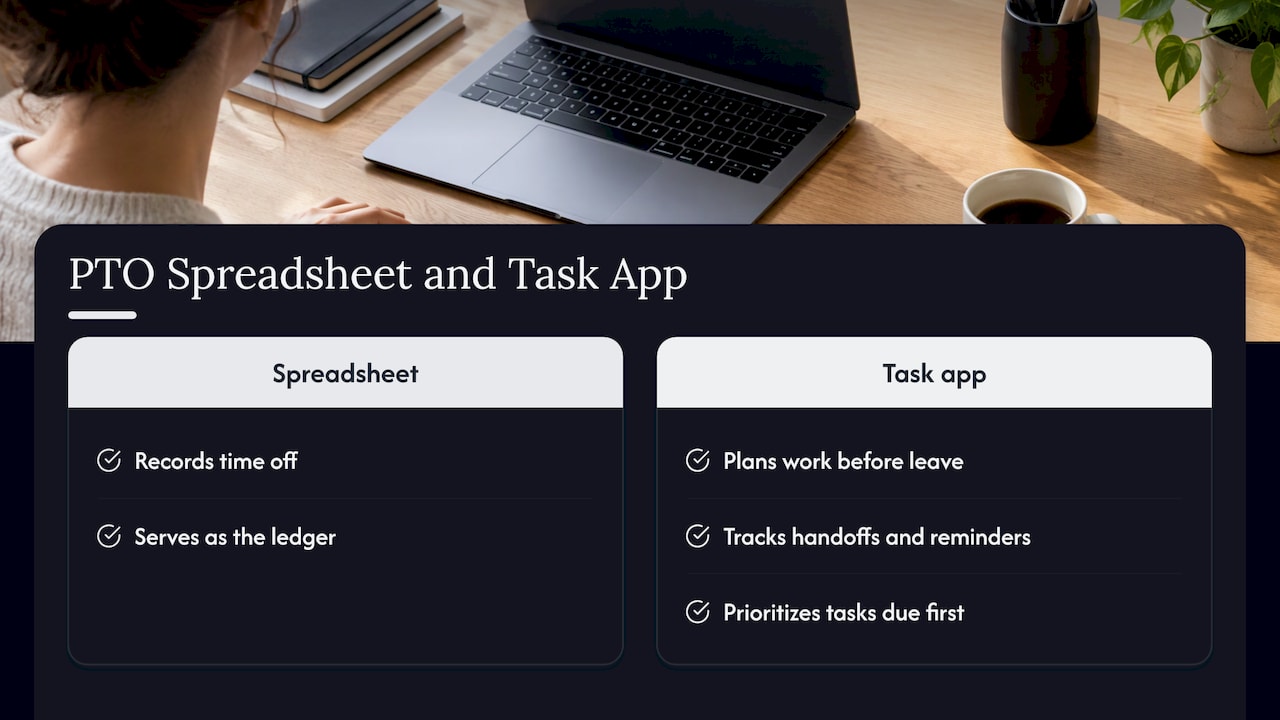
A spreadsheet is a good record of time off. It is not where you plan the work around it. Before a week away, you want the tasks that must finish first, the handoffs to teammates and the reminders to send, and those live better in a task tool than in a leave log.
If you want more on choosing a dedicated tool for the record-keeping itself, our guides cover time off tracking software, a vacation day tracker, a sick time tracker and vacation tracking for teams. For a broader comparison, see our paid time off tracker roundup.
Our perspective
We built Optio Station for students and young professionals who juggle classes, shifts, projects and a life outside them. In our experience the hard part of time off is rarely the arithmetic. It is the week before you leave, when everything due needs a place and a priority.
That is why we think of a PTO spreadsheet and a task app as partners. The spreadsheet is the ledger. Optio is the second-in-command that helps a Centurion decide what gets done before the break: tasks, projects, smart reminders, color-coded life aspects and Google Calendar integration in one place.
We are an indie-built app and we shape it with feedback from our community, so we keep it simple and flexible. Take the ledger from this guide, then let Optio keep the work around your time off in order.
Optiostation
Plan the work around your time off with Optio
Once your balance says you can go, the next question is what has to happen before you do. Optio Station is a mobile app for task, team and time management made for college students and young professionals. You can sort tasks by priority, organize projects, set smart reminders, color-code the areas of your life and connect Google Calendar so your leave days sit next to your deadlines.
See how it works on the Optio Station home page, or read how to keep track of tasks at work and manage team tasks before your next break.
FAQ
How do I track PTO in Excel?
Create an Employee Master, a Leave Log and a Balances sheet. Log each absence as its own row with a status, calculate hours with NETWORKDAYS.INTL, and let SUMIFS total only approved hours per employee. Remaining balance is accrued plus carried-in hours minus hours used.
What is the formula for PTO accrual in Excel?
Divide annual hours by 12 for a monthly rate, then multiply by months elapsed: =MIN(Annual, Months*Annual/12). If your policy is per pay period, convert it first. For instance, 26 periods of 0.58 days comes to about 1.25 days a month (TableTemplates).
Should I track PTO in hours or days?
Hours. They handle partial days and part-time schedules without rounding drift (ThePayStubs). If your policy states days, multiply by the standard shift length once and work in hours from there.
How do I keep track of my own PTO as an employee?
Use a simplified version: one row per absence in a log, plus a cell showing your annual allowance minus approved hours. Check the number against your employer’s official balance each pay period, and ask HR if the two differ.
Sources
- PTO Tracker Excel: Formulas, Accruals, and Setup (2026), ThePayStubs
- How to make a PTO and vacation tracking spreadsheet, Oyster
- PTO Tracker Excel Template with Automatic Accrual, TableTemplates
- Free Excel Leave Tracker Template, Absenca
- Free PTO Tracking Spreadsheet for Small Business, FirstHR
