

You can create a task in Microsoft Teams in three ways: turn a chat or channel message into a task, add a task inside a Planner plan, or build one in your personal task list. The fastest is the message route: point to the message, open the More options menu (…), choose Create task, fill in the dialog and select Add task. The rest of this guide covers each route, how to assign work, where your tasks end up, and how to keep a group project from turning into a pile of half-remembered chat promises.
TL;DR
- To turn a message into a task, point to it, select More options (…), choose Create task, complete the dialog and select Add task.
- Tasks you create for yourself go to your personal To Do list. Tasks you create in a plan are Planner tasks you can assign to teammates.
- A Planner plan must be tied to a Team, and a single task can be assigned to several plan members.
- Find everything again in the Tasks by Planner and To Do app in Teams.
- For a lighter, mobile-first way to rank and track what matters, Optio is the second-in-command built for students and young professionals.
Table of Contents
- Before you start: what you need
- Method 1: Create a task from a message
- Method 2: Create a task directly in a plan
- Method 3: Create a personal task from your task list
- Add details and assign the task
- Find and track your tasks
- Can Teams create tasks automatically?
- Common mistakes when creating tasks in Teams
- Our perspective
- Keep your priorities in your pocket
- FAQ
- Sources
Before you start: what you need
Teams does not have a task engine of its own. Its tasks come from two Microsoft tools that appear inside Teams: To Do for personal lists and Planner for shared plans. The Teams app that shows both is called Tasks by Planner and To Do, and it puts your individual lists and your Planner plans in one place.
In practice that means two things.
- You need a Teams account from a school or workplace that includes these apps. Universities commonly provide them. The University of Texas, for example, provides Planner to its employees under its Microsoft master agreement at no extra charge. If the Tasks app is missing in your Teams sidebar, ask your IT help desk whether it is enabled for your organization.
- Shared plans live inside a Team. The same UT guidance notes that plans must be associated with an existing Team. If you want a plan for a class project or a department, someone has to create or own the Team first.
If you only want a private to-do, none of that matters. Your personal list works on its own.
Method 1: Create a task from a message
This is the route most people want, because the task is born where the request was made. Someone writes “can you send the revised slides before Thursday?” and you convert it on the spot.
- Open the chat or channel that holds the message.
- Point to the message and select More options (…).
- Choose Create task.
- Complete the task dialog.
- Select Add task.
Indiana University’s IT training team describes exactly this sequence, and notes it works for a one-to-one or group chat message as well as for a channel post or reply.
What the dialog lets you set
In the Create task dialog you can change the task name, choose where the task is created, set a priority and due date, and edit the notes. The task also keeps a link back to the source conversation, so you can return to the original thread instead of hunting for it.
Two habits make this route much more useful:
- Rewrite the name. A pasted message such as “ok sounds good, can someone grab the survey results” makes a poor task title. Change it to “Download survey results and add to shared folder.”
- Set the due date immediately. A task with no date is a wish. If the message gave a deadline, copy it into the dialog before you click Add.
Where the task goes
The “choose where to create it” step matters more than it looks. According to an Australian IT services provider’s help article, picking your own Tasks option creates an individual To Do task, while picking a plan creates a Planner task, and the fields you see depend on that destination. So decide first whether this is your private reminder or something the group needs to see.
| If you pick | You get | Best for |
|---|---|---|
| Your own Tasks list | A personal To Do task | Follow-ups only you handle |
| A plan | A Planner task on the shared board | Work that teammates need to see or share |
Method 2: Create a task directly in a plan
When you are organizing a whole project rather than reacting to one message, start from a Planner plan.
- Open the channel where your project lives.
- Add a Planner tab (select + at the top of the channel and pick Planner).
- Create a new plan, or pick an existing one for that Team.
- On the board, choose to add a task, type a name and confirm.
The UT guide confirms that you can organize your tasks by adding one or more Planner tabs to a team channel, and then work on the plan from Teams or from Planner on the web. Each plan has its own board, where tasks are grouped into buckets, usually by status or by person.
A sensible starting set of buckets for a class or work project is To do, In progress, Waiting on someone, and Done. Four columns are enough. More than that and nobody updates the board.
Using a weekly view alongside the board
A board shows status, but it does not show your week. Many students pair it with a simple weekly planner layout so due dates from different plans land on one calendar page and nothing collides.
Method 3: Create a personal task from your task list
Open the Tasks by Planner and To Do app from the Teams sidebar. Your individual lists sit alongside your Planner plans, so you can add a quick personal item without opening a project board. Use this for the small things: book the study room, email the professor, renew your parking permit.
A good rule: if a task will not matter to anyone else, keep it personal. If a teammate would be blocked by it, put it in the plan.
Add details and assign the task
A task title alone rarely gets work done. In a Planner plan you can attach due dates, labels, checklists, files, links, progress, discussions and assignees.
To assign a task:
- Open the task card.
- Select Assign.
- Choose a plan member. You can choose more than one: the UT guidance says a task can be assigned to up to 11 plan members.
Only people who belong to the plan can be picked, so add teammates to the Team first if a name does not appear.
How to write a task people actually finish
The format that works across almost every team:
- Start with a verb. “Draft,” “send,” “review,” “book.”
- Name the finished state. “Draft intro section (300 words) in the shared doc.”
- Add one date. Not a range.
- Break big tasks into a checklist. “Prepare presentation” becomes: outline, slides 1 to 5, slides 6 to 10, rehearse.
- Assign one owner, even when several people help. Shared ownership is often no ownership. Use multi-assignment when the work truly is identical for each person, such as “each person submits their reading summary.”
We go deeper on splitting work fairly in our guide on how to manage team tasks.
Find and track your tasks
Creating tasks is half the job. The other half is seeing them again. Open the Tasks by Planner and To Do app and you can see your individual To Do lists and reach your Planner plans from one screen. Teams can also notify you when a task is assigned to you in Planner, as the UT guidance points out.
A weekly check keeps this honest:
- Open your task list on a fixed day, for example Monday morning.
- Clear anything finished.
- Re-date anything overdue, or delete it. An overdue task you will never do is clutter.
- Pick the three that matter most this week.
Step 4 is where most people struggle, because a long list treats everything as equal. If you want a method for ranking, read our piece on prioritization techniques. And when tasks are scattered across Teams, email and notes, an AI assistant for college students can help you keep a calendar and errands in view alongside your coursework.
Can Teams create tasks automatically?
Teams can, with help. Microsoft’s automation tool, Power Automate, can be used to build flows that make a Planner or To Do task when a trigger happens, such as a flagged email or a message you select. Setting this up means building a flow with a trigger and an action, and your organization may restrict who can do that. If you are in a company or school tenant, ask your IT team whether Power Automate is available to you before you plan around it.
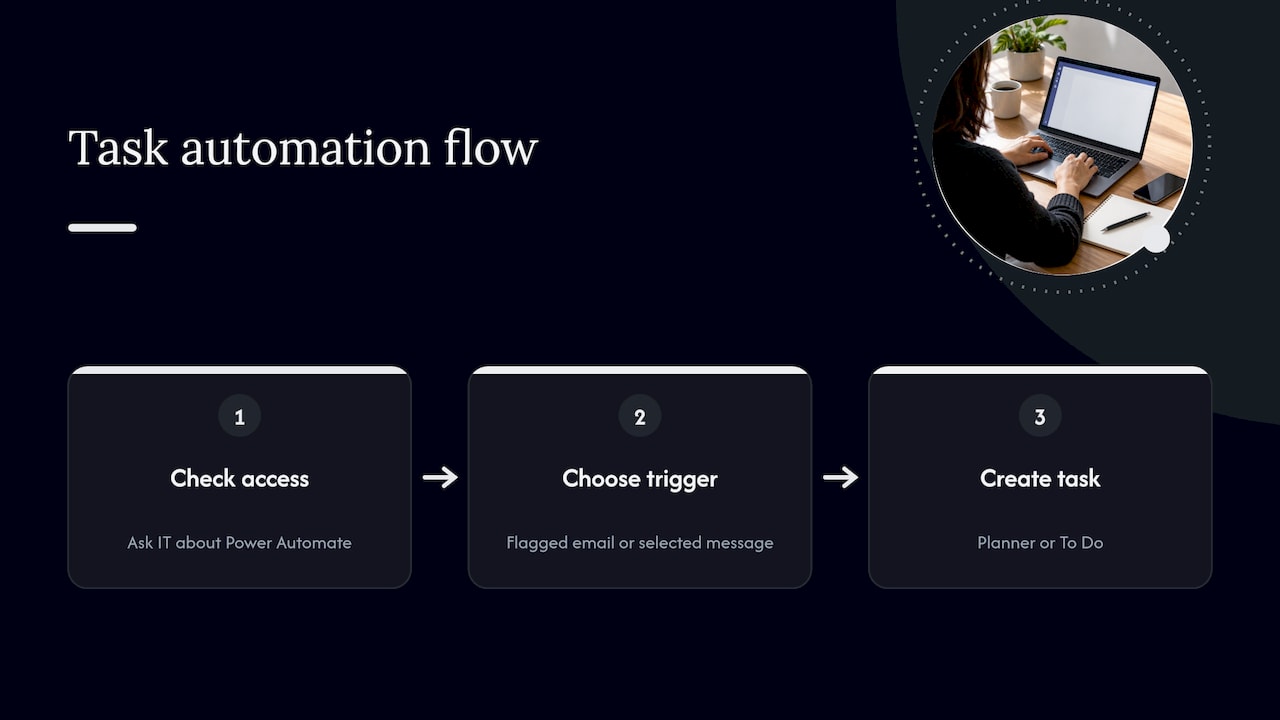
For most student groups and small teams, automation is overkill. The manual “message to task” step takes about fifteen seconds, and doing it by hand forces you to rewrite the task title and set a date, which is precisely what makes the task usable.
Common mistakes when creating tasks in Teams
- Leaving tasks in the chat. A request that lives only in a message scrolls away within a day. Convert it.
- Creating a personal task for shared work. Your teammates cannot see it. Choose a plan when others depend on it.
- Vague titles. “Look into stuff” will still be there next month.
- Too many plans. One plan per project is plenty. Ten plans for ten tiny jobs mean ten places to check.
- No weekly review. Boards decay without one.
If you want a ready structure for group work, our team task list template gives you columns and fields to copy.
Our perspective
We built Optio because most people’s problem is not creating tasks. It is deciding which ones to do first, and remembering them when they are buried in chat.
Teams is excellent for conversation, and turning a message into a task is a good habit. But a task manager tucked behind a chat app tends to be opened only at your desk. Students and young professionals live on their phones, between lectures, commutes and shifts. We designed Optio as a mobile app for task, team and time management, with you as the Centurion and Optio as your second-in-command.
Our approach is simple: capture the task fast, color-code it by area of life (school, work, personal), set a smart reminder, and see it next to your calendar through Google Calendar integration. We are indie-built and we actively fold feedback from our community into the app, so the tool keeps shaping itself around the people using it.
Use Teams for the conversation. Use a focused mobile tool to keep your own priorities straight.
Optiostation
Keep your priorities in your pocket
If Teams is where your group talks but your own week still feels scattered, Optio gives you one place for tasks, team work and time. Create a task in seconds, color-code it by life area, add a smart reminder, find it later with hashtag-based search, and see it alongside Google Calendar.
See how it works on the Optio Station home page, or compare options in our best task management software guide.
FAQ
Can I create a task in Teams without Planner?
Yes, for personal tasks. When you convert a message and pick your own Tasks list, Teams creates an individual To Do task. Planner is only needed when you want a shared plan with assignees and a board.
Why can’t I find Create task on a message?
The option sits under More options (…) when you point to a message. If it is missing, your organization may not have the Tasks app enabled, so ask your IT help desk. The app is the same one that shows your To Do lists and Planner plans in Teams.
Can I assign one task to several people?
Yes. In a Planner task you select Assign and choose plan members. The University of Texas guidance says a task can go to up to 11 plan members. Everyone you pick must already belong to the plan.
Does the task keep the original message?
Yes. When you create it from a chat or channel message, the task retains a link to the source conversation, so you can jump back to the context.
What is the best way to keep track of tasks across apps?
Pick one place you check every day and funnel everything into it. Our guide on how to keep track of tasks at work walks through a simple routine.
Sources
- Managing and creating tasks in Microsoft Teams, Indiana University IT Training
- An Introduction to Microsoft 365 Tasks, Indiana University IT Training
- Planner, Microsoft 365 at the University of Texas at Austin
- Create a task from a Teams message, Rodin Managed IT Services
