

In this context, “G Suite applications” refers to mobile productivity apps built for students and young professionals, not Google’s cloud suite. These apps handle task management, time tracking, project organization, and team collaboration from your phone. The best ones pair those features with reminders and short reflection prompts, since research on self-regulated learning shows that combination is what actually changes behavior.
TL;DR:
- Most student productivity apps should include task management, time tracking, calendar and file integration, collaboration tools, and data export features.
- Focus timers and Pomodoro tools are more effective at reducing phone distractions than standalone apps with steep learning curves.
- Pairing apps with short self-regulated learning modules enhances their impact on resource management and metacognitive strategies.
- Testing an app with a one-week pilot on a single project is the best way to assess fit and avoid overcommitting early.
- Optiostation is specifically built for students, offering core productivity features with a freemium model, and benefits from a staged setup approach.
Table of Contents
- What Features Should a Student Productivity App Actually Have?
- Three Workflows That Turn Features Into Habits
- What the Research Actually Shows About Apps and Time Management
- How to Pick an App Without Wasting a Week Testing Options
- How Optiostation Fits the Checklist
- A 30-Day Plan to Make an App Actually Stick
- Try Optiostation Where Your Semester Actually Lives
- Sources
- FAQ
What Features Should a Student Productivity App Actually Have?
Most apps in this category advertise the same buzzwords. The features that matter come down to five categories. Skipping any one of them usually means you’ll bolt on a second app within a month.
- Task management primitives: tasks with subtasks, priority levels, and tags so you can filter a 40-item list down to “due today.”
- Time tools: built-in timers, session logs, and Pomodoro-style intervals for people who work better in focused chunks.
- Calendar and file integration: two-way calendar sync, file attachments, and offline access so a dead Wi-Fi signal doesn’t stall a deadline.
- Collaboration features: shared projects, comments, status updates, and role assignment for group work that doesn’t collapse into a group text.
- Search, goals, and export: tag-based or hashtag search, goal tracking, smart reminders, and a way to pull your data out if you switch tools later.
A review of productivity apps built for students found that apps with student-specific templates, like exam trackers and assignment timelines, tend to see faster adoption than general-purpose tools asking users to build their own system from scratch. The same review noted that focus timers and Pomodoro tools cut phone distractions more reliably than all-in-one platforms, which often carry a steeper learning curve. Pair a task manager that handles effective task management with a calendar sync feature, and you’ve covered most of what a student workflow needs without stacking five separate apps.
Three Workflows That Turn Features Into Habits
Features sit unused until you build a routine around them. These three workflows cover the situations students and young professionals hit most often.
- Study session flow: Set one specific goal (“finish chapter 4 practice problems”), pick a strategy, start the timer, then close with a two-minute review of what worked and what didn’t.
- Weekly planning: Import every deadline for the week, time block your calendar around them, then pick three big tasks to prioritize before anything else gets added.
- Group project management: Assign an owner to each task, set checkpoints, sync meetings straight to a shared calendar, and keep status notes short enough that nobody skips reading them.
Time tracking earns its place in this list because it corrects a habit almost everyone has: underestimating how long real work takes. Log your sessions for two weeks and you’ll usually find your “quick task” estimates were off by 30 to 50 percent, which is exactly the kind of miscalibration that causes overload heading into finals or a product launch.
Pro Tip: Log a session as soon as you start it, not after. Retroactive time logs are almost always rounded down, which quietly wrecks your weekly planning accuracy.
If time blocking on a calendar is new to you, a step-by-step time-blocking guide walks through the setup in under 15 minutes.
What the Research Actually Shows About Apps and Time Management
Apps alone don’t fix time management. Pairing an app with a short self-regulated learning module does. A study on students using a mobile application to support self-regulated learning found that combining an online SRL module with a mobile app improved resource management and metacognitive strategies more than app use alone. Diary-only tracking, where the app just logs entries with no prompts or guidance, showed limited effect on actual learning strategies.
A 2024 mixed-methods study found that 85% of participants reported better time management after using certain mobile apps, though the same study flagged learning-curve friction as a common early obstacle.
A separate 4-week field trial of a persuasive time-management app found gains in time management behavior, academic confidence, and lower reported stress among student participants. The pattern across all three findings is consistent: apps work best when they nudge you with short prompts, goal-setting steps, and review routines, not when they’re a passive log you fill out and forget.
How to Pick an App Without Wasting a Week Testing Options
Decide your primary need before you download anything. Are you trying to capture tasks quickly, protect focus time, or run an entire project end to end? Those are different jobs, and no single feature list solves all three equally well.
- Test setup friction: if templates take longer than 15 minutes to configure, that’s a red flag for daily use.
- Check calendar and file integrations, and confirm you can export your data if you switch tools later.
- Verify offline access and read the privacy policy on what data the app collects.
- Run a one-week pilot on a single assignment or project before committing your whole workflow to it.
Guidance on building a practical productivity stack recommends starting with the fewest tools that cover your core workflow, expanding only when a real gap shows up. Stacking niche apps for every task increases logins and context switching, which tends to undercut the productivity gains you were chasing in the first place.
How Optiostation Fits the Checklist
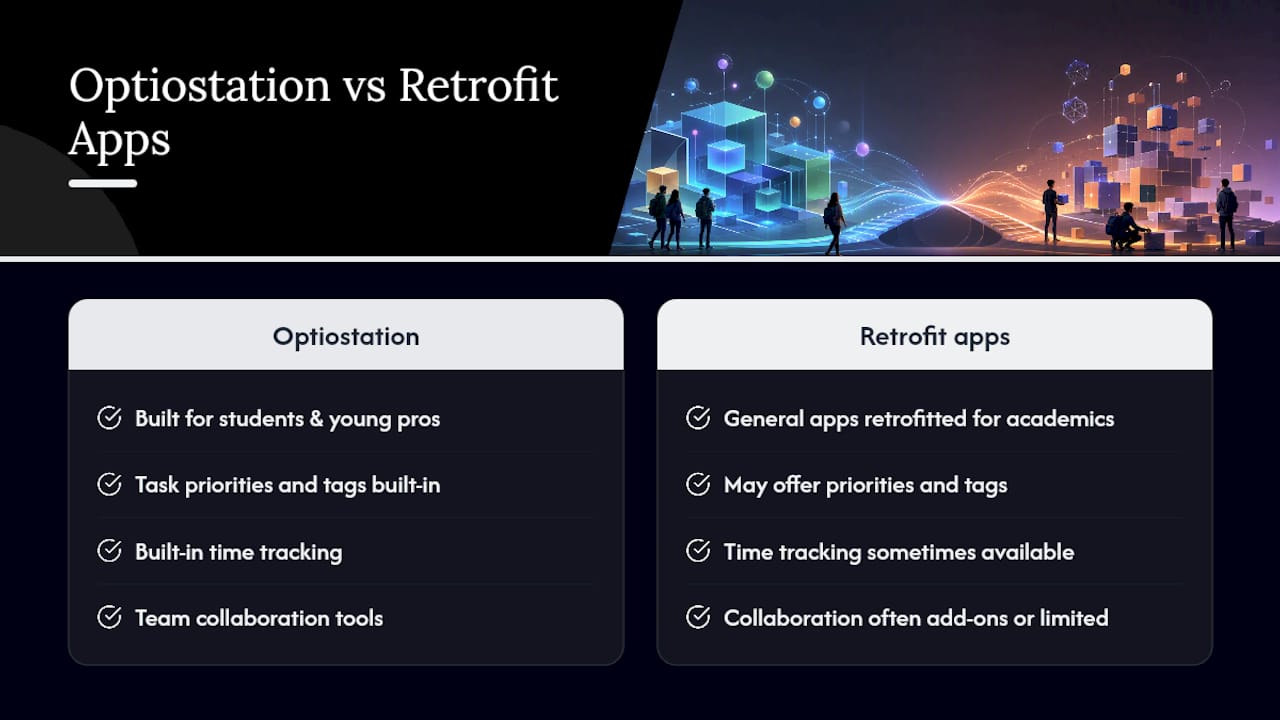
Optiostation was built specifically for students and young professionals, which puts it in a different category than general task apps retrofitted for academic use. Well-designed productivity apps often cover checklist items such as task priorities and tags, built-in time tracking, team collaboration tools for group projects, hashtag-based search, and calendar sync.
Some apps use thematic branding that frames the app as a supportive assistant and give users unique titles as part of the experience. It’s built around the idea that the app assists your judgment rather than replacing it. For deeper reading on how these apps fit into a broader workflow, Optiostation’s guide on what a productivity app actually is and its breakdown of essential organization tools for students cover the conceptual groundwork this article builds on.
A 30-Day Plan to Make an App Actually Stick
Most people abandon a new productivity app within two weeks, usually because they tried to migrate everything on day one. A smaller, staged rollout works better.
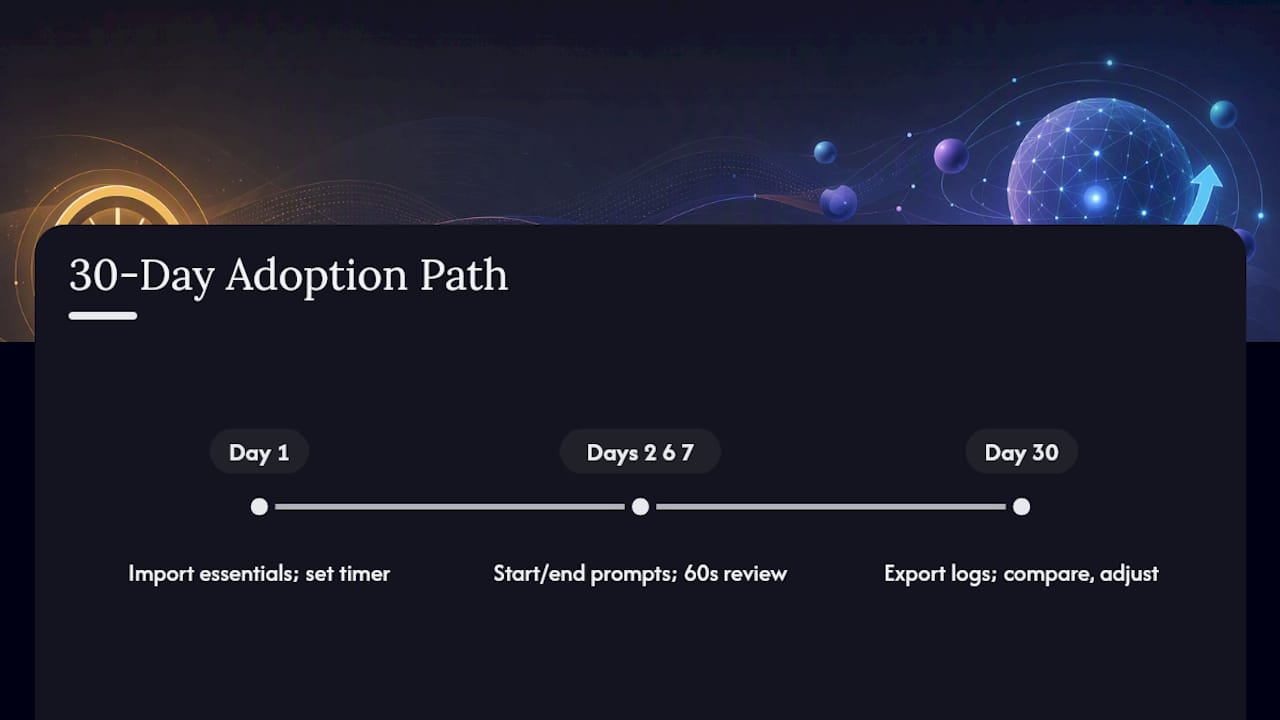
Day 1 (15 minutes): Import your current deadlines, create two projects, one for school or work and one personal, and set a single daily timer for your most important task block.
Days 2 through 7: Use a start prompt and end prompt for every work session, even a rough one. Close each day with a 60-second review of what got done.
Day 30: Export your time logs and compare planned hours against actual hours. Adjust your task templates, drop features you never touched, and decide whether a paid tier is worth it based on real usage, not assumptions.
The most common mistake is over-scheduling week one, then quitting when the system feels rigid. Fix it by tracking loosely for the first week and tightening only after you see your real patterns.
— Optiostation
Try Optiostation Where Your Semester Actually Lives
Some mobile-first apps combine notes, timers, and team communication tools in a single platform designed for student and early-career schedules. It’s a freemium app, so core task management, time tracking, and collaboration tools are available before you ever consider upgrading.
If you’re managing coursework alongside a job or an internship, the checklist earlier in this article, purpose, friction, integrations, and a one-week pilot, applies directly to how Optiostation is built. Start with the Prioritization Station landing page to see the current feature set, or read the breakdown of what makes a productivity app work before you commit to a full workflow migration. Either way, the next step is the same: download it, run the 15-minute setup from this article, and judge it on your own week’s data.
Sources
The research cited throughout this article comes from peer-reviewed and practitioner sources on student productivity and time management. The self-regulated learning mobile app study examines how app prompts paired with SRL instruction affect student strategy use. The mixed-methods time management study surveys university students on app-driven time management gains. The 4-week SortOut field study tracks stress and confidence outcomes from a persuasive time-management prototype. For toolkit advice, see the practical productivity stack guide and, for student content ideas, 100+ blog examples for students.
- Exploring Students’ Use of a Mobile Application to Support Their Self-Regulated Learning Processes
- Boosting Academic Achievement: The Impact of Mobile Apps on Time Management and Study Skills in University Students
- Persuasive time-management app field study (SortOut) — 4-week evaluation
- Build a Practical Productivity Stack (No Hype)
FAQ
What Is a G Suite Application in This Context?
Here, “G Suite applications” means mobile productivity apps built for students and young professionals, covering task management, time tracking, project organization, and team collaboration. It does not refer to Google’s cloud office suite. Apps like Optiostation fall into this category.
How Many Productivity Apps Should a Student Use?
Most guidance points to five or fewer core tools, since stacking too many niche apps increases logins and context switching without adding real value. One task manager, one calendar, and one time tracker usually covers the essentials.
Do Productivity Apps Actually Improve Time Management?
Research suggests they help most when paired with structured prompts rather than used as passive logs. A 4-week field study found measurable gains in time management behavior and lower stress among student participants using a persuasive time-management app.
How Much Does Optiostation Cost?
Optiostation runs on a freemium model, with core task, time, and collaboration features available for free and advanced capabilities in a paid tier. Current pricing details are available directly on the Optiostation site.
What’s the Fastest Way to Test if an App Fits My Workflow?
Run a one-week pilot on a single assignment or project instead of migrating your entire workload at once. Check setup friction, calendar integration, and export options during that trial before deciding whether to commit fully.
