

TimeCamp is a time tracking app. You record the hours you spend on projects and tasks, and it turns those records into timesheets, reports, budgets and attendance data. According to its help documentation, it comes as a web app, a desktop app and a mobile app. It was built mainly for teams, freelancers and agencies that need to know where hours go, and often to bill for them.
This guide covers what TimeCamp does, how to use it step by step, where it works well, where it gets in the way, and whether it is worth it if you are a college student or a young professional.
TL;DR
- TimeCamp is a SaaS time tracker that connects hours to projects, tasks, budgets, reports and attendance.
- You can track with a timer, by manual entry, from a calendar, or automatically through the desktop app.
- It shines for project work where hours matter, such as client billing or workload review.
- It can be too much if all you want is a personal to-do list. The mobile app is also a companion, not a full replacement for the web version.
- Check the automatic entries. Auto-categorizing can file work under the wrong project.
Table of Contents
- What TimeCamp is, in plain terms
- What TimeCamp can do: the main features
- How to use TimeCamp: a first-week workflow
- Mobile app: what it can and cannot do
- Benefits of TimeCamp
- Limits to know before you sign up
- Is TimeCamp worth it?
- Our perspective: tracking time is not the same as managing it
- Where Optiostation fits
- Making tracked time work for a study routine
- FAQ
- Sources
What TimeCamp is, in plain terms
The TimeCamp help guide describes it as software for tracking time spent on projects. It offers three versions:
- Web app: the full version, with every feature.
- Desktop app: records activity on your computer, such as documents, websites and apps. You can then assign that activity to projects or let keywords fill your timesheet.
- Mobile app: supports time tracking and GPS.
On review sites, the most common reason people use it is plain time tracking. On GetApp, time tracking is the top use case cited by reviewers, at 83%, and information technology and services professionals are the largest reviewer group at 19%. AWS Marketplace describes it as a cloud-based time tracking and workforce productivity platform for freelancers and organizations.
So the short answer to “what is TimeCamp used for” is this: it answers the question “where did my hours go, and who should pay for them?”
What TimeCamp can do: the main features
Here is the practical feature set, based on the vendor’s own documentation and tutorial.
Time tracking in four ways
The desktop app tutorial lists several methods, so you can pick the one that matches how you work:
- Timer: start and stop it as you move between tasks.
- Manual entry: add hours to a timesheet at the end of the day.
- Calendar review: check and adjust records laid out by date.
- Automatic tracking: the desktop app logs activity and sorts it for you.
Projects, tasks and budgets
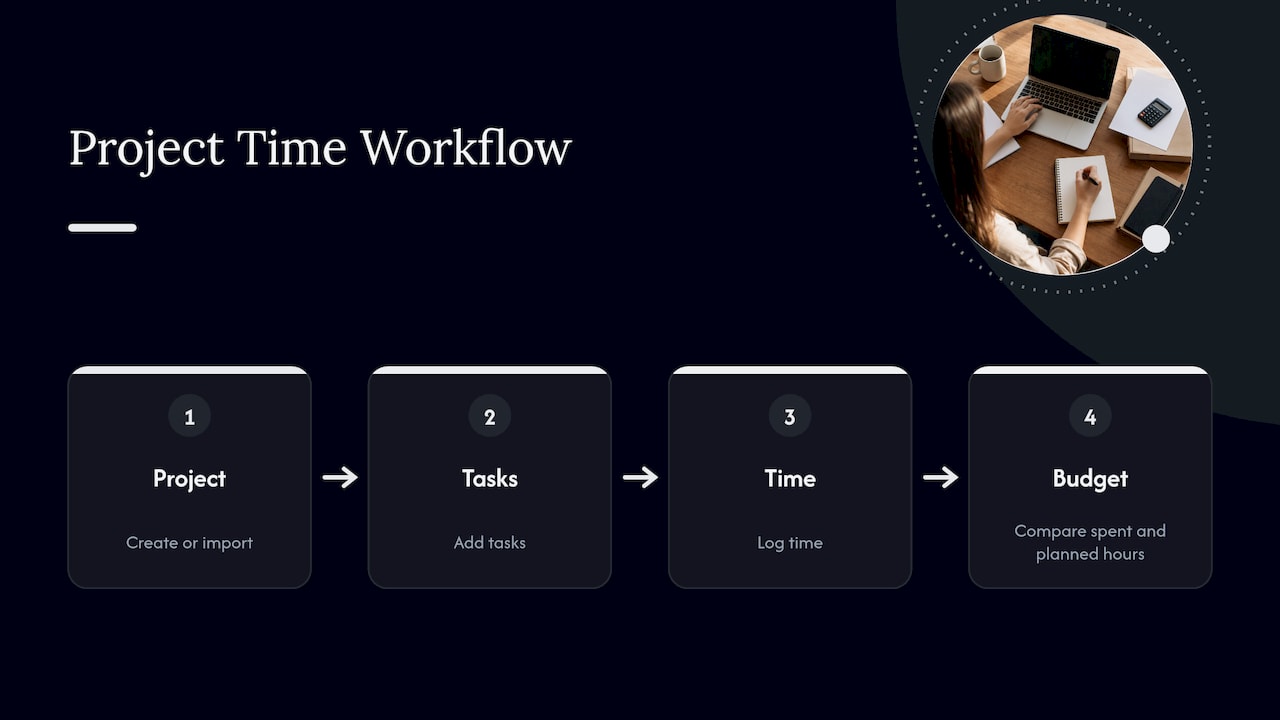
TimeCamp supports projects, subtasks and budgets. You create or import a project, add tasks, then log time against them. Budgets let you compare hours spent with hours planned, which is the part that matters for client work.
Keyword-based automatic assignment
You can set keywords so that activity containing them is assigned to a given task. If a window title includes a course code or a client name, the entry can land in the right place without you touching it.
Timesheets, reports and exports
Timesheets come in daily and weekly views. Reports summarize the records, and you can export them. In business settings the same data feeds invoices and attendance records.
Attendance and GPS
The help documentation says TimeCamp covers attendance information. The mobile app supports GPS, which suits field work more than studying.
Integrations
TimeCamp connects with external work tools. Which ones you get can depend on your plan, so check the current integration list before you commit to it.
Screenshots (optional)
A question people often ask is whether TimeCamp takes screenshots. According to TimeCamp’s own page on the feature, screenshots are optional and an account administrator turns them on. They are blurred, they only work while the desktop app runs, and they are deleted automatically after 60 days. If you are an employee or intern, ask your manager whether it is switched on.
How to use TimeCamp: a first-week workflow
The tutorial’s basic flow is simple: create or import a project, add tasks, choose a tracking method, check the timesheet, then use reports or exports. Here is how that looks in practice.
- Create an account and install the desktop app. Use the web app for setup, since it supports all features.
- Create two or three projects, not twenty. For a student, that might be one project per course. For a young professional, one per client or workstream.
- Add tasks under each project. Keep names specific enough to match with keywords later, such as the course code.
- Pick one tracking method and stick to it for a week. If you forget timers, try the end-of-day timesheet. If you work mostly on a laptop, try automatic tracking.
- Review entries every evening. This is the step people skip, and it matters most.
- Run a weekly report. Look at how hours split across projects and compare that with what you thought you did.
Why the daily review matters
The desktop app classifies activity using application names, website URLs, document or window titles, and task keywords, as described in the desktop app basics. That is clever, but it is only as good as your rules. If you keep research tabs for two courses open together, or use the same tool for two clients, an entry can land under the wrong project. Two minutes of checking prevents a messy report.
Using reports to understand your workload
Reports are where tracking pays off. Say you log a month of study and discover half your hours went to one subject while another got almost none. That is a plan you can fix. A good example of turning time data into a schedule is this guide to building an AI study plan for exam prep, which shows how a fixed number of weeks can be split across skills. The same logic applies to your own tracked hours: compare reality with the plan, then adjust.
Mobile app: what it can and cannot do
The help guide says the mobile app supports tracking and GPS, while some actions are not available there, including adding users, customized reporting and deleting projects. Treat the phone app as a way to start a timer or log time on the move, and do your admin on the web version.
Benefits of TimeCamp
- Hours tied to a purpose. Time entries connect to projects, budgets and reports, so the data is useful beyond a simple log.
- Flexible tracking. Timer, manual, calendar and automatic methods suit different habits.
- Useful for billing and workload review. If someone pays by the hour, or you need to prove how long something took, this is the core use.
- Multiple platforms. Web, desktop and mobile versions let you record time wherever you work.
- Attendance data. Teams that need presence records get them in the same tool.
Limits to know before you sign up
- Complexity for personal use. Its value comes from linking time entries to projects, reports, budgets and integrations. If you only want a personal task list, much of that will sit unused.
- Automatic tracking needs supervision. Entries can be filed incorrectly.
- Mobile is limited. Some administrative actions are web-only.
- Monitoring features. On a team account, an administrator may enable activity monitoring or screenshots. Know the rules at your workplace.
- Pricing changes. TimeCamp runs several plan tiers, and what is included changes. Read the current plans on the vendor’s site rather than relying on an old review.
Is TimeCamp worth it?
It depends on what you need the time data for.
| Your situation | Fit |
|---|---|
| Freelancer or intern billing hours to clients | Strong: budgets, reports and billing are the core |
| Young professional on a project team that reviews workload | Good: timesheets and reports help show where time goes |
| Student juggling courses, wanting to see where study hours go | Workable, but more than you may need |
| Anyone who mainly needs a to-do list and reminders | Probably overkill |
A useful rule: if you can name who will read the report, and what decision it supports, TimeCamp is worth a trial. If you cannot, you are collecting data for its own sake.
Our perspective: tracking time is not the same as managing it
We build Optiostation for college students and young professionals, and we see the same pattern often. People assume their problem is that they do not know how long things take. Usually the problem is earlier: they have not decided what comes first.
A time tracker answers “how long did it take?” after the fact. A prioritization tool answers “what should I do next?” before you start. Both matter, but if you are a student with five deadlines and a part-time job, the second question hurts more. Tracking every minute of a chaotic week gives you a precise record of a chaotic week.
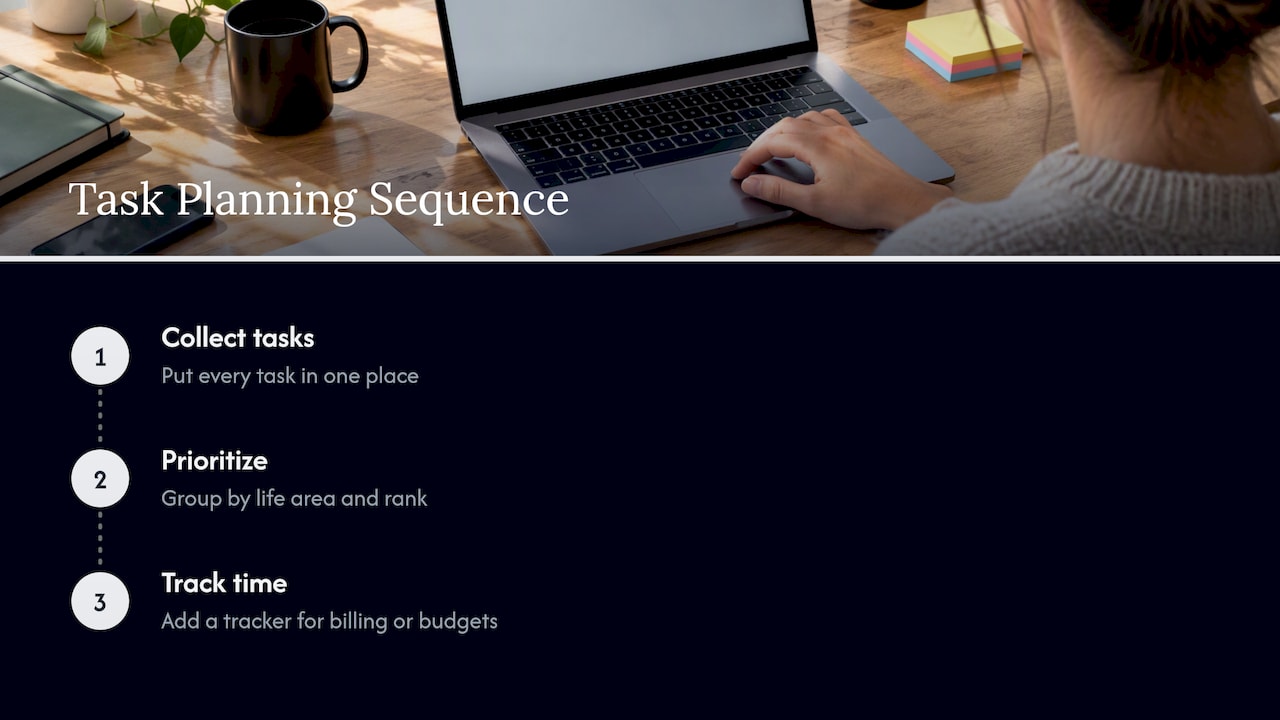
Our advice is to sequence it. First, put every task in one place, group it by area of life, and rank it. Then, if you need hard numbers for billing or a project budget, add a dedicated time tracker. If you are curious about the difference, our guides on what time tracking software is and what time management software is lay out where each fits.
We are an indie-built app, and we change it based on what our community tells us. That is why we favor simplicity and flexibility over a long feature list nobody asked for.
— Optiostation
Where Optiostation fits
If your real need is to organize tasks, set goals, and keep projects and teammates in line, Optiostation is made for that. You get task management, team collaboration, time tracking, goal setting, color-coded life aspects, smart reminders and Google Calendar integration in one mobile app, wrapped in a Roman theme where you are the Centurion and the app is your second-in-command. The core is free, with advanced features planned behind a subscription. Start with the Prioritization Station, or read how to manage tasks effectively as a student or professional.
Making tracked time work for a study routine
Tracking pays off when it feeds a decision. Three habits help whichever tool you use:
- Track by project, not by minute. Course-level or client-level totals are enough. Finer detail takes effort and rarely changes what you do.
- Compare planned and actual hours weekly. The gap shows where you underestimate.
- Protect your plan, not just your log. Language learners, for example, tend to improve when they schedule recurring sessions, a point made in this piece on making the most of your time with a Chinese tutor. Any independent study works the same way: block the time first, then record whether you kept it.
For more on this, see our guide to the role of time tracking in productivity.
FAQ
What is TimeCamp used for?
TimeCamp is used to record time spent on projects and tasks. That data becomes timesheets, reports, budgets, attendance records and, in business settings, invoices. Freelancers, agencies and teams are its main users.
Does TimeCamp take screenshots?
Only if an account administrator enables it. According to TimeCamp’s screenshot page, screenshots are blurred, work only while the desktop app runs, and are removed after 60 days.
Can I use TimeCamp on my phone?
Yes, for tracking and GPS. The help guide notes that some actions, such as adding users, customized reporting and deleting projects, are not available on mobile, so use the web app for those.
Is TimeCamp good for students?
It can work if you want to see how study hours split across courses, or if you bill tutoring or freelance hours. For a simple task list with reminders, a lighter app is usually a better match.
Sources
- Welcome to TimeCamp Help!
- TimeCamp desktop app basics
- TimeCamp desktop app tutorial
- TimeCamp: time tracking with screenshots
- TimeCamp on GetApp
- TimeCamp on AWS Marketplace
