

Choosing the right project management software can feel overwhelming, especially when Microsoft offers multiple options. Many students and young professionals assume Microsoft Project is the only tool available, but that’s not the case. Microsoft provides both Planner and Project Desktop, each serving different needs. This guide clarifies what Microsoft project management software includes, helping you understand which tool fits your workflow. You’ll learn how to pick between simple team collaboration features and advanced scheduling capabilities that build valuable career skills.
Table of Contents
- Key takeaways
- Overview of Microsoft project management software
- Core features and mechanics of Microsoft Planner and Project Desktop
- Choosing the right Microsoft project tool for students and young professionals
- Challenges, nuances, and empirical insights about Microsoft project management software
- Explore task and project management tools with Optio Station
- Frequently asked questions about Microsoft project management software
Key Takeaways
| Point | Details |
|---|---|
| Planner for simple collaboration | Planner provides basic task tracking and team collaboration within Microsoft 365 for beginners. |
| Project Desktop two versions | Project Desktop comes in Standard and Professional, offering advanced scheduling, resource management, and portfolio capabilities. |
| Project Online retirement 2026 | Project Online will retire on September 30, 2026, signaling a shift toward integrated cloud solutions. |
| Combine Planner and Desktop | Pairing Planner with Project Desktop covers both simple teamwork and detailed scheduling needs for hybrid workflows. |
Overview of Microsoft project management software
Microsoft’s project management ecosystem includes several distinct tools designed for different user needs. Understanding these options helps you select the right software for your skill level and project complexity.
Microsoft Planner and Project Desktop form the core of the company’s project management offerings. Planner integrates directly into Microsoft 365 subscriptions, making it accessible to anyone with a student or professional account. This tool excels at basic task tracking and team collaboration without requiring specialized training.
Microsoft Project Desktop comes in two versions: Standard and Professional. These desktop applications provide sophisticated scheduling capabilities, resource management, and dependency tracking. Project Desktop appeals to users who need detailed project plans with precise timelines and budget controls.
Project Online, the cloud-based enterprise solution, will retire on September 30, 2026. This retirement reflects changing preferences in how organizations manage large-scale projects. Enterprises now favor more flexible, integrated solutions over standalone project management platforms.
Key components of Microsoft’s project management suite include:
- Planner for lightweight task management and team coordination
- Project Desktop Standard for individual project managers and small teams
- Project Desktop Professional for advanced portfolio management and enterprise reporting
- Integration with Teams, SharePoint, and other Microsoft 365 apps
- Mobile apps for on-the-go task updates and status checks
Understanding these components allows you to match your current abilities with the right tool. Beginners benefit from Planner’s simplicity, while those building project management careers gain valuable experience with Project Desktop’s professional features.
Core features and mechanics of Microsoft Planner and Project Desktop
Each Microsoft project management tool offers distinct capabilities that serve different project types and skill levels. Knowing these features helps you leverage the right tool for each situation.
Microsoft Planner provides straightforward task management through an intuitive interface. You create tasks, assign them to team members, set due dates, and track progress using board or grid views. Tasks can be organized with dependencies and viewed in Timeline format, though Planner lacks the advanced scheduling found in Project Desktop. The tool integrates seamlessly with Microsoft Teams, allowing conversations and file sharing directly within task cards. Planner supports basic Agile workflows through buckets that function as sprints or project phases.
Project Desktop delivers professional-grade project management capabilities. The software includes Gantt charts for visual timeline representation, critical path analysis to identify schedule risks, and resource leveling to prevent team overload. Project Desktop supports Waterfall methodologies with robust baseline tracking and variance reporting. You can establish task dependencies like finish-to-start relationships, add lead or lag time, and manage complex resource assignments across multiple projects.

Pro Tip: Start with Planner for group assignments and side projects, then practice Project Desktop skills using Gantt chart templates to build your resume with in-demand scheduling expertise.
Here’s how the tools compare across key features:
| Feature | Microsoft Planner | Project Desktop |
|---|---|---|
| Task creation | Simple cards with checklists | Detailed tasks with custom fields |
| Dependencies | Basic timeline view | Full dependency types with lag/lead |
| Gantt charts | Not available | Professional Gantt with critical path |
| Resource management | Basic assignments | Advanced resource leveling and tracking |
| Collaboration | Real-time with Teams integration | Limited real-time, file-based sharing |
| Learning curve | Minimal, immediate productivity | Steep, requires training investment |
| Cost | Included with M365 | Separate purchase required |
| Best for | Team coordination, simple projects | Complex scheduling, certification prep |
Planner’s board view mimics popular tools like Trello, displaying tasks as cards you drag between columns representing project stages. The grid view provides spreadsheet-style task lists with filtering and sorting options. Charts automatically visualize task status, member workload, and bucket progress without manual configuration.
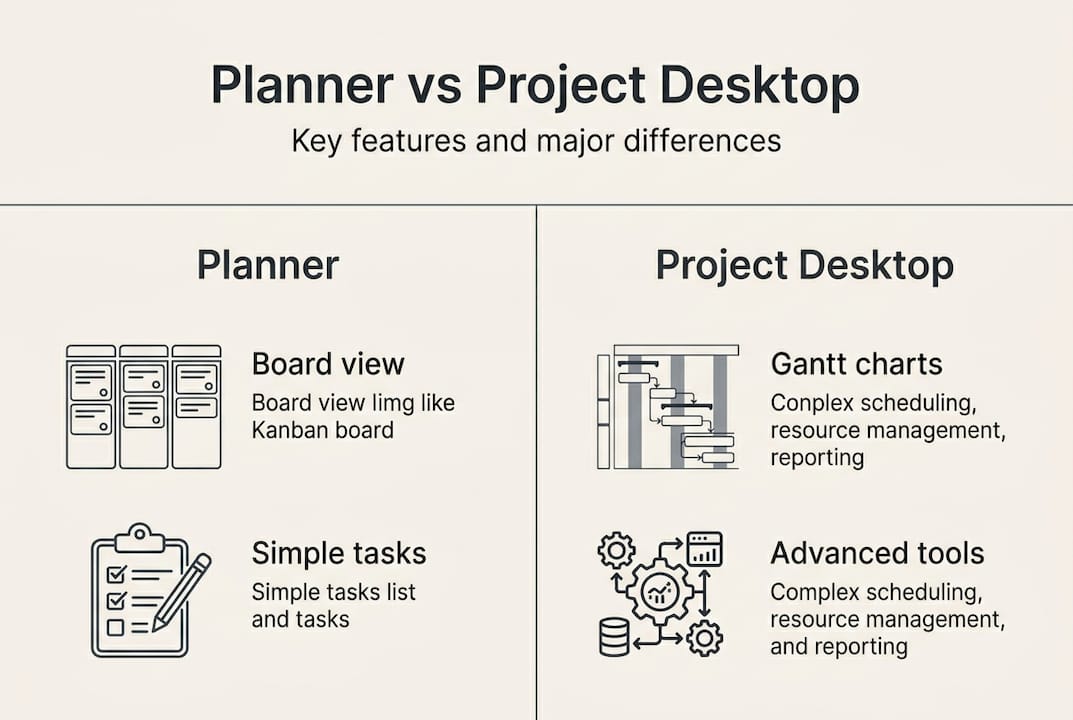
Project Desktop offers multiple views beyond Gantt charts, including Network Diagram for dependency visualization, Resource Sheet for capacity planning, and Calendar view for timeline presentation. The software calculates project finish dates automatically based on task durations, dependencies, and resource availability. You can save baselines to compare planned versus actual performance, a critical skill for professional project managers.
Both tools sync with Outlook for calendar integration and support file attachments through OneDrive or SharePoint. However, Project Desktop requires more deliberate planning upfront, while Planner accommodates iterative, flexible workflows that adapt as projects evolve.
Choosing the right Microsoft project tool for students and young professionals
Your choice between Planner and Project Desktop depends on your current needs, career goals, and willingness to invest in skill development. Both tools serve valuable purposes at different stages of your project management journey.
Planner suits beginners and M365 users who need immediate productivity without training overhead. If you’re managing group assignments, club activities, or simple work projects, Planner provides everything necessary for effective task management. The tool requires no installation beyond your existing Microsoft 365 subscription, making it accessible on any device with internet access.
Project Desktop builds resume-worthy PM skills that employers value, particularly for roles requiring PMP, PRINCE2, or other project management certifications. Learning Gantt charts, critical path analysis, and resource optimization demonstrates serious commitment to the profession. These capabilities appear frequently in job descriptions for project coordinators, business analysts, and management consultants.
Pro Tip: Dedicate 30 minutes weekly to Project Desktop tutorials using free sample projects from Microsoft’s template library. This consistent practice builds confidence with advanced features without overwhelming your schedule.
Consider these factors when selecting your primary tool:
- Project complexity: Simple coordination tasks versus multi-phase initiatives with dependencies
- Team collaboration needs: Real-time updates versus detailed planning documentation
- Skill development goals: Quick productivity versus building professional expertise
- Career trajectory: General business roles versus specialized project management positions
- Available resources: Included M365 access versus budget for standalone software
- Time investment: Immediate use versus learning curve acceptance
A hybrid approach often works best for students and young professionals. Use Planner for team collaboration in Microsoft Teams where quick updates and shared visibility matter most. Practice Project Desktop for personal skill building, creating detailed project plans for significant initiatives like thesis research, event planning, or portfolio projects.
Your choice isn’t permanent. Many professionals start with Planner during college, then transition to Project Desktop as they pursue project management roles or certifications. The key is matching your current situation while keeping future growth in mind.
If you’re unsure which tool to prioritize, start with Planner for immediate productivity. Once you’ve mastered basic project concepts like task breakdown, timeline estimation, and status tracking, explore Project Desktop to deepen your expertise. This progression builds foundational skills before tackling advanced scheduling techniques.
Challenges, nuances, and empirical insights about Microsoft project management software
Understanding the practical limitations and research-backed performance data helps set realistic expectations for Microsoft’s project management tools. Both Planner and Project Desktop face specific challenges that affect user experience and adoption.
Project Desktop’s steep learning curve creates barriers for new users who need immediate productivity. The software requires understanding project management concepts like work breakdown structures, resource calendars, and earned value analysis before you can leverage its full capabilities. Real-time collaboration also lags behind cloud-native alternatives, as Project Desktop primarily uses file-based sharing rather than simultaneous editing.
Planner’s simplicity becomes a limitation for complex projects requiring detailed scheduling and resource management. You cannot create multi-level task hierarchies, track actual versus planned hours, or generate sophisticated reports without exporting data to other tools. The platform works best for projects with fewer than 50 tasks and straightforward timelines.
Forrester research shows Planner delivers 346% ROI with payback periods under four months for organizations leveraging existing Microsoft 365 investments.
This impressive return reflects Planner’s zero additional cost for M365 subscribers and minimal training requirements. However, the same research notes complexity and cost concerns when scaling Project Desktop across large companies. Enterprise deployments require IT support, license management, and ongoing training programs that increase total ownership costs.
Key challenges to consider:
- Planner lacks advanced reporting and portfolio management features
- Project Desktop requires significant time investment to achieve proficiency
- Integration between Planner and Project Desktop remains limited
- Mobile experiences vary in functionality compared to desktop versions
- Customization options in Planner are minimal compared to specialized tools
The retirement of Project Online in 2026 reflects enterprise preferences shifting toward more integrated, flexible solutions. Organizations increasingly favor tools that combine ease of use with powerful features, rather than choosing between simplicity and sophistication. This trend influences how Microsoft positions its project management offerings going forward.
Cost considerations matter for students and young professionals. While Planner comes with your existing M365 subscription, Project Desktop requires a separate purchase starting around $620 for the Standard version. Professional versions cost significantly more, making them impractical for individual skill building unless your employer provides licenses.
Despite these challenges, both tools maintain strong user bases. Planner’s integration with Teams drives adoption among organizations already using Microsoft 365. Project Desktop remains the standard for industries like construction, engineering, and consulting where detailed scheduling and resource management are non-negotiable requirements.
For students exploring free project management alternatives, understanding these nuances helps evaluate whether Microsoft’s tools match your specific needs or if other platforms better serve your learning goals and project requirements.
Explore task and project management tools with Optio Station
Mastering project management software takes more than understanding features. You need practical strategies for applying these tools to real-world challenges you face as a student or young professional.
Optio Station provides expert guidance on selecting and using task management software that fits your workflow. Our comprehensive task management guide compares top platforms, helping you make informed decisions based on your specific needs. Whether you’re coordinating group projects, managing internship responsibilities, or building professional skills, you’ll find actionable advice tailored to your situation.
Explore practical techniques for managing tasks effectively across different scenarios. Learn proven methods for prioritizing work, tracking progress, and maintaining productivity without overwhelming yourself. Our resources address common challenges like balancing multiple deadlines, collaborating with distributed teams, and keeping track of tasks at work when juggling competing priorities. These strategies complement whatever project management software you choose, ensuring you maximize its value.
Frequently asked questions about Microsoft project management software
What are the main differences between Microsoft Planner and Project Desktop?
Planner offers simple task management with board and grid views, integrated collaboration through Teams, and minimal learning curve. Project Desktop provides advanced scheduling with Gantt charts, task dependencies, resource management, and critical path analysis but requires significant training investment.
Is Microsoft Project Online still available after 2026?
No, Microsoft Project Online will retire on September 30, 2026. Organizations using Project Online must migrate to alternative solutions like Project for the web or third-party platforms before this deadline.
Can college students access Microsoft Planner for free?
Yes, most colleges provide Microsoft 365 Education licenses that include Planner at no additional cost. Check with your institution’s IT department to confirm your access and activate your account.
Which Microsoft project tool is best for beginners?
Microsoft Planner is ideal for beginners because it requires no specialized training, integrates with familiar Microsoft 365 apps, and provides immediate productivity. You can create tasks, assign work, and track progress within minutes of starting.
How does Microsoft Project support advanced scheduling techniques?
Project Desktop enables advanced scheduling through task dependencies with finish-to-start, start-to-start, finish-to-finish, and start-to-finish relationships. You can add lead or lag time, set task constraints, level resources automatically, and analyze the critical path to identify schedule risks and optimize timelines.
Recommended
- Best free project management software for students 2026 – Optio Station: Best Project Management App for Prioritization
- Best project management software for students in 2026 – Optio Station: Best Project Management App for Prioritization
- Project Management Software: Complete Guide for 2025 – Optio Station: Best Project Management App for Prioritization
- What Is Project Management Software? Complete Breakdown – Optio Station: Best Project Management App for Prioritization
- What is team collaboration software? 40% efficiency boost | Rule27 Design
