

TL;DR:
- Time blocking in Google Calendar involves creating busy events or using Focus Time and Out of Office for enhanced protection. Properly managing event status, visibility, and buffers ensures an effective schedule, especially when using secondary calendars. Pairing these blocks with task management tools like Optiostation enhances productivity and focus.
Time block in Google Calendar by creating an event, leaving the guest field empty, and setting the status to Busy. That single move tells everyone who can see your calendar that you’re unavailable, without revealing what you’re doing. For stronger protection, Google Workspace users can use Focus Time (mutes chat, auto-declines meetings) or Out of Office (auto-declines with a custom message). Personal account users get the standard Busy event, which works just as well for most situations.
The three methods at a glance:
- Busy event — works on every account type; set visibility to Private to hide the title while still showing Busy to others.
- Focus Time — Workspace/school accounts only; mutes chat notifications and can auto-decline new meeting invites.
- Out of Office — auto-declines invites and sends a custom message; best for blocks that absolutely cannot be interrupted.
Pro Tip: Before you build a full schedule, block just your top two deep-work sessions for tomorrow. One small win beats a perfect system you never start.
Table of Contents
- How to time block in Google Calendar, step by step
- Advanced options: recurring blocks, buffers, and multiple calendars
- What to actually block and when to schedule it
- Common mistakes that kill a time-blocking system
- Copy-paste event templates you can add right now
- Why blocks show as available or don’t sync
- Key Takeaways
- Why the “perfect schedule” is the wrong goal
- Optiostation keeps your tasks and calendar blocks in sync
- Useful sources
How to time block in Google Calendar, step by step
Desktop (web browser)
- Open calendar.google.com and click the time slot you want to block.
- Name the event something specific: “Deep Work: Project Draft” beats “Busy.”
- Set the start and end time. Leave the Guests field empty.
- Click More options to open the full editor.
- Under Status, choose Busy (not Free).
- Under Visibility, choose Private if you want to hide the title from others.
- Save. Done.
For Focus Time on a Workspace account, click the time slot, select Focus time from the event-type menu, then toggle on Do not disturb and Automatically decline meetings before saving. Note: Focus Time creation is only available in Day or Week view, not Month view.
Mobile (Google Calendar app)
Tap the “+” button, choose Event, add a title, set the time, then tap More options and confirm the status reads Busy. The mobile app does not currently support creating Focus Time events directly — use the desktop site for that.

Google also lets you block time for a specific Task directly from the calendar UI, which links the block to a task and sends reminders until you mark it complete.
Feature availability at a glance
| Feature | Personal account | Google Workspace / School |
|---|---|---|
| Busy event | ✓ | ✓ |
| Private visibility | ✓ | ✓ |
| Focus Time | ✗ | ✓ (Day/Week view only) |
| Out of Office | ✓ | ✓ |
| Task-linked block | ✓ | ✓ |
Advanced options: recurring blocks, buffers, and multiple calendars
Recurring time blocks
Open the event editor, click Does not repeat, and choose your cadence: daily, every weekday, weekly, or a custom pattern. For deep-work blocks, “every weekday” is usually the right starting point. When a holiday or one-off conflict comes up, click that single occurrence and choose This event to edit only that instance without touching the rest of the series.
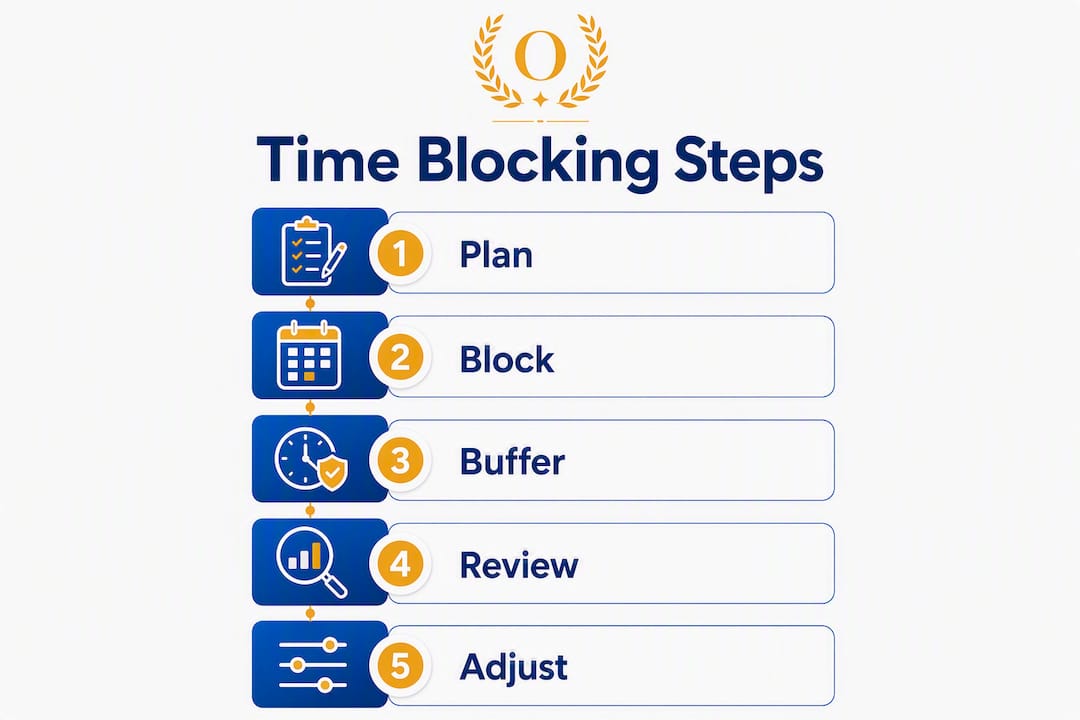
Buffer time
Buffers are just short events placed before or after a main block. A 10–15 minute buffer before a deep-work session gives you time to close tabs and settle in. A 15–30 minute buffer after a long meeting prevents the next block from starting while your head is still in the previous conversation. You don’t need a special feature — create a short event titled “Transition” or “Wrap-up” and set it to Busy.
Using a secondary calendar for blocks
Create a dedicated secondary calendar named “Time Blocks” or “Deep Work.” Assign all your blocking events to it instead of your main calendar. The payoff: you can toggle the entire calendar on or off with one click, which hides all blocks when you’re sharing your screen in a meeting without touching any individual event. It also prevents accidentally editing a meeting when you meant to move a block.
For distributed teams, calendar sync strategies matter more than most people realize — a block that shows correctly on your desktop can appear as Free on a colleague’s view if the account sync hasn’t completed.
Sync caveats
Always confirm the correct Google account is active before creating a block, especially if you’re signed into multiple accounts. Focus Time events only appear in Day and Week views — they won’t show in Month view, which can make your schedule look open when it isn’t.
What to actually block and when to schedule it
The most common time-blocking mistake isn’t a technical one. People block time for the wrong things at the wrong hours, then wonder why the system collapses by Wednesday.
Prioritize deep work during peak energy windows — for most people, that’s the first few hours of the workday. Batch low-focus tasks like email and admin into a single slot later in the day to cut context-switching.
A practical daily rhythm that holds up:
- Morning planning block (15–30 min): review the day, confirm your blocks are still accurate, and set your top priority.
- Deep-work block 1 (90–120 min): your hardest, most important task. No notifications.
- Deep-work block 2 (90–120 min): second priority, ideally before or just after lunch.
- Email/admin batch (30 min): once in the late morning, once mid-afternoon.
- End-of-day review (15–30 min): close loops, update tomorrow’s blocks.
Day theming takes this further. Assign whole days or half-days to one category: “Planning Mondays,” “Focus Tuesdays,” “Meetings Wednesdays.” It reduces the mental overhead of deciding what to work on each morning.
Color-coding by category makes the whole system readable at a glance. A suggested scheme: blue for deep work, green for personal, yellow for admin, purple for learning. You’ll know your week’s shape in three seconds without opening a single event.
Common mistakes that kill a time-blocking system
Over-optimistic scheduling is the most frequent failure point. Productivity experts recommend blocking 30 minutes for morning planning and 30 minutes for an evening review specifically to prevent overfilling the day. If every hour is blocked, there’s no room for reality.
Other mistakes worth fixing now:
- Forgetting to set Busy — an event left on Free still looks open to anyone scheduling a meeting with you. Always check the status field before saving.
- Mixing meetings and blocks on the same calendar — use the secondary “Time Blocks” calendar so you can manage them independently.
- No buffers — back-to-back blocks with no transition time guarantee you’ll run late and feel behind by noon.
- Making blocks too rigid — if a block gets disrupted, move it rather than abandoning it. A shifted block still protects more time than no block at all.
For blocks that truly cannot be moved, use Out of Office. It auto-declines new meeting invites and lets you send a custom message explaining you’re unavailable. You can choose to decline only new invites or both new and existing ones.
Copy-paste event templates you can add right now
These are ready to drop into Google Calendar. Adjust the times to match your schedule.
- Morning Planning | 8:00–8:30 AM | Daily (weekdays) | Color: Yellow | Description: Review today’s blocks. Confirm top priority. Check for conflicts.
- Deep Work: [Project Name] | 9:00–11:00 AM | Mon/Wed/Fri | Color: Blue | Status: Busy, Private | Description: No email. No Slack. Work only on [specific deliverable].
- Email Batch | 11:30 AM–12:00 PM | Daily | Color: Yellow | Description: Process inbox. Reply, archive, or defer. No new tasks.
- Deep Work: [Project Name] | 1:00–2:30 PM | Tue/Thu | Color: Blue | Status: Busy, Private | Description: Second focus session. Continue or start next priority.
- Weekly Review | 4:30–5:00 PM | Every Friday | Color: Green | Description: Review completed tasks. Plan next week’s blocks. Clear open loops.
To duplicate a template, open the event, click the three-dot menu, and select Duplicate. Change the title, day, or time as needed. For different time zones, open the event editor and use the time zone selector next to the start time — Google Calendar handles the conversion automatically.
Why blocks show as available or don’t sync
| Problem | Likely cause | Quick fix |
|---|---|---|
| Block shows as Free | Status set to Free, not Busy | Edit event → change Status to Busy |
| Block missing from colleague’s view | Wrong account selected when creating | Delete and recreate on the correct account |
| Focus Time not visible | Month view active, or personal account | Switch to Day/Week view; personal accounts use Busy instead |
| Out of Office not declining | Set to decline new only, not existing | Edit event → change decline setting |
| Mobile block not syncing | App cache stale | Force-close app, reopen, or refresh web view |
If Focus Time isn’t available on your account, you’re likely on a personal Gmail account. The workaround: create a standard Busy event and manually enable Do Not Disturb in Google Chat. It achieves the same interruption resistance.
Key Takeaways
Time blocking in Google Calendar works when you combine the right event type (Busy, Focus Time, or Out of Office) with recurring blocks, buffers, and a secondary calendar for clean organization.
| Point | Details |
|---|---|
| Set status to Busy | Every block needs Busy status; add Private visibility to hide details from others. |
| Start with two deep-work blocks | Build the habit with morning planning plus two 90–120 min focus sessions before adding more. |
| Use a secondary calendar | A dedicated “Time Blocks” calendar lets you toggle all blocks on/off without touching meetings. |
| Add buffer events | Short 10–30 min transition events before and after blocks prevent schedule bleed. |
| Optiostation pairs with your blocks | Use Optiostation to manage the tasks that live inside each calendar block and track follow-through. |
Why the “perfect schedule” is the wrong goal
Most people approach time blocking like a puzzle — every hour filled, every task assigned, no gaps. That’s the setup for abandonment by day three.
The system that actually holds is boring by design: two recurring deep-work blocks, a planning slot, a review slot, and enough white space that one disrupted meeting doesn’t cascade into a ruined afternoon. Theming days by category (all meetings on Tuesdays, all focused writing on Thursdays) removes the daily decision of what to work on, which is often where the real time goes.
Pairing calendar blocks with a task management approach matters more than most guides admit. A blocked hour with no defined task attached to it is just a reservation. The follow-through comes from knowing exactly what you’re sitting down to do when the block starts. That’s the gap between a calendar that looks productive and one that actually is.
Optiostation keeps your tasks and calendar blocks in sync
You’ve built the blocks. Now the question is what goes inside them.
Optiostation is the task layer your Google Calendar blocks are missing. While your calendar holds the time, Optiostation holds the work: recurring task templates that match your recurring blocks, visual priority lanes so you always know what to tackle first, and reminders that fire when a block starts so you don’t spend the first ten minutes deciding what to do. It’s built for students and young professionals who want a system that’s fast to set up and easy to maintain.
Check out Optiostation’s guide to essential time management apps to see how it fits alongside the tools you already use, or head to optiostation.com to get started.
Useful sources
- Google Calendar Help: Use Focus Time — official documentation on Focus Time behavior, account requirements, and Do Not Disturb settings.
- Google Workspace Learning Center: Manage your time in Calendar — covers Focus Time, Out of Office, and general scheduling tips for Workspace accounts.
- Google Workspace Updates: Block time for Tasks in Calendar — announcement of the Task-linked blocking feature.
- calendar.google.com — the Google Calendar web app; use it for Focus Time creation and full event editor controls.
- Optiostation: Time blocking how to reclaim your day — practical templates and Optiostation-specific workflows for time blocking.
- Optiostation: Time blocking for students and professionals — broader strategies for pairing calendar blocks with task management.
Recommended
- Time Blocking Time Management for Students and Pros – Optio Station: Best Project Management App for Prioritization
- Time blocking how to: reclaim your day and focus – Optio Station: Best Project Management App for Prioritization
- Time Management Time Blocking for Focused Productivity – Optio Station: Best Project Management App for Prioritization
- Daily Planning Routine How To Boost Productivity Easily – Optio Station: Best Project Management App for Prioritization
