

Nearly 60 percent of American college students feel overwhelmed trying to juggle assignments and internship tasks each week. With so much packed into every day, finding a smarter way to organize everything in one place becomes essential. Outlook’s advanced task management can help you stay ahead by turning scattered lists and reminders into a unified plan that fits your busy lifestyle. Discover how a few simple habits can set up your productivity for success.
Table of Contents
- Step 1: Set up Outlook for task organization
- Step 2: Create and categorize new tasks
- Step 3: Assign priorities and deadlines effectively
- Step 4: Integrate tasks with your calendar
- Step 5: Track progress and mark tasks complete
Quick Summary
| Important Insight | Explanation |
|---|---|
| 1. Set Up Task Management | Configure Outlook’s task system to create and track your tasks efficiently for improved organization and focus. |
| 2. Organize Tasks with Categories | Utilize Outlook’s categorization features to group tasks and visually prioritize different types of responsibilities. |
| 3. Assign Clear Priorities and Deadlines | Use priority settings and due dates to manage tasks effectively, ensuring high-priority items are completed promptly. |
| 4. Integrate Tasks with Your Calendar | Sync your tasks with your calendar to visualize your daily commitments, helping you manage your time effectively. |
| 5. Track Progress and Celebrate Completion | Use the percentage completion feature to monitor progress and mark tasks as complete for a record of achievements. |
Step 1: Set up Outlook for task organization
Streamline your productivity by configuring Outlook’s task management system to transform how you track and complete your work. Microsoft’s task management features provide powerful tools to help you stay organized and focused.
To get started, open Outlook and navigate to the Tasks section. Click the “New Task” button to begin creating your task list. For each task, you can set critical details like start dates, due dates, priority levels, and status indicators. Customize your task view by adding the Tasks button to the ribbon for quick access. This allows you to quickly create, modify, and track tasks without disrupting your workflow.
Your Outlook task management can sync seamlessly across devices, ensuring you stay connected to your to-do list whether you’re on your computer, tablet, or smartphone. Microsoft To Do integration makes it even easier to manage tasks across Mail, Calendar, and People apps.
Pro Tip: Create a “My Day” list in Outlook to prioritize your most important tasks and focus your energy on what truly matters.
Step 2: Create and categorize new tasks
Master the art of task management by learning how to create and organize your tasks effectively in Outlook. Grouping tasks by category helps you maintain a clear and structured workflow, making it easier to track and prioritize your work.
To create a new task, click the “New Task” button in the Tasks section. Enter a descriptive title, set the start and due dates, and assign a priority level. Take advantage of Outlook’s built-in categorization features by creating custom lists or using smart lists like My Day and Important. You can color-code categories to visually distinguish between different types of tasks, such as work projects, personal errands, or academic assignments.
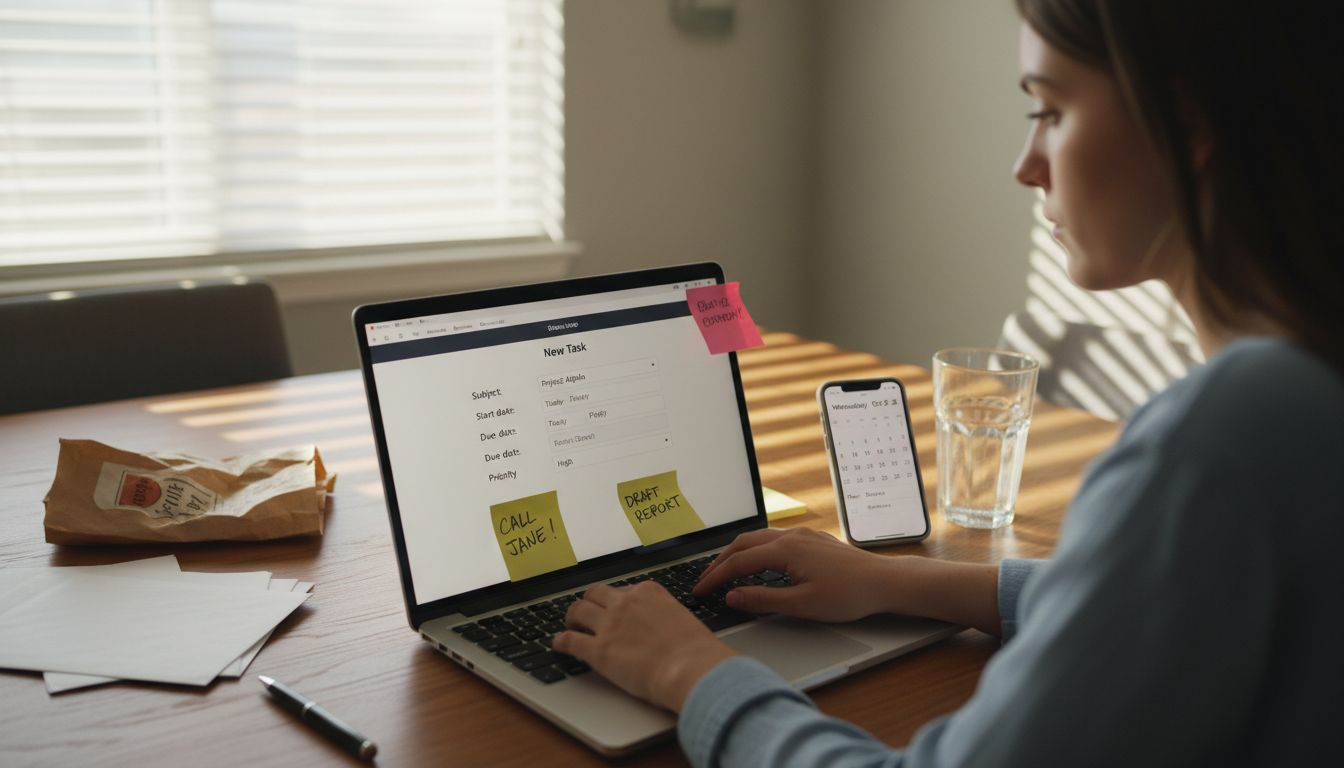
Customize your task organization by creating task lists that align with your specific workflow. Utilize the My Day feature to focus on your most critical tasks, and use the Important list to highlight high-priority items. This approach ensures that you stay focused and productive throughout your day.
Pro Tip: Review and update your task categories weekly to maintain an organized and efficient workflow.
Step 3: Assign priorities and deadlines effectively
Maximize your productivity by mastering Outlook’s powerful task prioritization and deadline management features. Outlook task management allows you to create a strategic approach to tracking and completing your most important work.
When creating a task, utilize the priority settings carefully. Choose between Low, Normal, and High priority levels to help visually distinguish the urgency of each task. Set specific start and due dates to create a clear timeline for your work. Take advantage of the % Complete field to track your progress automatically, which helps you stay accountable and provides a visual representation of your advancement on each task.
Leverage Microsoft To Do’s smart lists to enhance your task management. Star important tasks to prioritize them in the Important list, and use the Planned list to keep track of upcoming deadlines. For complex projects, break down larger tasks into smaller, manageable steps to make progress more achievable and less overwhelming.
Pro Tip: Review your task priorities and deadlines at the start of each week to ensure you stay aligned with your most critical goals.
Step 4: Integrate tasks with your calendar
Transform your productivity by seamlessly connecting your tasks and calendar in Outlook, creating a comprehensive view of your daily commitments. Microsoft To Do integration allows you to synchronize your tasks and schedule effortlessly.
To integrate your tasks, start by ensuring all tasks have specific due dates. These tasks will automatically populate your calendar view, giving you a holistic perspective of your workload. You can easily drag and drop tasks directly into your calendar, scheduling them alongside meetings and appointments. This visual representation helps you understand how tasks fit into your overall daily schedule and prevents overcommitting your time.
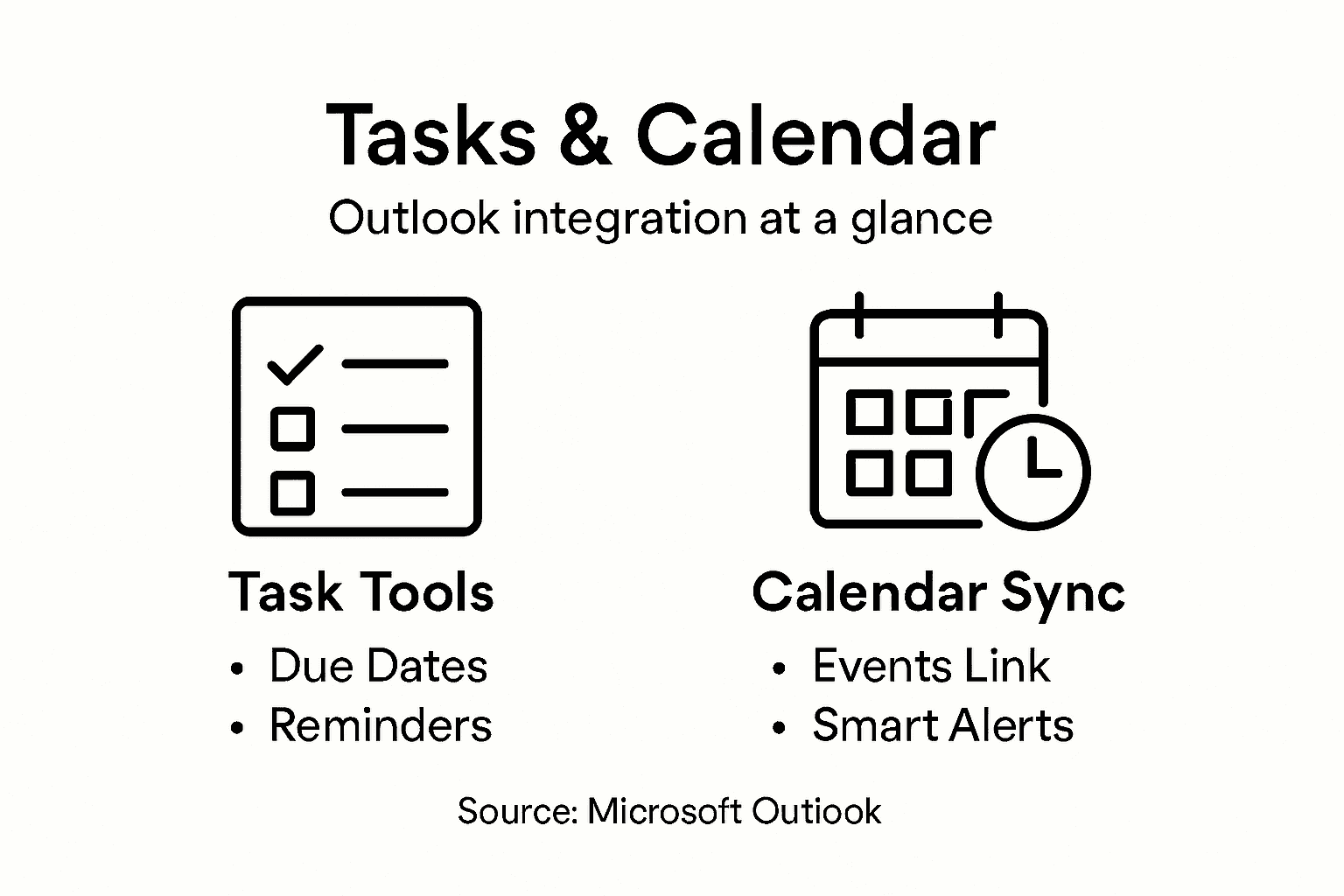
Leverage Outlook calendar’s smart reminders to keep track of both tasks and appointments. The app provides real-time scheduling adjustments, ensuring you maintain a clear view of your upcoming deadlines and commitments. By combining your task list with your calendar, you create a powerful time management system that helps you stay organized and focused.
Pro Tip: Color-code your tasks and calendar events to quickly distinguish between different types of commitments and prioritize your time effectively.
Compare Outlook’s ‘Tasks’ and Microsoft To Do for managing your workflow:
| Feature | Outlook Tasks | Microsoft To Do |
|---|---|---|
| Platform Integration | Built into Outlook desktop and web | Available as standalone app |
| Smart Lists | Basic lists with categories | My Day, Important, Planned |
| Mobile Access | Limited mobile experience | Full-feature mobile apps |
| Progress Visualization | % Complete field and status updates | Step completion tracking |
Here’s a summary of key Outlook task management features and their benefits:
| Feature | What It Does | Productivity Impact |
|---|---|---|
| Task Prioritization | Set tasks as Low, Normal, or High priority | Focuses attention on urgent items |
| Due Dates & Reminders | Assign deadlines and get alerts | Prevents overdue or missed tasks |
| Categorization & Color-Coding | Organize with custom lists and colors | Quickly identify task types |
| Progress Tracking | Update % complete and status | Visualizes advancement, boosts motivation |
| Calendar Integration | View tasks alongside meetings | Manages time and avoids conflicts |
Step 5: Track progress and mark tasks complete
Take control of your productivity by mastering Outlook’s powerful progress tracking features. Outlook task management features enable you to visualize and update your task completion status with precision.
Utilize the percentage progress indicator to track your advancement through each task. As you work, update the % Complete field, which automatically shifts the task status from Not Started to In Progress and eventually to Completed. This dynamic tracking helps you maintain a clear view of your productivity and provides a sense of accomplishment as you move through your work. For complex tasks, break them down into smaller steps and mark individual components complete within Microsoft To Do, which displays the number of completed steps beneath each task.
When a task is fully finished, mark it as complete to remove it from your active lists. Remember that completed tasks are not deleted but remain accessible for review, allowing you to maintain a record of your achievements and restore tasks if needed. This approach helps you stay organized and provides a comprehensive view of your work history.
Pro Tip: Set aside a few minutes at the end of each day to update your task progress and celebrate your accomplishments.
Boost Your Task Management Beyond Outlook With Optio Station
Managing tasks in Outlook can be powerful yet sometimes overwhelming when juggling multiple priorities and deadlines. This article highlights the challenges of organizing, prioritizing, and integrating tasks with your calendar to stay productive without feeling stressed. If you have ever struggled to keep your tasks categorized, tracked, and visually clear, you are not alone. Outlook’s task system is great for basic tracking but may lack the intuitive mobile access and team collaboration features you need to conquer your daily workload confidently.
Elevate your productivity by exploring how Optio Station serves as your reliable second-in-command. Designed with students and young professionals in mind, this mobile app brings task, team, and time management together in a seamless Roman-themed interface that turns you into a true Centurion of your own schedule. With superior features around prioritization and smooth workflow management, Optio Station complements and extends what you already get from Outlook. Discover practical tips in our CenturionTips section or dive into broader productivity strategies in ProductivityThoughts. Start mastering your tasks today by visiting Optio Station and commanding your productivity like a true leader.
Frequently Asked Questions
How can I set up Outlook for effective task management?
To set up Outlook for effective task management, open the app and navigate to the Tasks section. Click the “New Task” button to create your task list, and make sure to input details like start dates, due dates, and priority levels for each task.
How do I categorize tasks in Outlook?
You can categorize tasks in Outlook by creating custom lists or using built-in categories like My Day and Important. Use color-coding to visually differentiate between task types, ensuring that you can quickly recognize work projects, personal errands, or academic assignments.
What are the best practices for assigning priorities and deadlines in Outlook?
When assigning priorities in Outlook, choose between Low, Normal, and High to clearly convey urgency. Set specific start and due dates for each task to create a visual timeline, and review these priorities weekly to stay on track with your most critical goals.
How can I integrate tasks with my Outlook calendar?
To integrate tasks with your Outlook calendar, ensure each task has a due date, which will then automatically show up on your calendar. You can drag and drop tasks into your calendar, allowing you to see your schedule and tasks side by side, preventing time overcommitment.
How do I track progress and mark tasks as complete in Outlook?
To track progress in Outlook, use the percentage progress indicator to update how much of each task you’ve completed. When a task is finished, simply mark it as complete to remove it from active lists while still retaining it for future reference.
Recommended
- How to Manage Multiple Tasks Easily for Better Results – Optio Station: Best Project Management App for Prioritization
- How to Organize Daily Tasks at Work for Maximum Productivity – Optio Station: Best Project Management App for Prioritization
- Understanding Why Manage Tasks for Better Productivity – Optio Station: Best Project Management App for Prioritization
- Understanding Why Use Task Lists for Better Productivity – Optio Station: Best Project Management App for Prioritization
- Qué es gestión del tiempo y por qué es importante – Rescrito
- The Science of Microbreaks – STOMART.CO.UK
