

Open your team calendar, tap create a new block, set the date, time, and duration, then choose whether it’s visible to your team or kept private. Link it to a task or project, save it, and it appears instantly on the shared calendar so teammates see you’re occupied. Choosing the right calendar (personal vs. team) before you save is the one step people skip and regret.
TL;DR:
- Ensuring that time blocks are saved on the correct calendar and with shared visibility is crucial for team transparency and effective scheduling.
- Linking time blocks to specific tasks or projects and using templates streamlines recurring scheduling and keeps work organized.
- Clear labeling and purpose-driven template naming prevent confusion and maintain the usefulness of blocks over different deadlines.
- Compatibility issues like sync delays, permission mismatches, or missed notifications can compromise the effectiveness of time blocks.
- Properly setting visibility, buffer windows, and informative labels enhances the usefulness of blocks and prevents overlaps or misunderstandings.
Table of Contents
- How Do You Create a Time Block in Optiostation?
- Coordinating Time Blocks With Your Team Without Causing Friction
- Where Optiostation’s Templates and Task Links Save You Time
- Fixing Common Time Block Problems
- A Week Before Exams: One Student’s Block Setup
- Why Most People Get Time Blocking Half Right
- Turn This Guide Into a Calendar That Actually Runs Itself
- Sources
How Do You Create a Time Block in Optiostation?
Building a block that actually protects your focus takes about 30 seconds once you know the sequence. Here’s the exact order.
- Open the team calendar and tap the date and time you want to reserve. Drag to set duration, or type start and end times directly.
- Title the block clearly. “Deep work: chapter 4 outline” tells a teammate more than “Busy.” Add a project tag or hashtag (like #midterm or #clientdemo) so anyone scanning the calendar knows what it’s for without asking.
- Choose the calendar scope. Decide if this block lives on your personal calendar only or on the shared team calendar. This single choice determines who can even see it exists.
- Set visibility. Mark it busy/shared if teammates need to know you’re unavailable, or private if you just need the time reserved without broadcasting the reason.
- Set editing permissions. Decide whether teammates can propose changes or only view the block. Locking edits prevents someone from “helpfully” moving your exam prep window.
- Link it to a task or project. Attach the block to the specific item in your Optiostation workspace. This keeps your progress notes, files, and deadlines tied directly to the time you set aside, instead of living as two disconnected app screens.
- Add reminders and buffer time, then save. A 10 minute buffer before a group review block gives you time to actually read the material first.
Once the block is saved, it syncs across the team calendar. If you’re setting up something you’ll repeat, like a weekly focus sprint or a recurring study session, save it as a template instead of rebuilding it every week.
- Recurring blocks let you set frequency (daily, weekly, custom) so a Tuesday/Thursday study block reappears without manual entry.
- Templates store your title, tags, duration, and visibility settings so a new block takes one tap instead of six.
- Both recurring blocks and templates can still be linked to a live task, so the connection updates even as the underlying project changes.
Pro Tip: Name your templates by purpose, not by date. “Weekly Focus Sprint” survives semester changes. “Monday 10/6 Block” does not.
Coordinating Time Blocks With Your Team Without Causing Friction
A time block only works for the team if the team can actually read it. Optiostation’s shared calendar shows busy/free status to everyone with access, but the detail behind that status depends entirely on how you set visibility and edit permissions when you created the block.
Mark a block busy when you genuinely can’t be interrupted, like an exam review or a client call. Mark it available or leave it visible-but-open when you’re doing solo work that could flex around a quick question. Reserve private blocks for anything personal or unrelated to team projects. If teammates see private blocks constantly, they lose trust in your busy status altogether, which defeats the point of blocking time at all.
Conflict detection flags overlapping blocks automatically, so if two teammates schedule the same review room slot, both get notified before it becomes a problem in person.
- Tag blocks with project hashtags so a teammate scanning the calendar understands purpose in one glance, no message required.
- Link the block to the shared project whenever the work affects the group, not just you.
- If you need someone else’s focus time protected, ask before proposing a shared block. A quick message beats an unannounced calendar invite.
Pro Tip: Before finals or a launch week, message your team once with your blocked hours instead of relying on them to notice the calendar. Visibility settings help, but a heads-up still builds goodwill.
Where Optiostation’s Templates and Task Links Save You Time
The real advantage of blocking time inside Optiostation instead of a bare calendar app is that the block doesn’t stand alone. It connects to the actual work.
- Templates turn a one-time block into a reusable structure. Set up a “Study Sprint” or “Weekly Planning” template once, following the same steps in Optiostation’s time-blocking guide, and reuse it every week without rebuilding it from scratch.
- Task linking means when you attach a block to a project, opening that block also opens the task’s notes, files, and deadline. This reduces tab switching and helps maintain focus.
- In-app messaging and file sharing let you hand off a block to a teammate directly. If your pair-review session needs shared notes, attach the file to the block itself so nobody hunts for it later, a feature Optiostation’s directory listing highlights alongside its meeting scheduler.
- Tagging tasks to blocks reduces the mental cost of remembering what a block was even for, since the block points straight to the required work instead of just a vague time slot, according to Optiostation’s task management guidance.
Full walkthroughs and downloadable templates live in Optiostation’s step-by-step blocking tutorial, which covers the same core mechanics whether you’re setting up your first block or your fiftieth.
Fixing Common Time Block Problems
Most blocking problems trace back to one of three causes: the wrong calendar, a permissions mismatch, or a sync delay.
- Block not showing to teammates? Check that you saved it to the team calendar, not your personal one, and confirm visibility is set to shared rather than private.
- Reminders not firing? Reopen the block and verify notification settings weren’t reset when you duplicated it from a template.
- Sync lag? Give it a minute. If it persists past a few minutes, refresh the calendar view or check your connection.
- Keep block durations realistic. A 3 hour “focus block” you never finish trains you to ignore your own calendar.
- Add buffer windows between back to back blocks so one running long doesn’t wreck the next.
- Label every block, even quick ones. An unlabeled block just reads as noise to a teammate.
A Week Before Exams: One Student’s Block Setup
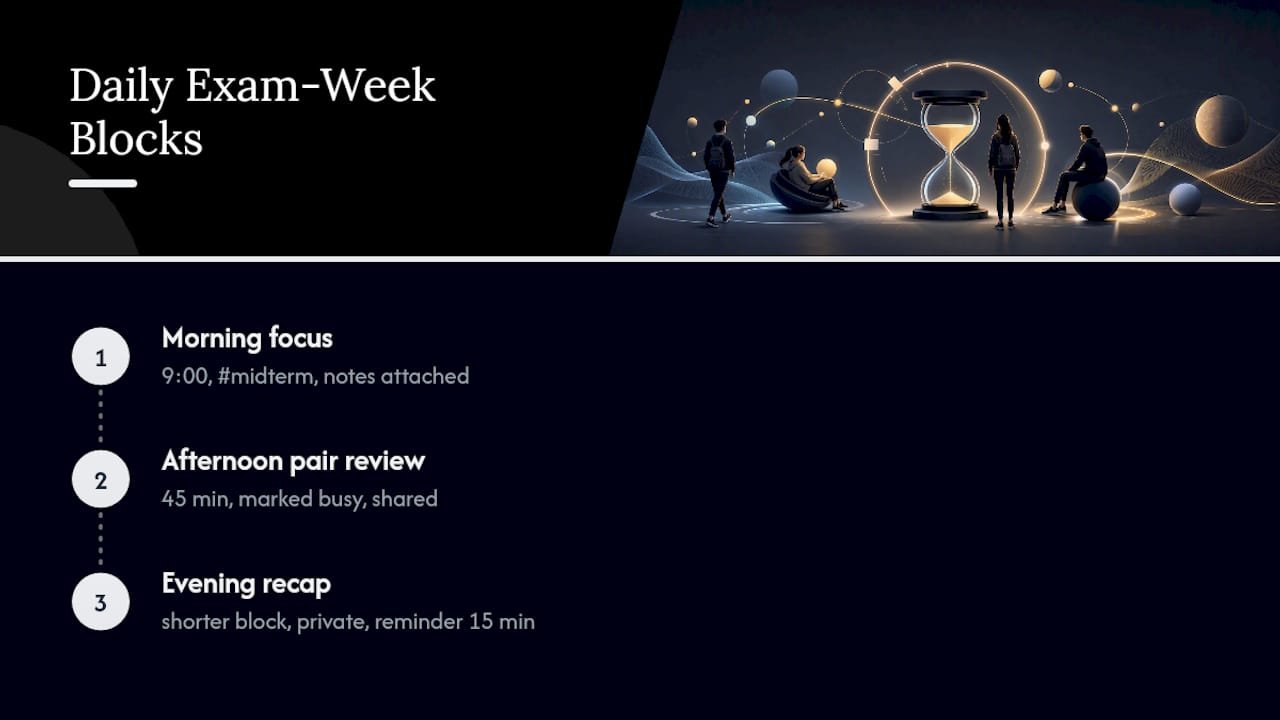
Last exam season, mornings were a 9 a.m. focus block tagged #midterm, linked straight to the study task with notes attached. Afternoons ran a 45 minute pair review block, marked busy and shared so a study partner could see the exact window. Evenings closed with a shorter recap block, private, reminder set 15 minutes early. Heavier deadline weeks just mean stacking more of the same blocks, not reinventing the system. For a fuller breakdown of building schedules like this, Optiostation’s guide to leveling up time management skills walks through the same logic in more depth.
Why Most People Get Time Blocking Half Right
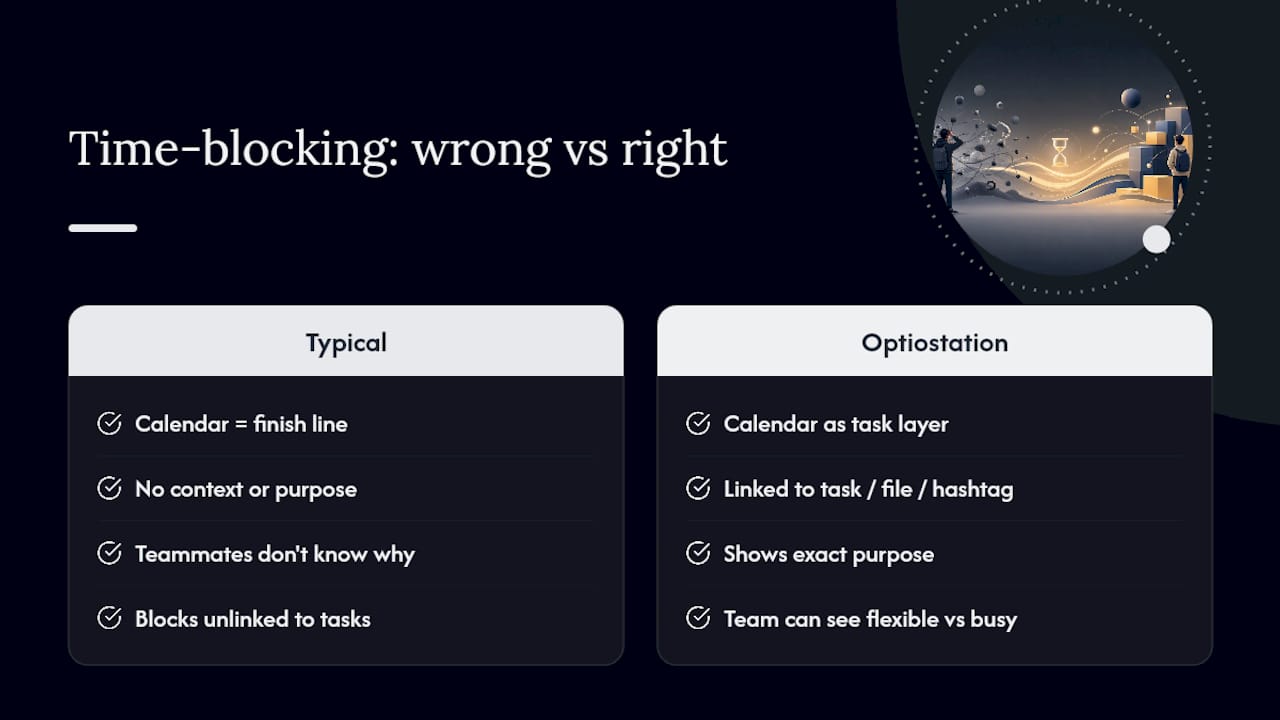
Conventional time blocking advice treats the calendar entry as the finish line: block the hour, call it done. That’s the part that fails most often, because a block with no context is just a colored rectangle. It tells your teammates you’re busy but not why, and it tells future you nothing about what you were supposed to accomplish.
The blocks that actually hold up under a real deadline are the ones tied to something specific: a task, a file, a hashtag that says exactly what the work is. Optiostation’s recurring time-blocking approach works because it treats the calendar as a layer on top of your task list, not a separate system you maintain in parallel. If you’re only blocking time and never linking it to what you’re blocking time for, you’re doing the harder version of this for no extra benefit. And if your team can’t tell your busy blocks from your “flexible, ping me anyway” blocks, the visibility settings you set up were wasted effort. Fix the labeling and the linking first. Everything else about time blocking gets easier once those two habits are automatic.
— Optiostation
Turn This Guide Into a Calendar That Actually Runs Itself
Optiostation is built specifically so a time block never sits alone: every block you create connects to a real task, a project, and a reminder, instead of floating on a calendar disconnected from the work it’s protecting. That’s the gap most calendar apps leave open, and it’s the exact problem the walkthroughs above are designed to close.
If you want the templates, task-linking setup, and onboarding flow that make all of this run without extra manual work, start with Optiostation’s task management software guide and get your first blocks live today.
