

The fastest way to block out time on Google Calendar is to create a private event on a dedicated “Time Blocks” calendar, set the status to Busy, and save. That single combination tells every scheduling tool and colleague that the slot is taken, without revealing what you’re doing.
Three things you can do right now, in under 30 seconds:
- Open calendar.google.com, click any open slot, and type a title like “Deep Work.”
- Leave the guests field empty, set status to Busy, and visibility to Private.
- Hit Save. The block is live and protected.
Google Calendar also offers Focus Time and Out of Office event types for Google Workspace users, which add automatic meeting-decline and Do Not Disturb on top of a standard block. Optiostation recommends pairing these built-in tools with a dedicated secondary calendar for the cleanest, most flexible setup.
Table of Contents
- What is time blocking and why does it actually work?
- How to block out time on Google Calendar (web, step-by-step)
- How to block time in the Google Calendar mobile app
- How to hide event details so colleagues only see “Busy”
- Techniques that make time blocking stick
- How to protect blocks across multiple calendars and accounts
- Common problems with time blocking and how to fix them
- Optiostation’s recommended setup: the dedicated “Time Blocks” calendar
- Key Takeaways
- The part most guides skip about time blocking
- Optiostation fits the gap between your calendar and your task list
- Useful sources and further reading
What is time blocking and why does it actually work?
Time blocking means scheduling specific work onto your calendar as named events rather than leaving open gaps that fill with meetings. Instead of a to-do list you hope to get through, you assign each task a start time and an end time. The slot is claimed before anyone else can claim it.
The practical benefits are real and immediate:
- Protects focus. A named block signals intent; an empty slot signals availability.
- Cuts context switching. Grouping similar tasks into one block costs far less mental energy than bouncing between them all day.
- Makes priorities visible. When deep work lives on your calendar next to meetings, you can see at a glance whether your schedule matches what actually matters.
- Improves planning. Blocked calendars reveal capacity honestly. You stop over-committing because the visual evidence is right there.
“You can reduce distractions while you work by blocking out time in your calendar to let you focus on what you need to do.” — Google Workspace Learning Center
Productivity experts consistently point out that without explicit block protection for transition time and planning, most people default to reactive days driven entirely by other people’s meeting requests. Blocking time is the structural fix for that pattern.
How to block out time on Google Calendar (web, step-by-step)
This sequence works on any browser at calendar.google.com.
- Click an empty time slot on the day view or week view.
- Select More options (not just the quick-create popup) to open the full event editor.
- Type a clear title: “Deep Work,” “Writing Block,” or whatever describes the task.
- Set your start and end times. Be specific — “9:00 AM–11:00 AM” beats “morning.”
- Leave the Guests field empty. Adding guests converts a block into a meeting.
- Under Status, choose Busy. This is the setting scheduling tools read.
- Under Visibility, choose Private. Colleagues see “Busy” but not the title or description.
- To make it recurring, click More options → Does not repeat and choose daily, weekly, or a custom pattern. Recurring blocks are far more reliable than recreating the same event every week.
- Add a notification (10–15 minutes before) so the block doesn’t sneak up on you.
- Click Save.
Focus Time and Out of Office (Google Workspace only)
If your account is on Google Workspace Business Standard or higher, you get two stronger options when you create an event:
Focus Time silences Google Chat notifications and can automatically decline new meeting invitations during the block. You can set it to decline new meetings only, or new and existing ones. It’s the right choice for deep work sessions where interruptions genuinely cost you.
Out of Office sends an automatic decline message to anyone who tries to book you. It’s a harder wall than Focus Time and works well for full-day blocks, vacations, or recurring protected afternoons where you need zero negotiation.
Pro Tip: Always set status to Busy, not Free. Many scheduling tools, including automated booking pages, only respect blocks marked Busy. A block left as Free is invisible to them and will get booked over.
How to block time in the Google Calendar mobile app
The Google Calendar app on Android and iPhone handles standard blocks well. Focus Time creation has some limitations on mobile, so here’s the cleanest approach for each platform.
On Android or iOS:
- Tap the + button (bottom right) and select Event.
- Enter a title, set the date and start/end times.
- Scroll to Status and confirm it reads Busy.
- Tap Save.
That’s the core block. For recurring mobile blocks, tap More options before saving to access the repeat settings.
Mobile limitations to know:
- Focus Time creation is limited on mobile; for full Focus Time settings, use the desktop site.
- If you manage multiple Google accounts, check which account is active before saving. A block saved to the wrong account won’t protect your work calendar.
- Out of Office can be created on mobile, but the auto-decline configuration is easier to verify on desktop.
Pro Tip: Before saving any block on mobile, tap the calendar name shown near the top of the event editor and confirm it’s the right account. One tap now prevents a confusing “missing block” situation later.
How to hide event details so colleagues only see “Busy”
Visibility and status are two separate settings, and both matter.
Status controls whether scheduling tools treat the slot as available or taken. Set it to Busy.
Visibility controls what people see when they look at your calendar. Options are:
- Default — follows your calendar’s general sharing settings.
- Public — anyone with calendar access sees the full title and description.
- Private — anyone with calendar access sees only “Busy” with no details.
For a time block protecting personal or sensitive work, Private + Busy is the right combination. Here’s a quick checklist before you save any block:
- Status set to Busy ✓
- Visibility set to Private ✓
- Guests field empty ✓
- Saved to the correct calendar ✓
- Shared calendar permissions reviewed (check Settings → your calendar → Share with specific people) ✓
Setting visibility to Private and status to Busy makes the block appear as unavailable to anyone viewing your calendar, without exposing what you’re actually working on.
Techniques that make time blocking stick
Getting the mechanics right is the easy part. Keeping blocks intact over weeks is where most people struggle. These techniques address the behavioral side.
Color-code by category. Assign distinct colors to different block types so your week is readable at a glance: dark blue for deep work, light blue for meetings, orange for admin, green for personal time. When your calendar looks like a mess of identical gray blocks, you stop trusting it.
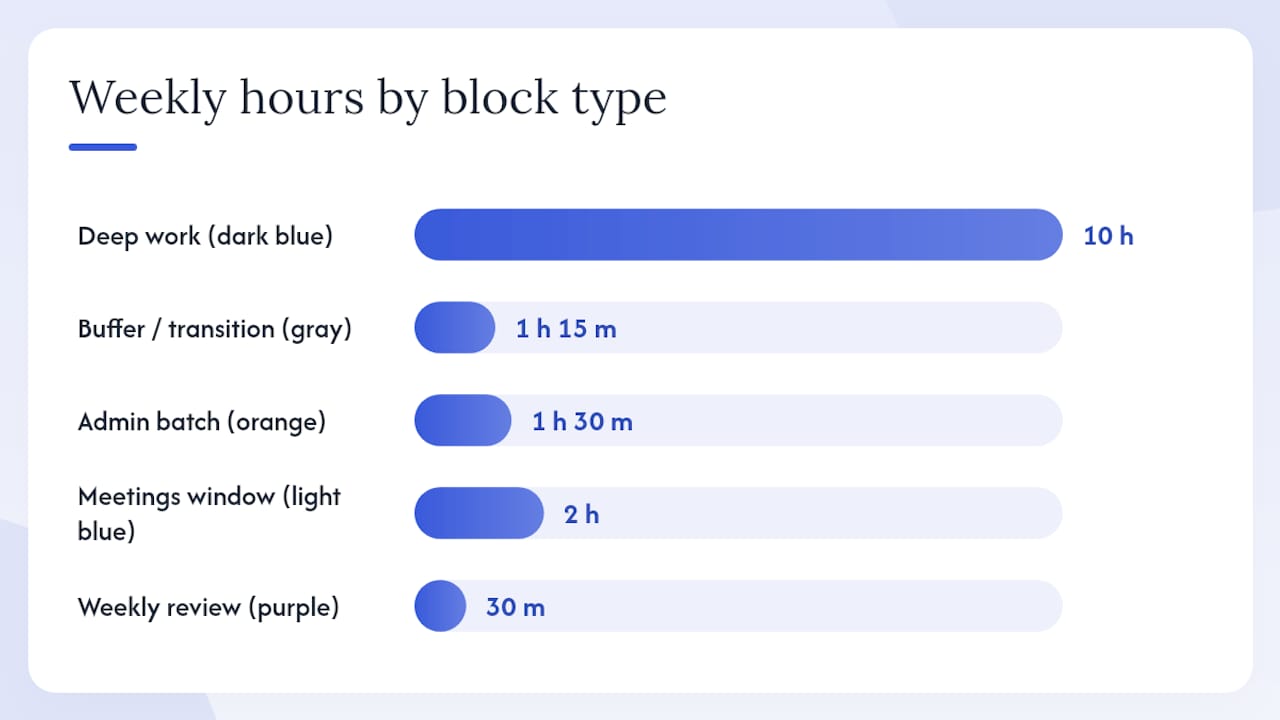
Schedule buffer time. Add 10–15 minutes before and after meetings for transition and prep. Without explicit protection for transition time, back-to-back meetings leave no room to think, and deep work blocks get squeezed out. A short meeting buffer is one of the highest-return habits in calendar management.
Batch admin tasks. Instead of scattering email and Slack responses throughout the day, create one 30-minute “Admin” block in the morning and one in the afternoon. Two contained windows beat constant reactive checking.
Run a 15-minute weekly planning ritual. Every Sunday evening or Monday morning, review the coming week, confirm your recurring blocks are still in place, and adjust for anything that shifted. This is what separates people who use time blocking for a week from people who use it for years.
Here’s a compact example weekly structure:
| Time slot | Block type | Color |
|---|---|---|
| Mon–Fri, 9:00–11:00 AM | Deep work | Dark blue |
| Mon–Fri, 11:15–11:30 AM | Buffer / transition | Gray |
| Mon/Wed/Fri, 30-minute blocks | Admin batch | Orange |
| Tue/Thu, 2:00–3:00 PM | Meetings window | Light blue |
| Fri, 4:30–5:00 PM | Weekly review | Purple |
Leave gaps. A schedule blocked wall-to-wall has no room for the unexpected, and unexpected things happen every day.
How to protect blocks across multiple calendars and accounts
Juggling a work Google account and a personal Google account is where time blocking usually breaks down. A block on one calendar is invisible to the other, so double-booking becomes a real risk.
The cleanest solution: a dedicated “Time Blocks” calendar per account.
Create a secondary calendar in each account named “Time Blocks” or “Deep Work.” Set its default visibility to Private. Add your recurring focus blocks there. When you need to show availability across accounts, share the Time Blocks calendar from one account to the other with “See only free/busy” permissions. The other account sees the slot as Busy without seeing any details.
For readers who also use Outlook or other calendar systems alongside Google, calendar sync tools can mirror blocked time between ecosystems, preventing cross-account double booking. These fall into two categories: calendar syncers that copy or reflect busy times automatically, and AI schedulers that suggest optimal block placement. Neither requires manual duplication once configured.
Using Appointment Slots and Booking pages:
Google Calendar’s Booking pages let you define exactly which hours others can schedule with you. Instead of leaving your whole calendar open, you publish a booking link that only shows the windows you’ve designated. Pair this with your time blocks and colleagues can only reach the slots you’ve intentionally left open. For teams coordinating across time zones, a free appointment scheduling tool can complement this setup by handling the zone math automatically.
A simple multi-account workflow:
- Set recurring focus blocks on your primary work calendar.
- Share the “Time Blocks” calendar to your personal account as “See only free/busy.”
- On your personal account, those slots now show as Busy.
- Use a Booking page on your work account to expose only non-blocked windows to external contacts.
Common problems with time blocking and how to fix them
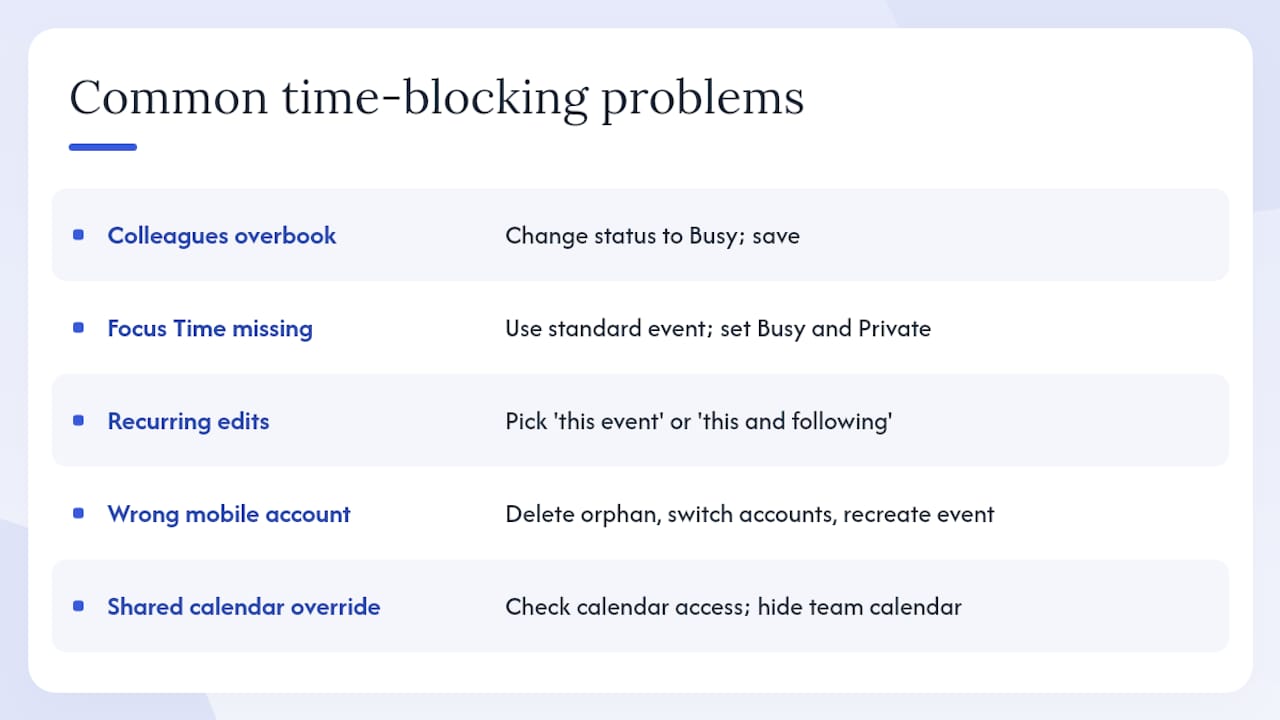
Colleagues keep booking over your blocks.
Cause: the block’s status is set to Free, or they’re ignoring it. Fix: open the event, change status to Busy, save. If the problem persists, convert the recurring block to Out of Office, which auto-declines invitations with a custom message.
Focus Time doesn’t appear as an event type.
Cause: your account isn’t on a qualifying Google Workspace plan. Fix: use a standard event with Busy status and Private visibility. The protection is functionally equivalent for most purposes.
You edited a recurring block and it changed the whole series.
Cause: Google Calendar asks “this event,” “this and following events,” or “all events” when you edit a recurring item. Fix: choose “this event” for a one-off change. If you need to change the series going forward, choose “this and following events.”
A block you created on mobile isn’t showing on your work calendar.
Cause: the wrong Google account was active when you saved. Fix: delete the orphaned event, switch to the correct account in the app, and recreate it.
Blocks keep getting overridden by a shared team calendar.
Cause: a shared calendar with higher permissions is overlapping your blocks. Fix: check Settings → your calendar → Access permissions and confirm your blocks are on a calendar you control. If a team calendar is auto-populating your view, hide it during focus hours.
Optiostation’s recommended setup: the dedicated “Time Blocks” calendar
The single most effective structural change you can make is creating a separate calendar just for time blocks. Here’s the exact checklist:
- Go to Other calendars → + and select Create new calendar.
- Name it “Time Blocks” or “Deep Work.”
- Assign a distinct color (dark blue or gold works well and stands out from meeting clutter).
- Set default event visibility to Private if your organization allows it.
- Add your recurring focus blocks to this calendar, not your primary one.
- Share the calendar with colleagues as “See only free/busy” if you want them to respect the blocks without seeing details.
The key advantage of a separate calendar: you can toggle it on and off with one click. When you’re in a planning session and want to see only meetings, hide the Time Blocks calendar. When you’re protecting your week, turn it back on. It also keeps your primary calendar readable. A dedicated Time Blocks calendar separates duties and keeps visibility flexible in a way that a single cluttered primary calendar never can.
Pro Tip: Pair the weekly planning ritual with Optiostation’s time blocking guide to align your calendar blocks with your actual task priorities. A block without a linked task is just a placeholder; a block tied to a specific deliverable is a commitment.
Key Takeaways
Blocking time on Google Calendar works when you combine a dedicated calendar, Busy status, Private visibility, and recurring events into one consistent system.
| Point | Details |
|---|---|
| Busy + Private is the core | Set status to Busy and visibility to Private on every block so tools and colleagues respect it. |
| Dedicated calendar beats primary | Create a separate “Time Blocks” calendar to toggle visibility and keep your schedule readable. |
| Recurring blocks build the habit | Use the Repeat setting instead of recreating blocks manually each week. |
| Buffer time protects focus | Schedule 10–15 minutes before and after meetings to prevent blocks from being squeezed out. |
| Optiostation for task alignment | Pair your calendar blocks with Optiostation’s task management to tie each block to a real deliverable. |
The part most guides skip about time blocking
Most time blocking advice focuses on the mechanics: click here, set this, repeat that. The mechanics matter, but they’re not what makes the system fail. What makes it fail is treating a calendar block the same way you treat a to-do list item, something you intend to do but feel fine moving when something more urgent appears.
The dedicated “Time Blocks” calendar approach works precisely because it creates a psychological and structural separation. When your deep work blocks live on their own calendar, toggling them off is a deliberate act. You have to choose to make yourself available. That friction is the point.
There’s also a common mistake in how people size their blocks. Most beginners block too tightly, filling every hour with named work, then abandoning the system the first week a meeting runs long. Leave at least 20% of your day unblocked. That slack isn’t wasted time; it’s the buffer that keeps the rest of the system intact when reality doesn’t cooperate.
The readers who get the most from Google Calendar time blocking are the ones who treat the weekly planning ritual as non-negotiable. Fifteen minutes on Sunday or Monday to review, adjust, and recommit. Without that ritual, blocks drift, get deleted, and the calendar reverts to a meeting-only document within a month.
Optiostation fits the gap between your calendar and your task list
Calendar blocks tell you when to work. They don’t tell you what to do when the block starts. That gap is where Optiostation comes in.
Optiostation is a task and time management app built for students and young professionals who want their calendar and their task list to operate as one system, not two separate tools they have to manually reconcile. Where Google Calendar protects your time, Optiostation gives that time a mission: specific tasks, priorities, and team context, all inside a mobile-first interface designed for the way you actually work.
The combination is straightforward: block the time in Google Calendar using the steps above, then open Optiostation to assign the tasks that belong in each block. Your calendar shows the commitment; Optiostation shows the work. Check out the complete task management guide to see how Optiostation pairs with your calendar setup.
Useful sources and further reading
These are the primary references used throughout this guide.
| Source | Best for |
|---|---|
| Google Workspace Learning Center | Official guidance on Focus Time, scheduling, and calendar sharing settings |
| OneCal — Time Blocking Guide | Step-by-step walkthroughs, Busy/Private settings, and buffer time strategies |
| UseCarly — Complete Guide | Dedicated calendar setup, color-coding, recurring blocks, and mobile limitations |
| CalendarBridge — Multi-Calendar Guide | Cross-account sync, multi-calendar workflows, and automation categories |
| Google Calendar Help — Focus Time | Official documentation on Focus Time availability, auto-decline, and Workspace plan requirements |
Recommended
- How to Time Block in Google Calendar: Step-by-Step – Optio Station: Best Project Management App for Prioritization
- Time Blocking Time Management for Students and Pros – Optio Station: Best Project Management App for Prioritization
- Time blocking how to: reclaim your day and focus – Optio Station: Best Project Management App for Prioritization
- Time Management Time Blocking for Focused Productivity – Optio Station: Best Project Management App for Prioritization
