

A practice management software, in this context, is a mobile-first app that handles your tasks, time tracking, goal setting, and team collaboration in one place. It replaces the sticky notes, scattered reminders, and five different apps you’ve probably tried, giving you one spot to capture what needs doing, when, and with whom. The result is fewer missed deadlines and less back-and-forth in group work.
TL;DR:
- Practice management software significantly boosts task completion rates by around 20 percent by providing external structure for managing deadlines and responsibilities.
- Recurring tasks, goal connections, and calendar integration are crucial for maintaining organized workflows, especially once academic or work-based support systems disappear.
- Overusing multiple apps or excessive customization hampers productivity more than the app choice itself, making simplicity and consistent weekly reviews vital for long-term success.
- Setting up the core system—task dump, calendar sync, and recurring tasks—can be completed in under an hour, with focus on the basics rather than feature overload.
- Privacy considerations are important; avoid apps requesting unnecessary permissions and prefer those with transparent encryption and customizable data sharing controls.
Table of Contents
- What Is Practice Management Software Made Of? Core Features That Matter
- Why This Kind of App Actually Helps Students and Young Professionals
- Who Benefits Most (and When to Actually Adopt One)
- Set Up Your App in Under an Hour: A 6-Step Checklist
- Expert Tips: Avoid Productivity Porn and Build a System That Sticks
- Is Your Data Safe? Privacy in Mobile Productivity Apps
- Our Take: Stop Shopping for Apps and Start Using One
- Try Optiostation: Built for the Way Students Actually Work
- Sources
- FAQ
What Is Practice Management Software Made Of? Core Features That Matter
The term sounds formal, but the app itself is built around five jobs: capturing tasks, tracking time, organizing projects, setting goals, and coordinating with other people. Each feature exists to remove a specific kind of friction that shows up when you’re juggling classes, a part-time job, and a group project chat that never stops buzzing.
Task capture is the foundation. A good app lets you dump a thought into your phone in under five seconds, tag it, and set it to repeat if it’s a recurring obligation like a weekly lab report or a Monday status update. Recurring tasks matter more than people expect. Without them, you end up re-creating the same reminder every single week, which is exactly the kind of manual busywork the app is supposed to eliminate.
Time tracking and calendar integration turn vague intentions (“study for the exam”) into scheduled blocks you can actually see. Syncing with Google Calendar means your task list and your daily schedule stop living in two separate mental universes.
Shared tasks and comments solve the classic group-project problem: nobody knows who’s doing what. Assigning clear ownership inside the app removes the ambiguity that usually gets resolved through five confused text messages.
Project organization ties it together with milestones and subtasks, so a big deliverable like a thesis chapter or a client deck gets broken into steps you can check off one at a time. Goal setting sits on top of that, connecting daily tasks to the bigger outcome you’re actually working toward.
Smaller features round things out:
- Push notifications and smart reminders that fire before you forget, not after.
- Hashtag-based search so you can pull up every task tied to a specific class or client instantly.
- Basic file attachments for syllabi, briefs, or reference docs.
- Calendar and cloud storage integrations that keep the app connected to tools you already use.
Why This Kind of App Actually Helps Students and Young Professionals
The evidence backs up what feels intuitive: structure helps. College students using digital time management tools report meaningful improvements in task completion and less time lost to group coordination.
By the Numbers: Students using time management tools report roughly a 20% improvement in task completion rates compared to those relying on memory or scattered notes.
That gain isn’t magic. It comes from external structure. School provides deadlines, syllabi, and professors chasing you down. A job provides a manager and a shared calendar. The moment you’re on your own (a summer between semesters, a freelance gig, a self-paced online course) that structure disappears, and a task app rebuilds it artificially. It’s the difference between hoping you remember and knowing the app will remind you.
AI features fit into this picture as friction reducers, not miracle workers. Research on AI-integrated productivity tools in academic settings links them to measurable gains in time management, largely because AI handles the small setup decisions (suggesting a time block, summarizing a note) that used to eat up your attention before the real work even started. Young professionals increasingly favor these adaptive, single-interface workflows over juggling separate apps for exactly that reason.
Two cautions worth keeping in mind:
- A subscription only earns its cost if you actually use the premium features weekly, not once a month.
- Every additional app you install adds a small tax on your attention, even when it’s free.
Who Benefits Most (and When to Actually Adopt One)
Not everyone needs this right now, and that’s fine. Three profiles get the most value fast:
- The overloaded student juggling four classes, a part-time job, and club commitments, where deadlines routinely collide.
- The group-project lead tired of chasing teammates for status updates through five different chat threads.
- The solo freelancer or small-team contributor managing multiple clients or projects without an employer’s built-in systems.
A few signals tell you it’s time to stop resisting and set one up: you’ve missed more than one deadline this semester because it “slipped your mind,” your group chats are chaos with no clear task owners, or you haven’t done anything resembling a weekly review in months. If none of that describes you, a calendar plus one simple task app might genuinely be enough. Not every job needs a full system. Adding one when you don’t need it just becomes another thing to maintain.
Set Up Your App in Under an Hour: A 6-Step Checklist
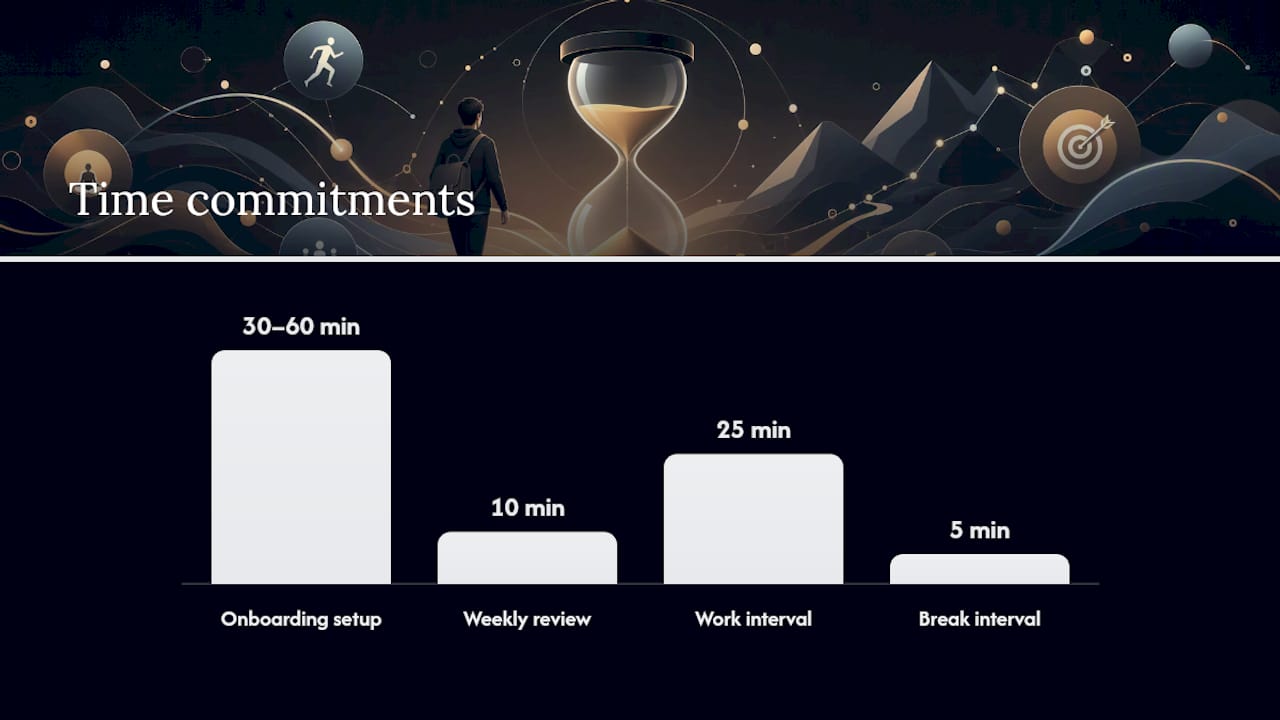
Getting started takes less time than most people assume. A focused onboarding sequence built around a task dump, categorization, and calendar blocking typically takes 30 to 60 minutes and pays off almost immediately.
- Do a full task dump. Open the app and write down every task rattling around your head: assignments, errands, work deliverables, that dentist appointment you keep forgetting. Get it all out of your brain and into the app.
- Pick one task app, one calendar, one focus tool. This is the three-app rule. More overlapping apps means more places to check and more chances something falls through the cracks.
- Build recurring tasks and schedule one weekly review. Anything that repeats (weekly readings, status reports, gym sessions) gets set once and then runs on autopilot. Block ten minutes every Sunday to look ahead.
- Set up a shared project for any group assignment. Assign an owner to every task before the first meeting ends, not after.
- Time block your calendar for major work. Attach the relevant tasks directly to each block so you know exactly what you’re doing when you sit down.
- Turn on a distraction blocker or built-in timer. Test a 25 minute work, 5 minute break rhythm for a few days before deciding if it fits you.
Pro Tip: Do the task dump on your phone, not your laptop. You’ll capture more because the app is already in your pocket when the thought hits you, not twenty minutes later when you finally sit down at a desk.
For a deeper walkthrough on turning scattered tasks into a working system, see this guide on building an academic productivity workflow.
Expert Tips: Avoid Productivity Porn and Build a System That Sticks
The single biggest failure mode isn’t picking the wrong app. It’s picking too many. Practitioners consistently warn that over-installing and constantly switching between apps creates a “productivity porn” effect where you feel productive while organizing your system instead of doing actual work.
Stick to two or three tools, tops. Favor simple defaults over deep customization. Every custom label, tag, and color scheme is one more thing to maintain when your workload spikes and you have zero patience for fiddling with settings.
The weekly review is the habit that keeps everything else running. Ten minutes on a Sunday to look at what’s coming does more for your system than any feature ever will.
Pro Tip: Inside Optiostation, start with the color-coded life aspects and one recurring task before touching anything else. Getting those two things right does more for you than exploring every menu on day one.
Is Your Data Safe? Privacy in Mobile Productivity Apps
Your task list often contains more sensitive information than it looks: class schedules, work deadlines, client names, even health-related reminders. That makes privacy worth a real look before you commit to an app, not an afterthought.
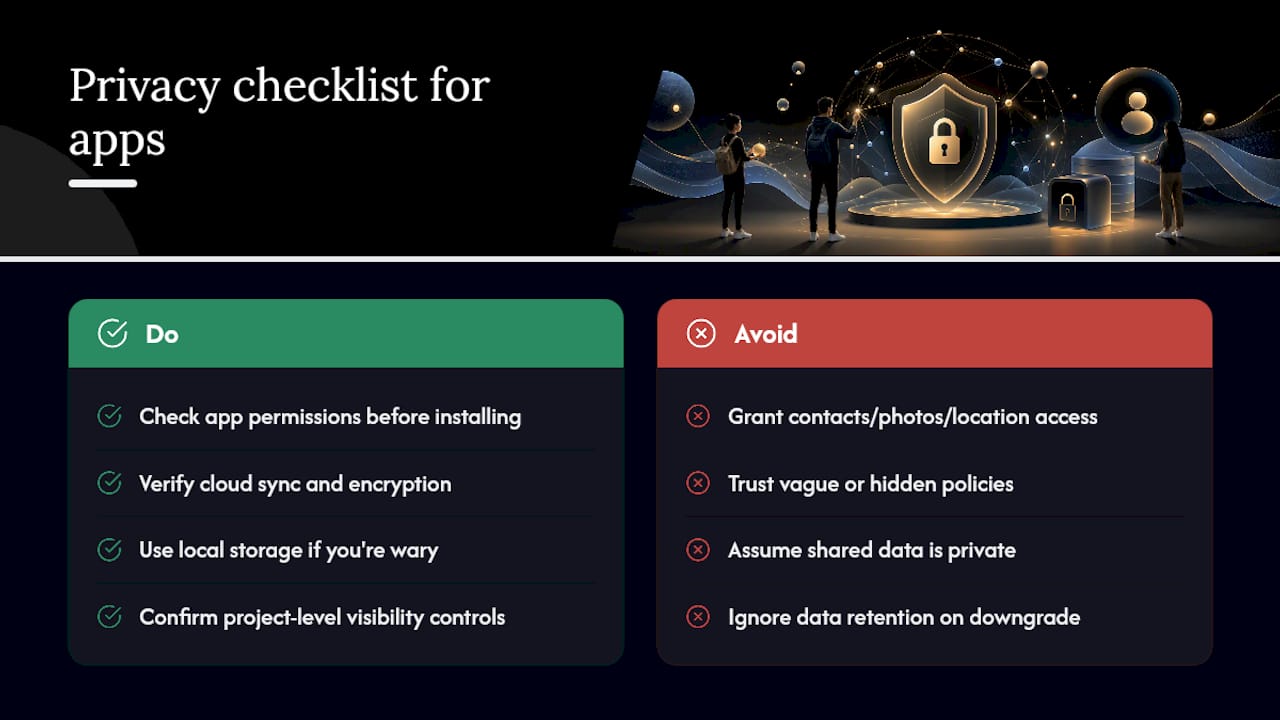
Check what permissions the app actually requests. A task manager needs calendar access and maybe notifications. It does not need your contacts, your photos, or your location history to help you track a to-do list. If an app asks for more than its core job requires, that’s worth questioning.
Look at whether the app syncs data to the cloud and how that data is encrypted in transit and at rest. Most reputable apps state this plainly in a privacy policy rather than burying it. Local storage options, where your tasks live primarily on your device, offer an extra layer of control if you’re wary of cloud syncing altogether.
Shared projects raise a separate question: who can see what you’ve assigned to them, and can you remove a teammate’s access once a group project ends? A well-built collaboration feature lets you control visibility at the project level, not just an all-or-nothing account setting.
Finally, treat any app requesting payment info for a “premium tier” with the same scrutiny you’d apply to any subscription: read what data it keeps if you cancel, and whether your task history exports cleanly or disappears the moment you downgrade.
Our Take: Stop Shopping for Apps and Start Using One
The research here points to a conclusion most productivity content dances around: the app matters less than the habit of using it consistently. Task completion improves with structure, not with the fanciest feature set. That’s an uncomfortable truth for an industry built on convincing you the next app will finally fix your focus.
Conventional advice tends to sell customization as a virtue. Build the perfect system, color code everything, set up automations. In practice, that’s often just procrastination wearing a productive costume. The reader who wins here is the one who picks a small stack, sets it up in an hour, and runs a weekly review for a month straight.
Prioritize the boring stuff first: task capture, one calendar sync, one recurring task. Skip the temptation to explore every feature before you’ve used the basic ones for two weeks. The system that survives a busy midterm week beats the one that looked impressive on day one.
— Optiostation
Try Optiostation: Built for the Way Students Actually Work
This type of app is mobile-first by design, built specifically for students and young professionals who need task, time, and team management without the bloat of enterprise software. Features typically include color-coded life aspects to separate classes from work and personal errands, smart reminders to catch what might otherwise be forgotten, and Google Calendar syncing so tasks and schedules can be viewed together.
Start with the basics: a task dump, a calendar sync, and one recurring task for something you already do every week. That’s enough to feel the difference within a few days. If you want a fuller picture of what a well-built task system looks like before you dive in, the complete task management software guide walks through the core features in more detail. Download the app and try the free tier. Get started with the app whenever you are ready.
Sources
- How Technology Increases College Students’ Productivity
- Productivity apps for students | init.Habits
- Young Professionals Are Ditching Apps For AI — Here’s What Happened Next
FAQ
What Does Practice Management Software Cost?
Pricing varies by app and tier. Optiostation runs on a freemium model, giving you access to core task, time, and collaboration features for free, with advanced capabilities available through a paid subscription listed on its site.
How Long Does It Take to Set Up?
A full setup, including a task dump, calendar sync, and your first recurring task, takes about 30 to 60 minutes. Most of that time goes into the initial task dump, not the app’s settings.
How Is This Different From a Notes App?
A notes app stores information; a practice management app acts on it. It assigns due dates, tracks time, notifies you before deadlines, and lets teammates see and update shared tasks, none of which a plain notes app does.
How Many Productivity Apps Should I Actually Use?
Most practitioners recommend a short stack of one calendar, one task manager, and one focus tool, rather than installing several overlapping apps. Adding more apps beyond that tends to create switching costs that outweigh any individual feature’s benefit.
Do I Need to Pay for Premium Features Right Away?
No. A free calendar paired with a free task manager covers most needs for students on a tight budget. Upgrade only once you’ve used the free tier long enough to know which premium feature you’d actually rely on.
