

TL;DR:
- Effective task management on monday.com starts with a simple, focused board using 5–7 columns and clear status states. Automations and integrations with external tools like Slack and email ensure timely updates and response efficiency. Consistently updating your board daily transforms it into a reliable productivity system rather than a passive record.
Monday.com task management is defined as the practice of organizing, assigning, and tracking work inside a structured digital board where every task has an owner, a status, and a deadline. Knowing how to use monday.com for task management separates students and young professionals who finish projects on time from those who lose work in group chats and email threads. The platform’s flexibility is its greatest strength, but that same flexibility can bury you if you set it up without a plan. A lean, focused board built around real workflows is the fastest path to staying organized and productive.
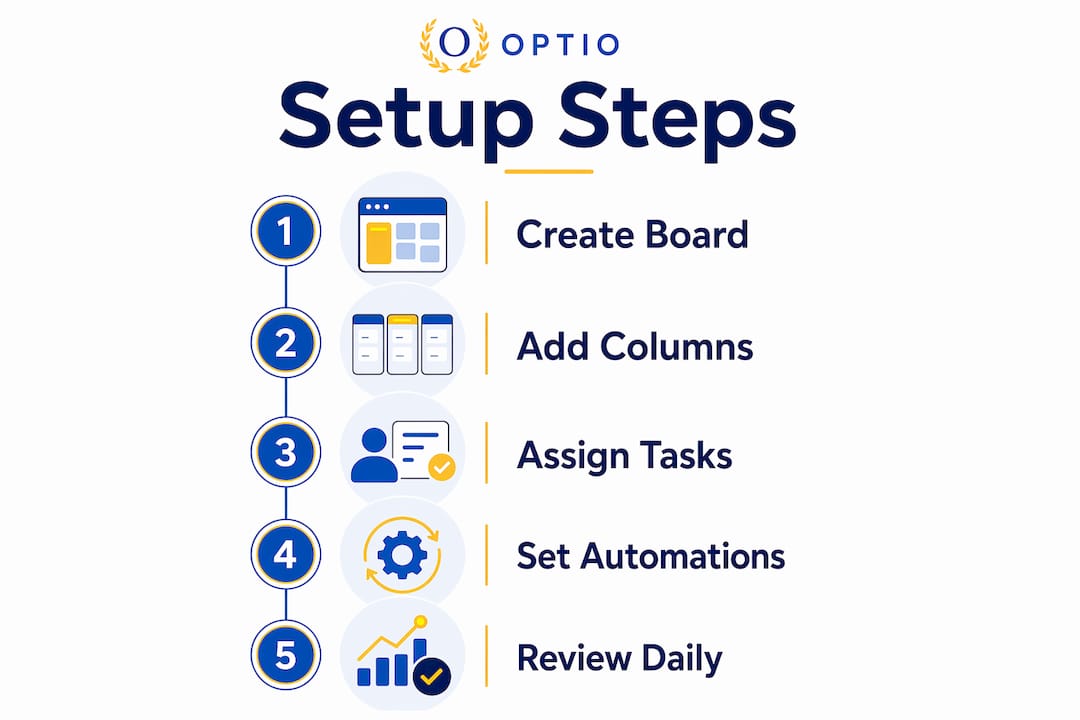
How to set up your first task board on monday.com
The single most effective monday.com setup starts with one board, 5–7 columns, three views, and four core automations. That combination gets you functional task management within hours, not days. Resist the urge to build everything at once. Each column you add requires manual data entry, and boards with 20 or more columns are the number one reason new users abandon the platform entirely.

Your five core columns should be Status, Person, Due Date, Priority, and Effort Estimate. Status is the engine of your board. Keep it to no more than 6 states such as Not Started, In Progress, Blocked, In Review, Done, and Archived. Exceeding six states causes inconsistent data entry and makes your board unreliable. Priority and Effort Estimate give you a quick read on what to tackle first when your week gets crowded.
Groups inside your board should mirror your actual task stages, not your team’s org chart. Name them something like “This Week,” “Next Week,” and “Backlog” rather than “Marketing” or “Design.” That structure forces you to think about timing, not just ownership. Build boards around workflows rather than departments, and use intake forms to capture new requests instead of relying on chat messages.
Enter real tasks from day one. Test data feels safe but teaches you nothing about how the board actually behaves under real conditions. The moment you add your actual assignments, deadlines, and names, the board becomes a tool you depend on rather than a demo you ignore.
- Status column: Use 3–6 states maximum. Label them clearly so anyone can update without asking questions.
- Person column: Assign a real person to every task. Text fields cannot trigger alerts, but Person fields can.
- Due Date column: Set actual deadlines, not aspirational ones. Vague dates make automation useless.
- Priority column: Use a simple scale such as High, Medium, and Low. Three levels are enough.
- Effort Estimate column: Add a number or label like Small, Medium, or Large to help with weekly planning.
Pro Tip: Always use the Person column instead of a text field for task ownership. Person fields trigger automatic notifications the moment an item is assigned, so your teammates know instantly without you sending a separate message.
What views and automations should you use on monday.com?
Multiple views let you see the same tasks from different angles without duplicating any data. The Table view is your default working space. The Kanban view shows tasks as cards moving through status columns, which is ideal for spotting bottlenecks. The Timeline view maps tasks against calendar dates, making it the best choice for deadline-heavy projects. The Calendar view works well for weekly planning sessions where you need to see what is due each day.
Automations are where monday.com pays for itself. The four automations every board needs are:
- Status change notification: When a status changes, notify the item’s owner. This replaces the “hey, did you see this?” message.
- Overdue highlighting: When a due date passes and the status is not Done, change the row color to red. Visual urgency beats a buried notification.
- Default status on creation: When a new item is created, set its status to “Not Started” automatically. This prevents blank rows that skew your board data.
- Archive completed tasks: When status changes to Done, move the item to an archive group after 48 hours. This keeps your active board clean without deleting history.
Automation quotas matter more than most beginners realize. Basic and Standard plans offer 250 automation actions per month, while Pro plans reach up to 25,000. That gap is significant. If you are on a free or entry-level plan, prioritize the four automations above and skip decorative ones that burn your quota without moving work forward.
| View | Best use case | Ideal for |
|---|---|---|
| Table | Daily task updates and data entry | All users |
| Kanban | Spotting workflow bottlenecks | Visual thinkers |
| Timeline | Deadline and project planning | Deadline-heavy work |
| Calendar | Weekly and daily scheduling | Students, planners |
Pro Tip: Add an automation that notifies a stakeholder when a task status changes to “Blocked.” Blocked task alerts stop problems from sitting invisible for days. Pair this with the task automation strategies at Optiostation for a complete picture of what to automate first.
How does integrating monday.com with other tools improve task tracking?
Monday.com works best when it pushes notifications to the apps you already live in. Integrating with Slack or email moves alerts outside the platform, which means you act on tasks faster without needing to log in constantly. Most professionals and students check Slack or their inbox far more often than they open a project board. External alerts close that gap.
Here are the integrations that deliver the most value for students and young professionals:
- Slack integration: Send a Slack message to a channel when a task status changes to Blocked or when a deadline is within 24 hours. This keeps your whole group informed without a single manual update.
- Email notifications: Trigger an email to an assignee when a new task is created and assigned to them. Effective integration pushes notifications to external apps so users respond without logging in repeatedly.
- Google Calendar sync: Mirror your monday.com due dates into Google Calendar so your task deadlines appear alongside your class schedule or work meetings.
- Intake forms: Use monday.com’s built-in forms to collect new task requests from teammates. Structured intake forms reduce early communication noise by replacing back-and-forth messages with a single submission.
Notification overload is a real risk. Set integrations to fire only on meaningful triggers such as assignment, status change to Blocked, or deadline approaching. Avoid sending a notification for every minor update. When every action triggers an alert, people start ignoring all of them. Selective, high-signal notifications keep your team responsive. Pair your monday.com setup with a solid assignment prioritization method to decide which tasks deserve the loudest alerts.
What are the most common monday.com mistakes and how do you avoid them?
The most common reason monday.com boards fail is over-customization. Too many columns or status states create complexity that drives users away from the board entirely. A board that nobody updates is worse than no board at all. Start with the minimum viable setup and add columns only when a real need appears, not because a feature looks useful.
The second biggest mistake is treating monday.com as a reporting tool rather than a working tool. If you only open it to show progress in a meeting, it will always feel like extra work. The fix is to make it the place where work actually happens. Update statuses in real time. Add comments directly on tasks instead of in Slack. Link files to items instead of emailing attachments.
“Treat monday.com as a core part of your daily delivery routine, not just an administrative tool. Embedding it in standups and daily rituals is what separates teams that get value from it and teams that abandon it within a month.”
Sustainable habits matter more than perfect setup. A few practices that stick:
- Review your board every morning for five minutes. Update any status that changed overnight.
- Use monday.com as your single source of truth. If a task is not on the board, it does not exist.
- Start your weekly planning session by checking the weekly planning checklist method and then translating priorities directly into your monday.com board.
- Scale your board only after the basics work. Add a new column or automation only when you feel friction in the current setup.
Key Takeaways
Monday.com delivers real task management value only when you start lean, use automations actively, and treat the board as a live working tool rather than a passive record.
| Point | Details |
|---|---|
| Start with one lean board | Limit columns to 5–7 and status states to 6 to prevent board abandonment. |
| Use Person fields, not text | Person fields trigger automatic notifications; text fields cannot activate alerts. |
| Activate four core automations | Status notifications, overdue highlighting, default status, and archive rules keep tasks moving. |
| Integrate with external apps | Push alerts to Slack or email so your team responds without logging in constantly. |
| Embed it in daily routines | Reviewing and updating your board every morning is what makes it a real productivity tool. |
The discipline behind monday.com is what most guides skip
Monday.com’s flexibility is genuinely impressive. You can build almost any workflow inside it. That is exactly why so many boards end up as digital graveyards within six weeks of launch.
What Optiostation has observed across students and young professionals is this: the tool is not the problem. The habit is. The people who get the most out of monday.com are not the ones with the most sophisticated boards. They are the ones who open it every morning, update their statuses honestly, and treat it as the place where their day actually begins. A simple board used consistently beats a complex board used occasionally, every single time.
The other thing most guides miss is the danger of passive tracking. If you only update monday.com after the fact, you are writing history, not managing work. The real power comes from updating statuses as work moves, flagging blockers the moment they appear, and letting automations carry the communication load. That is when the platform stops feeling like overhead and starts feeling like a second-in-command.
Start with the leanest board you can build. Get comfortable with it for two weeks. Then add one view or one automation based on a real friction point you experienced. That incremental approach builds a system you will actually use six months from now.
— Optiostation
Build your productivity system beyond monday.com
Monday.com is a powerful starting point, but the strongest productivity systems layer multiple tools together. Optiostation has compiled resources specifically for students and young professionals who want to go further.
If you want to see how monday.com fits alongside other top tools, the essential time management apps guide at Optiostation breaks down the best options by use case, from task tracking to deep work. You can also explore the task tracking at work guide for practical techniques that complement everything you have set up on your board. Both resources are built for the same audience: people who want real systems, not generic advice.
FAQ
What is the best starting setup for monday.com task management?
Start with one board, 5–7 columns, and no more than 6 status states. This lean initial setup prevents the board abandonment that comes from over-customization.
Why should I use a Person column instead of a text field?
Person fields trigger automatic notifications when a task is assigned. Text fields cannot activate these alerts, which means assignments go unnoticed and task tracking breaks down.
How many automations do I need on monday.com?
Four core automations cover most needs: status change notifications, overdue highlighting, default status on creation, and archiving completed tasks. Plan limits matter too, since Basic and Standard plans cap at 250 automation actions per month.
How do I stop my monday.com board from becoming outdated?
Review and update your board every morning for five minutes. Treat it as your single source of truth and update statuses in real time rather than after the fact.
Does monday.com work better with other apps connected?
Yes. Connecting monday.com to Slack or email pushes notifications outside the platform, which means faster responses and less time spent logging in to check for updates.
Recommended
- 7 Project Tracker Examples for Boosting Productivity – Optio Station: Best Project Management App for Prioritization
- 7 Top Project Management Software Examples Explained – Optio Station: Best Project Management App for Prioritization
- How to Manage Team Tasks Effectively for Success – Optio Station: Best Project Management App for Prioritization
- How to Keep Track of Tasks at Work Effectively – Optio Station: Best Project Management App for Prioritization
