

TL;DR:
- Excel is effective for small, clear project teams and short-term tasks.
- Proper structure, automation, and team discipline are key to successful Excel project tracking.
- As projects grow, dedicated tools are needed to handle complexity and real-time collaboration.
Excel gets dismissed as a tool for accountants and finance teams. That’s a mistake. For students juggling group projects and young professionals managing their first real deliverables, Excel is one of the most accessible and flexible project management tools available, especially when you know how to use it properly. Microsoft’s free template gallery gives you a ready-made starting point for everything from simple to-do lists to full project plans. This guide will show you how to structure, automate, and maintain an Excel task list that actually keeps your team moving.
Table of Contents
- Why choose Excel for project management tasks?
- Structuring your Excel task list for clarity and accountability
- Making your task list dynamic: Formulas and automation in Excel
- Collaboration and version control: Keeping your team on track
- What most Excel project management guides overlook
- Next steps: Leveling up from Excel task lists
- Frequently asked questions
Key Takeaways
| Point | Details |
|---|---|
| Excel can work for projects | Excel is a feasible, flexible tool for managing simple project tasks when set up properly. |
| Simple structure wins | A minimal set of well-defined columns supports clarity and reliable updates for any team. |
| Automate to avoid errors | Formulas and smart use of conditional formatting minimize manual mistakes and boost trust. |
| Team routines are critical | Collaboration succeeds when everyone uses and updates the same task list rhythmically. |
| Upgrade when you outgrow Excel | Switch to dedicated project tools if your team or project needs real-time updates and advanced collaboration. |
Why choose Excel for project management tasks?
Let’s be honest about where Excel shines and where it doesn’t. For most students and young professionals just getting started with project management, it’s already on your laptop, it’s free (or bundled with your institution’s license), and its structure is intuitive enough that you can build a working task list in under an hour.
Excel works especially well for:
- Small teams of two to six people working on defined projects
- Short-to-medium projects with clear deliverables and deadlines
- Anyone who needs a visual, editable record of tasks without paying for software subscriptions
- Situations where everyone already knows how to open a spreadsheet
If you want a structured starting point, Excel schedule templates can save you serious setup time. They give you a framework you can adapt rather than building from scratch, which matters when you’re already overwhelmed with coursework or early-career responsibilities.
That said, Excel task trackers are best for simple or smaller-scope tracking. As soon as you add more team members, longer timelines, and shifting priorities, Excel’s limitations start showing. Manual updates become a chore, version conflicts create confusion, and there’s no built-in notification system to remind someone their task is overdue.
A useful comparison: think of Excel like a whiteboard. It’s great for mapping out a plan quickly, but if ten people need to update it from different locations, things get messy fast.
“Excel is a great starting tool, but even seasoned project managers will tell you it requires strong team discipline to stay reliable.”
For a broader look at how to organize execution across a project’s lifecycle, the business execution checklist framework shows where task lists fit into the bigger picture of getting things done. It’s worth a look before you design your sheet.
Structuring your Excel task list for clarity and accountability
A task list that’s hard to read is a task list that doesn’t get updated. Structure matters more than most people realize, and getting it right from the start saves you from rebuilding the whole thing mid-project.
A practical Excel-based project plan can be built from a minimum set of structured columns. Here’s the recommended setup:
| Column | Purpose |
|---|---|
| Task ID | Unique identifier for referencing tasks |
| Task Name | Clear, action-based description |
| Owner | Who is responsible (one person) |
| Start Date | Planned start |
| End Date | Deadline |
| Status | Not Started / In Progress / Done |
| % Complete | Numeric progress indicator |
| Priority | High / Medium / Low |
| Notes / Risks | Key context or blockers |
This nine-column setup covers the fundamentals without overwhelming anyone. Notice that “Owner” has only one name. Not “Marketing team” or “Alice and Bob.” One person, full stop. Accountability collapses when ownership is shared without being defined clearly.
Pro Tip: Lock down your status definitions before anyone starts filling in the sheet. Hold a quick five-minute agreement with your team on exactly what “In Progress” means versus “Done.” Does “Done” mean submitted or reviewed and approved? Unclear definitions are the silent killer of Excel-based tracking.
Here’s how to get your task list up and running in a few focused steps:
- Open a blank Excel workbook and create the nine columns above in row one. Bold them and freeze the top row so they stay visible as you scroll.
- Add your full task list in rows, starting with the highest-priority items.
- Apply data validation to the “Status” and “Priority” columns so users pick from a dropdown instead of typing freeform text. This prevents typos and inconsistent entries.
- Color-code your priority column using conditional formatting: red for High, yellow for Medium, green for Low.
- Share the file via OneDrive or Google Drive and set editing permissions appropriately.
For individual projects, you can strip this down to five or six columns. For group projects, keep all nine. If you want templates built around this logic, project management task list templates are a faster route than building from scratch. And if you’re exploring how different list formats serve different goals, it helps to understand the types of to-do lists and which structure fits your workflow.

Making your task list dynamic: Formulas and automation in Excel
A static list is just a document. A dynamic list is a tool. The difference comes down to whether your spreadsheet reacts to changes automatically or requires someone to manually update every cell.
Excel’s dynamic functions like SEQUENCE can update automatically, which means you spend less time maintaining the list and more time completing the work it tracks.
Here are the functions most useful for student and early-career project trackers:
- SEQUENCE: Automatically generates Task IDs so you never manually number rows again
- COUNTA: Counts how many tasks have been filled in, useful for tracking list completeness
- TODAY(): Compares today’s date against your End Date column to calculate days remaining or overdue
- IF + TODAY(): Creates a formula like "=IF(E2<TODAY(),“OVERDUE”,“On Track”)` that flags tasks automatically
- COUNTIF: Tallies tasks by status, so you can see at a glance how many are Done versus In Progress
Here’s a straight comparison of managing your task list manually versus using these automation features:
| Factor | Manual updating | Formula-driven updating |
|---|---|---|
| Time per update | 10 to 20 minutes weekly | 2 to 5 minutes weekly |
| Error rate | Higher (typos, missed rows) | Lower (formula-controlled) |
| Adoption by team | Can feel like extra work | Easier once set up |
| Setup difficulty | None | Low to medium |
| Reliability over time | Degrades without discipline | Stays consistent |
The tradeoff is clear. The one-time cost of setting up formulas pays back quickly, especially on projects lasting more than a few weeks.
Automating rollups and risk flags with formulas and using clear risk highlighting removes the need for manual status checks. This is a game-changer for teams where not everyone remembers to update their row consistently.
Pro Tip: Add a dedicated “Overdue?” column with a formula that checks whether today’s date exceeds the End Date and the status is not “Done.” Format this column with red fill for any cell that returns TRUE. When someone opens the file and immediately sees a red flag on their task, they’re far more likely to act on it than if they had to hunt through the list.
For more ideas on how to build productive habits around these tools, the master to-do list creation guide is worth reading alongside your Excel setup. You can also explore productivity templates for additional layouts that pair well with formula-driven trackers. And if you want to see how other high-output teams approach execution, these execution tips for entrepreneurs translate well to student and small-team settings too.
Collaboration and version control: Keeping your team on track
Here is where most Excel project management setups fall apart. Not because of formulas or structure, but because of people. The moment more than one person needs to edit the same file, you’ve introduced risk.
Multiple people editing the same Excel file can create version conflicts and accuracy problems. Cloud collaboration helps reduce this, but it doesn’t eliminate the core challenge: getting everyone to actually update their tasks on time.
The strategies that work for teams managing shared Excel task lists include:
- Store the file in the cloud: OneDrive or Google Drive with real-time sync reduces the chance of two people working on an outdated version
- Assign file ownership: One person (the project lead) is responsible for the master file. Others submit updates to them or edit directly within defined rows
- Lock columns you don’t want overwritten: Excel’s cell protection feature lets you lock formulas or key fields so teammates can only edit the columns they’re responsible for
- Use color-coded ownership: Assign each team member a row highlight color so it’s visually clear who owns what at a glance
- Establish a weekly update rhythm: Pick a consistent day and time when everyone updates their status. Thursday afternoon before a Friday check-in tends to work well for student teams
“A tracker that’s not updated won’t be trusted. And a tool no one trusts won’t get used. Your update rhythm is as important as your column structure.”
This is the uncomfortable truth most Excel guides skip. The tool itself is secondary to the team agreement around it. A small set of weekly updates dramatically improves how well a team sticks with the system. When the update routine is light and consistent, adoption holds. When updates feel like a second job, the tracker dies quietly.
For teams that want a visual layer on top of their task list, building an Excel dashboard template lets you create a summary view that shows progress without requiring stakeholders to scroll through every row. For advice on how to build the right team culture around shared tools, the team building for startups resource applies equally well to student groups and early-career teams.
What most Excel project management guides overlook
Most tutorials tell you what to build. Almost none tell you why most Excel task lists fail within two weeks of launch. Here’s the actual problem: ambiguity and update discipline are adoption killers, and they have nothing to do with formulas.
We’ve seen this pattern repeatedly. A student team or young professional group builds a well-structured task list, shares it on Google Drive, and everyone agrees it’s great. Three weeks later, half the rows haven’t been touched. The whole thing gets abandoned. The project gets finished over group chat and last-minute panic.
The breakdown point isn’t technical. It’s social. When team members disagree (even silently) on what “Done” means or feel uncertain whether they should update the row before or after a peer reviews their work, they avoid updating at all. Ambiguity creates friction, and friction kills habits.
The “Status” column deserves special attention here. You need a group agreement, written into the top of the spreadsheet or shared in a brief team message, on exactly what each status value means. This sounds tedious. Do it anyway. It takes five minutes and prevents two weeks of confusion.
Our second hard lesson: Excel is a stepping stone, not a destination. The real value of building a project tracker in Excel isn’t the spreadsheet itself. It’s that you develop the habits, vocabulary, and routines of project management that will serve you in every tool you use afterward. Centurions who master task ownership, clear status definitions, and weekly update rhythms in Excel carry those skills forward when they graduate to purpose-built tools.
The free Excel dashboards we recommend aren’t the end goal either. They’re training wheels that build the muscle. Know that going in, and you’ll use Excel with the right expectations.
Next steps: Leveling up from Excel task lists
Excel is a solid foundation, but it’s only the beginning. As your projects grow in complexity and your team expands, you’ll start hitting walls that no formula can fix. Real-time notifications, task dependencies, built-in accountability systems, and mobile access are features that Excel simply wasn’t designed to handle well.
That’s where Optio comes in. Built specifically for students and young professionals, Optio is the second-in-command you didn’t know you needed, a mobile app designed to handle task management, team coordination, and time tracking with the focus and discipline of a Roman field commander. Centurions who’ve outgrown their Excel tracker find that Optio brings structure without the overhead. You can explore best task management software options to compare your choices, learn how to manage tasks effectively at scale, and get grounded in what strong team collaboration actually looks like beyond a shared spreadsheet.
Frequently asked questions
What columns should every Excel project management task list have?
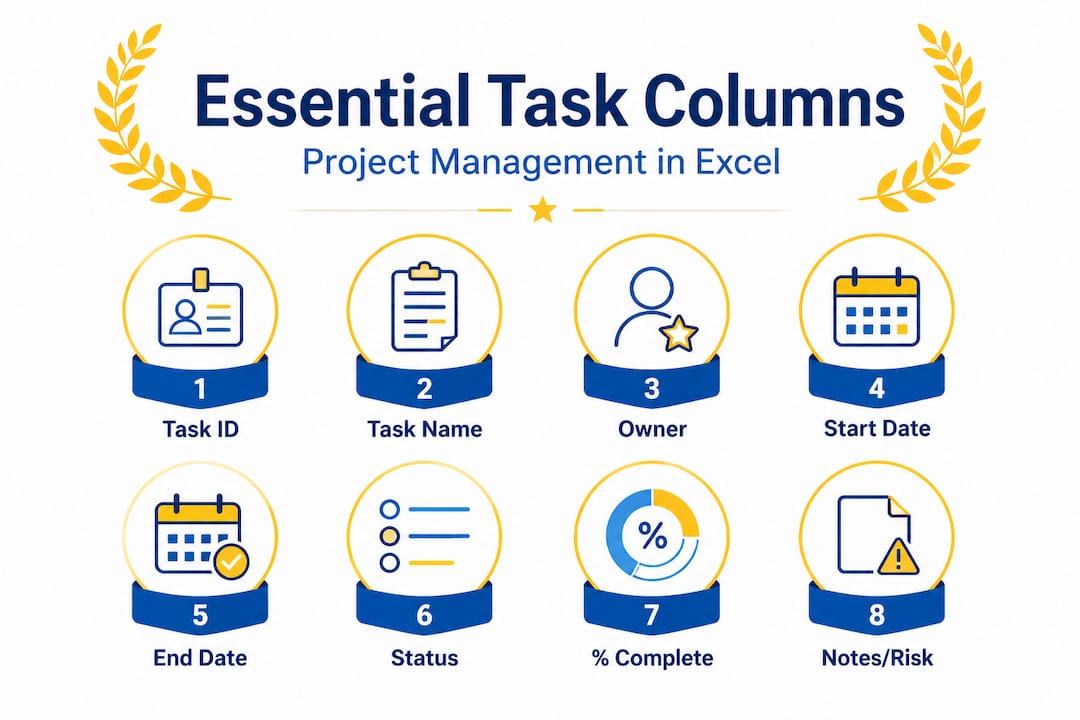
Essential columns include Task ID, Task Name, Owner, Start Date, End Date, Status, % Complete, and Notes or Risk. These cover the minimum set of structured columns needed to build a practical, trackable project plan.
How do you highlight overdue or at-risk tasks in Excel automatically?
Use conditional formatting combined with a formula like =IF(E2<TODAY(),"OVERDUE","On Track") to flag tasks based on due dates. Automating rollups and risk flags removes the need for manual status checks entirely.
What’s the fastest way to start a project management task list in Excel?
Download a free template directly from Microsoft’s template gallery and customize the columns to match your project’s specific needs. Starting from a template is always faster than building from scratch.
When should you switch from Excel to dedicated project management tools?
Switch when your task volume, team size, or real-time update needs outgrow what Excel can support reliably. Excel task trackers work best for small-scope projects, and limitations like version conflicts and manual updates become serious problems as complexity grows.
How can students keep their group project task list up to date?
Assign one owner per task, limit the fields that need weekly updates to just a few key columns, and agree as a group on a fixed update day. A small set of weekly updates consistently applied will do more for your tracker’s reliability than any formula you add.
Recommended
- Top free project management Excel dashboard templates 2026 – Optio Station: Best Project Management App for Prioritization
- Top 5 Excel project management schedule templates for 2026 – Optio Station: Best Project Management App for Prioritization
- Excel project management dashboard template for students 2026 – Optio Station: Best Project Management App for Prioritization
- Master project management task list templates in 2026 – Optio Station: Best Project Management App for Prioritization
- 7 Essential Productivity Tools for Entrepreneurs Worldwide
