
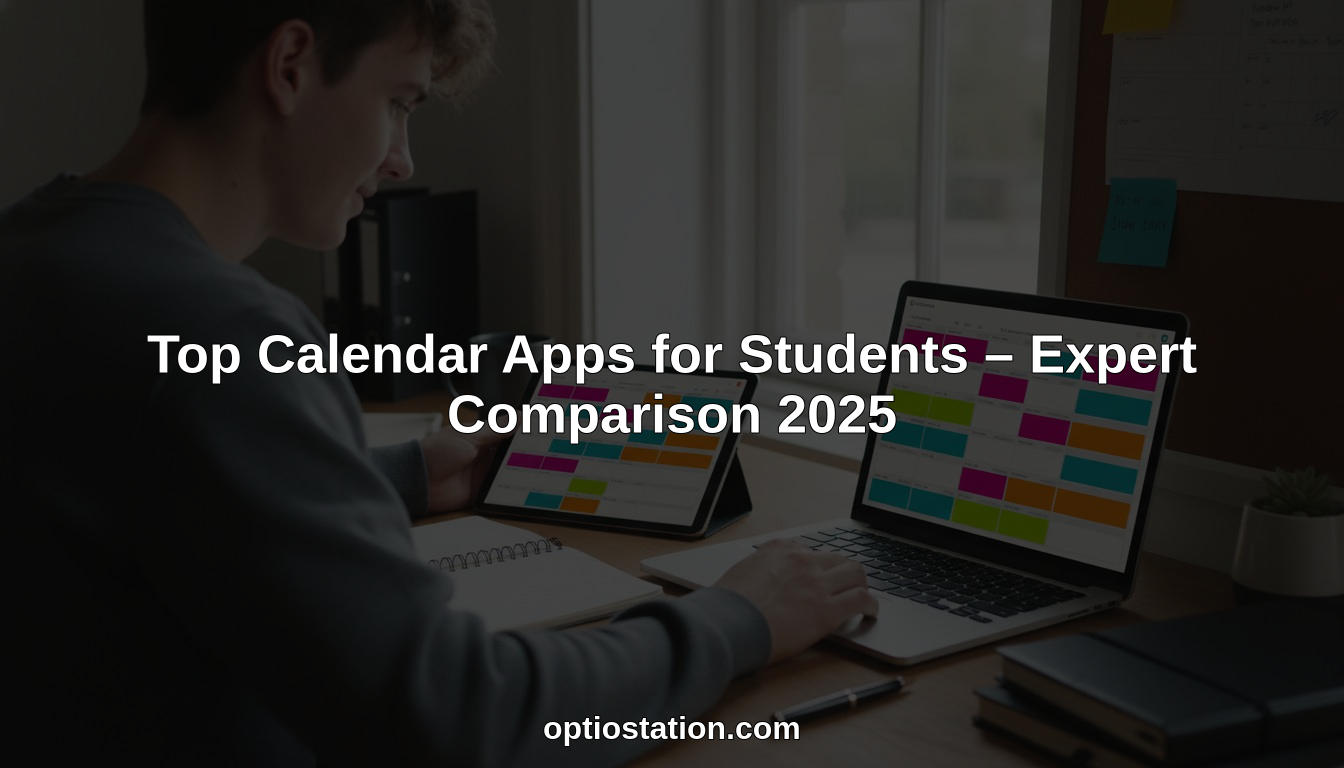
Finding the right tools to keep life and projects on track can make all the difference for students and young professionals. Whether you want a clear overview of your tasks, an easy way to share your schedule, or a smarter space for teamwork, there are options for every preference. Some put simplicity first while others let you shape every detail your way. Want something that grows with your needs or a system that works quietly in the background? The choices ahead offer fresh approaches and trusted classics. As you read on, you might spot features that surprise you or find a new way to organize the day.
Table of Contents
Optio Station

At a Glance
Optio Station is a mobile-first project and time management app built for students and young professionals who want a single place to manage tasks, teams, and life priorities. It prioritizes clarity and flexibility — letting you color-code life areas, break big goals into actionable steps, and nudge yourself with reminders. Early access on Android and Samsung means it’s actively shaped by real users, so it’s already practical and keeps getting better.
Core Features
Optio Station centers on clear, student-friendly organizational tools: color-code different life aspects (work, school, health, hustle) to keep visual clutter down; convert big-picture goals into step-by-step tasks so long-term plans don’t live only in your head; work solo or collaborate by assigning tasks and tracking progress; set deadlines and receive nudges and notifications to stay on schedule. It’s a mobile app focused on prioritization, flexible task and goal management, and straightforward team alignment, all designed to reduce the noise that steals your focus.
Pros
- Built around user feedback: The development approach actively incorporates user suggestions, which means the app evolves in ways students and young professionals actually need.
- Flexible task and goal management: You can turn a vague semester goal into concrete tasks and deadlines without losing context, which keeps priorities actionable.
- Google Calendar integration for scheduling: Syncing with your calendar makes it easy to see deadlines and class schedules in one place.
- Focused initial rollout: Targeting Android and Samsung users in early access enables faster iteration and a smoother experience for that audience.
- Designed to reduce clutter: Color-coding life areas and prioritization-first design help you cut down on the noisy task lists that cause overwhelm.
Who It’s For
Optio Station is ideal for students, early-career professionals, and Centurions — people who need a single, mobile-friendly hub to manage classes, work assignments, side projects, and personal goals. If you’re the kind of user who prefers shaping the tools you use and don’t mind early-access dynamics, Optio rewards your feedback with rapid improvements that match your real-life workflows.
Unique Value Proposition
Optio Station’s core advantage is its user-driven, prioritization-first design tailored specifically to student and young professional life. Rather than forcing rigid workflows, it offers flexible goal-to-task conversion, visual life-segmentation via color coding, and team-oriented task assignments that keep group work aligned without complexity. The active early-access model means development is responsive: features that matter to Centurions are prioritized, refined, and rolled out quickly. Combined with calendar integration and mobile-first nudges, Optio Station isn’t trying to be every tool — it’s engineered to be the second-in-command for your day-to-day planning, trimming noise and amplifying what matters. That focused clarity makes it superior for users who want a lightweight, evolving app built around their real needs rather than a bloated, one-size-fits-all platform.
Real World Use Case
A college student uses Optio Station to organize class assignments, set reminders for exams, and break a semester-long research project into weekly tasks. They color-code classes and personal fitness, assign peers to group tasks, and sync deadlines with Google Calendar so nothing sneaks up on them.
Pricing
Not specified in the provided content; likely in early access with free availability now and potential paid features later.
Website: https://optiostation.com
Google Calendar
At a Glance
Google Calendar is a straightforward, no-cost scheduling tool tightly woven into the Google ecosystem. It makes creating events, sharing calendars, and checking availability quick and intuitive, whether you’re on a laptop or a phone. For students and young professionals who already live in Gmail and Drive, it removes friction and gets you back to work faster. Not perfect — it trades deep customization for simplicity — but for most users the trade-off is worth it.
Core Features
Google Calendar centers on easy access to schedule management, letting you create single or recurring events, add guests, and attach files from your Google Drive. It integrates with Google services like Gmail and Meet so invites, links, and reminders appear automatically, reducing manual setup. The app syncs across devices, so your desktop view and mobile app reflect the same calendar in real time. Those are the pillars: quick event creation, seamless Google integration, and consistent multi-device access.
Pros
- Free to use: Google Calendar costs nothing, which lowers the barrier for students and small teams to get organized immediately.
- Seamless integration with Google accounts: If you use Gmail, Drive, or Meet, Calendar automatically pulls relevant data into events, saving setup time and preventing lost links.
- User-friendly interface: The layout is clean and minimal, so you can scan days, weeks, or months at a glance without a learning curve.
- Supports collaboration and sharing: You can share whole calendars or individual events with classmates and teammates, making coordination straightforward.
- Multiple device access: Desktop and mobile apps stay in sync, so you can check or change plans from a phone between classes or on a laptop in the library.
Cons
- Requires a Google account for use: You must sign in with a Google account, which can be a blocker if you prefer other providers or separate personal and school accounts.
- Dependent on internet connection: Because it’s cloud-based, offline functionality is limited, so gaps in Wi‑Fi can leave you unable to view or edit events reliably.
- Limited customization options for notifications: Notification controls are basic compared with niche calendar apps, so you may not be able to tailor alerts to complex study or work rhythms.
Who It’s For
Google Calendar is ideal for individuals and organizations already using Google services who want a dependable, free calendar that just works. If you’re a student juggling classes, study groups, and part-time work, or a small team coordinating meetings and deadlines, it covers the essentials without adding complexity.
Unique Value Proposition
The unique value of Google Calendar is its seamless fit into the wider Google ecosystem: invites from Gmail, file attachments from Drive, and Meet links appear where you expect them. That integration saves minutes every week — minutes that add up during midterms and project sprints.
Real World Use Case
A small business or project team uses Google Calendar to coordinate meetings, set deadlines, and share milestones. Team members receive event invites tied to Drive documents and Meet links, so everyone shows up prepared with the right file and connection.
Pricing
Free
Website: https://calendar.google.com
Microsoft Outlook
At a Glance
Microsoft Outlook combines email and calendar in a single, familiar interface as part of the Microsoft 365 suite. It’s reliable for daily communications and strong on security, making it a safe choice for students and professionals who already use Microsoft apps. The calendar is feature-rich and integrates tightly with email and other Microsoft 365 tools, but some advanced capabilities sit behind a paid subscription. If you need unified scheduling and mail with enterprise-grade protections, Outlook delivers — though there is a learning curve.
Core Features
Outlook’s core capabilities center on email management and calendar scheduling with native integration to Microsoft 365 apps. The product supports organizing messages, creating and tracking appointments, and coordinating meetings, all while enforcing security protections. Its user-friendly interface is designed to work across multiple devices, helping you move from desktop to mobile without losing context. Integration with other Microsoft services is a core building block rather than an add-on, so workflows that combine mail, calendar, and productivity apps feel cohesive.
Pros
- Seamless Microsoft 365 integration: Outlook connects natively with other Microsoft apps so calendar invites, files, and collaboration tasks appear in one place.
- Reliable email service: The platform handles high volumes of messages consistently, keeping your inbox stable and synchronized across devices.
- Comprehensive calendar features: You can schedule, modify, and track meetings and appointments with tools designed for both one-on-one and group scheduling.
- Accessible on multiple devices: Outlook’s interface and syncing capabilities make it practical to manage email and calendar from phone, tablet, or desktop.
- Strong security protections: Built-in security features help protect your messages and meetings, which is reassuring when you share course materials or coordinate group projects.
Cons
- Dependent on internet connectivity for full functionality: Many core functions require a reliable connection, which limits offline flexibility when you’re between classes or on spotty Wi‑Fi.
- Can be complex for new users: The depth of features and integration points creates a steeper learning curve for students who just want a simple calendar.
- Some features require a Microsoft 365 subscription: Advanced collaboration and premium capabilities are gated behind paid plans, which can be a drawback for budget-conscious users.
Who It’s For
Outlook is best for individuals and organizations already invested in the Microsoft ecosystem who want integrated email and calendar solutions. If you use Word, Teams, or OneDrive daily, Outlook streamlines scheduling and communication in a way that third-party apps can’t match. Students and young professionals who anticipate collaborative class projects or hybrid work setups will find its protections and sync features especially valuable.
Unique Value Proposition
Outlook’s unique value is the deep, native integration with Microsoft 365: email, calendar, and security are designed to work together rather than as separate tools. That unified approach reduces friction when you attach files, schedule meetings, or coordinate across Microsoft apps — saving time and avoiding context switching.
Real World Use Case
A professional uses Outlook to manage daily emails, schedule back-to-back meetings, and coordinate with teammates by sharing calendar invites and documents via Microsoft 365; the result is a consistent workflow where messages and appointments stay linked and secure.
Pricing
Free tier available with a Microsoft account; premium features available through Microsoft 365 subscription.
Website: https://outlook.live.com
Apple
At a Glance
Apple offers a tightly integrated family of hardware and services centered on performance, design, and cross-device continuity. For students and young professionals who value polished hardware and seamless syncing between phone, laptop, tablet, and watch, Apple delivers a consistently refined experience. The trade-in and financial options lower upgrade friction, but expect to pay a premium for that polish.
Core Features
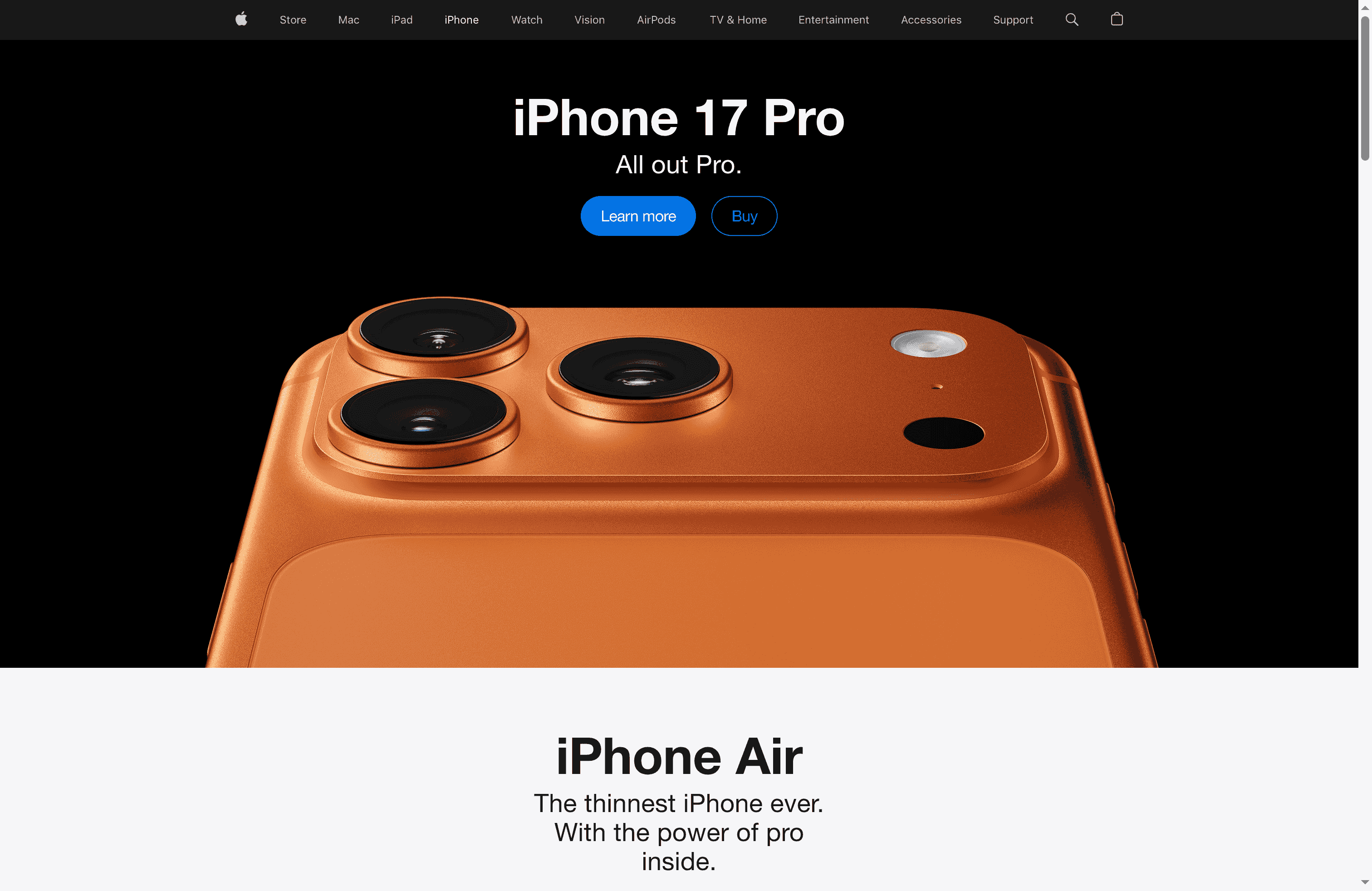
Apple’s lineup spans flagship smartphones, laptops, tablets, wearables, audio gear, and subscription services. Key pieces from the provided data include the iPhone 17 Pro and the thin iPhone Air, MacBook Pro 14" with an M5 chip and MacBook Air with M4, iPad Pro focused on AI performance and gaming, Apple Watch Series 11 for health monitoring, and AirPods Pro 3 with active noise cancellation. Services and financial options—like trade-ins and the Apple Card—wrap the hardware into an ecosystem that shares data, apps, and media across devices.
Pros
- Wide range of innovative products: Apple covers phones, laptops, tablets, wearables, and audio, giving you options for many use cases in one brand.
- Strong ecosystem integration: Devices and services are designed to work together, making file sharing, notifications, and continuity features feel seamless across hardware.
- Trade-in and financial services available: Built-in trade-in credit and financing reduce upfront cost hurdles when upgrading devices.
- High-quality consumer electronics: Apple’s devices emphasize premium materials and consistent performance, which feels durable and reliable in daily use.
- Subscription services like Apple TV+: Entertainment and service bundles extend value beyond hardware by adding media and cloud-based conveniences.
Cons
- Premium pricing: Apple’s products tend to command higher price points, which can stretch a student or early-career budget.
- Limited customization options for hardware: Compared with some competitors, there are fewer choices to customize or upgrade internal components after purchase.
- Product ecosystem lock-in potentially limiting flexibility: Relying on many Apple services and devices can make switching platforms or mixing brands more difficult.
Who It’s For
Apple is ideal for tech enthusiasts, creative students, and young professionals who want dependable, high-performance devices that simply work together. If you prioritize design, consistent updates, and a unified ecosystem—plus the convenience of trade-in and payment plans—Apple fits. If you need maximum hardware tinkering or the lowest possible price, look elsewhere.
Unique Value Proposition
Apple’s strength is the end-to-end user experience: hardware, software, services, and financing that are purpose-built to interoperate. That unity reduces friction—files, messages, and media move between devices without extra setup—so you spend less time managing tech and more time using it.
Real World Use Case
A student upgrades to the latest iPhone using trade-in credit, pairs it with an Apple Watch for fitness tracking, uses the iPad Pro for note-taking and light gaming, and watches classes or shows via Apple TV+—all while syncing work between the MacBook and iCloud.
Pricing
Varies by product; details available on the website or at authorized retailers.
Website: https://apple.com
Notion
At a Glance
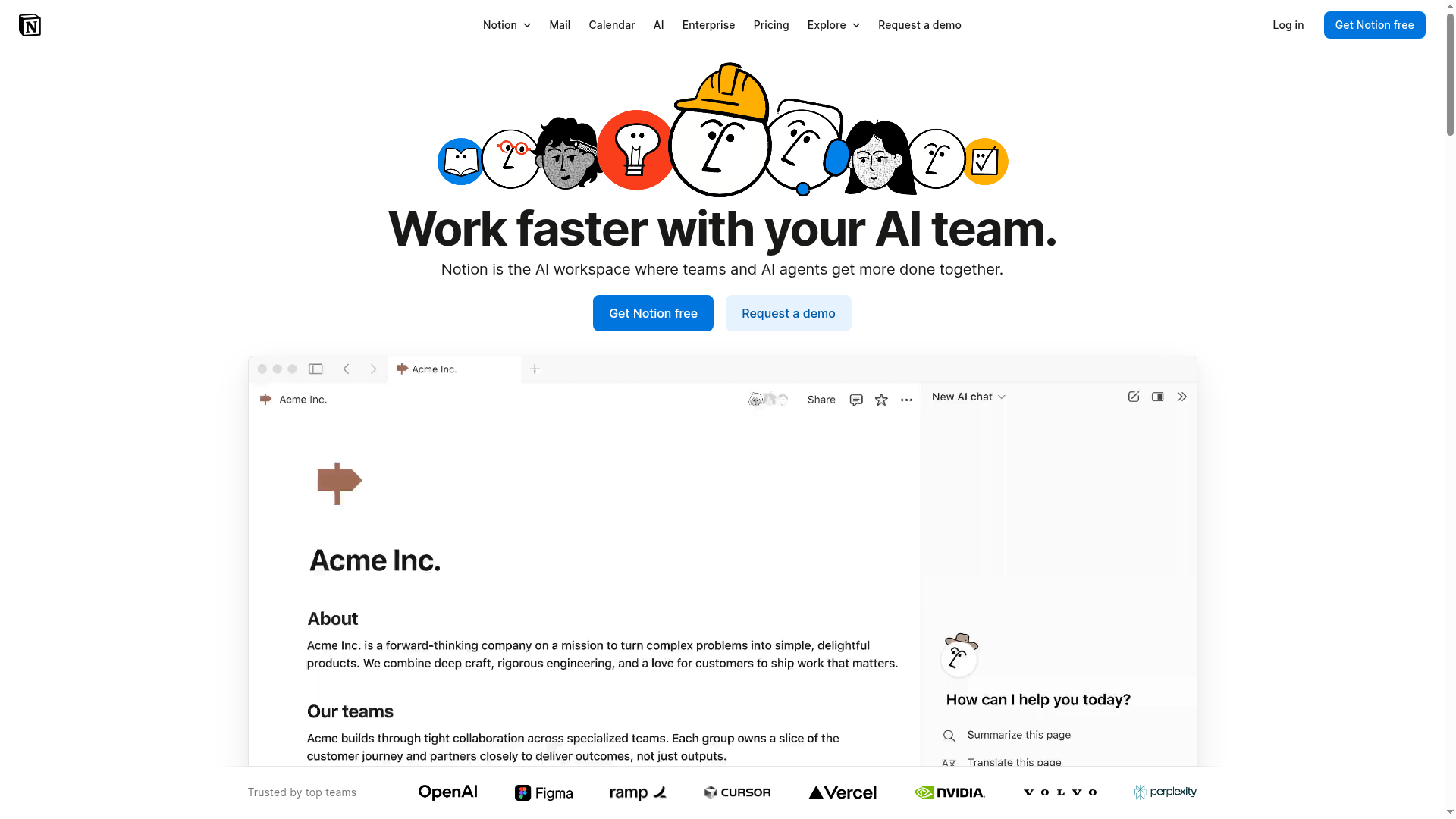
Notion is an AI-powered workspace that brings notes, databases, projects, and AI agents together in a single platform. It aims to speed up routine work—search, meeting notes, writing, email, and research—by offering customizable AI agents that learn your preferences. The platform is highly configurable and includes enterprise-grade security, but that power comes with a learning curve and potential cost for heavy AI use. Bottom line: excellent for teams that want a unified, AI-enhanced workspace; less friction-free for users who want something instantly simple.
Core Features
Notion’s core strength is combining an AI workspace with traditional productivity tools: integrated AI agents for search, meeting notes, writing, email, and research; customizable agents that adapt to user behavior; and a single environment for notes, databases, and project management. It also offers automation to reduce repetitive tasks and enterprise-grade security, access control, and compliance options—so teams can centralize knowledge, streamline workflows, and keep sensitive data under administrative oversight.
Pros
- All-in-one platform: Notion unifies documents, databases, projects, and AI tools in one place, reducing context switching across different apps.
- Highly customizable: Users can tailor pages, databases, and AI agents to personal, team, or enterprise workflows, which makes the tool adaptable to diverse use cases.
- Strong security and admin controls: Enterprise-grade security, access control, and compliance features give organizations the governance they need for sensitive projects.
- Widely adopted and trusted: Notion’s broad user base and enterprise presence indicate mature, stable tooling that larger teams can rely on.
Cons
- Complexity and learning curve: The breadth of features and customization options can be overwhelming for new users and requires time to master.
- Potentially high costs at scale: Extensive use of AI features and large-team deployments can lead to higher costs compared with simpler productivity apps.
Who It’s For
Notion is designed for organizations and teams seeking an integrated workspace with advanced AI capabilities for productivity and collaboration. If you’re part of a team that needs shared knowledge bases, project tracking, and customizable automation—and you value enterprise-level controls—Notion fits well. Startups and product teams that need a central source of truth and automated meeting notes will also benefit.
Unique Value Proposition
Notion’s unique value is the combination of AI agents plus a deeply flexible workspace: instead of bolting AI onto separate tools, it embeds AI into notes, databases, and automations so the system can proactively assist with routine work. Coupled with enterprise security and admin controls, this makes Notion a singular choice for teams that want both intelligence and governance in one product.
Real World Use Case
A technology startup uses Notion to manage product development: tracking roadmaps in databases, automating meeting notes with AI agents, and integrating outputs into other tools so engineering and design stay aligned. That workflow shortens handoffs and reduces the time spent hunting for decisions and documentation.
Pricing
Starting at Free; paid plans begin at $10 per user/month for Plus and $20 per user/month for Business, with custom Enterprise pricing available.
Website: https://notion.so
Productivity and Management Tools Comparison
This table provides a concise comparison of various productivity and management tools, highlighting their core features, pros, cons, and pricing. It helps readers quickly understand the strengths and weaknesses of each tool to make informed decisions.
| Product | Core Features | Pros | Cons | Pricing |
|---|---|---|---|---|
| Optio Station | Mobile-first, color-coded goals, task collaboration, Google Calendar integration | User-driven evolution, flexible task management, uncluttered design | Limited to Android and early access, unclear future pricing | Free (potential paid features later) |
| Google Calendar | Event creation, Google integration, multi-device access | Free, seamless Google ecosystem integration, user-friendly | Requires Google account, limited offline use, basic notifications | Free |
| Microsoft Outlook | Email and calendar integration, Microsoft 365 compatibility | Reliable, strong security, comprehensive features | Complex for new users, internet dependent, some paid features | Free basic, premium with Microsoft 365 |
| Apple | Device and service integration, trade-ins, high-quality hardware | Ecosystem unity, trade-in options, premium design | High cost, limited hardware customization | Varies by product |
| Notion | AI workspace, customizable databases, enterprise security | Integrative AI, highly customizable, trusted standard | Steep learning curve, potentially high cost | Free to start, $10/user/month for Plus |
Master Your Schedule with Optio Station
Navigating the challenges of managing multiple calendars and deadlines can overwhelm even the most organized students. This expert comparison highlights how important it is to have a tool that not only keeps track of events but also helps break down big goals into manageable steps while syncing seamlessly with your daily life. If you find yourself juggling between classes, group projects, and personal goals, the solution is clear: Optio Station was built precisely for Centurions like you who need a second-in-command to tackle task, team, and time management with ease.
Explore how Optio Station’s mobile-first design, color-coded life areas, and Google Calendar integration bring clarity and flexibility to your busy schedule. Ready to reduce clutter and amplify what matters most in your student life? Discover actionable tips and practical uses on CenturionTips and dive deep into productivity strategies at ProductivityThoughts. Start shaping your success now by visiting Optio Station and take command of your day today.
Frequently Asked Questions
What are the key features to look for in calendar apps for students?
Look for features like easy event creation, integration with other apps, reminders, and collaboration options. These will help streamline your scheduling and keep you organized throughout the semester.
How can I effectively use calendar apps to manage my class schedule?
Effectively utilize calendar apps by inputting your class times, assignment deadlines, and study sessions. Set reminders a day in advance to give yourself ample time to prepare.
Are there calendar apps that allow me to share my schedule with classmates or groups?
Yes, many calendar apps offer sharing features where you can invite others to view or edit your calendar. Use this feature to coordinate group study sessions or project deadlines more effectively.
How can I optimize my use of a calendar app to balance academic and personal commitments?
Optimize your calendar app by color-coding different types of events, like classes, work, and social activities. This visual differentiation can help you see your commitments at a glance and prioritize your tasks better.
Is it beneficial to integrate a calendar app with other productivity tools?
Integrating your calendar app with productivity tools can significantly enhance your organization. For example, syncing with to-do lists or note-taking apps can simplify the flow of information and ensure that nothing is overlooked.
What steps can I take to transition from a paper planner to a digital calendar effectively?
Start by selecting a digital calendar app, then input your upcoming commitments from your paper planner month-by-month. Allocate a few weeks to familiarize yourself with the app’s features, aiming to ditch the paper by the end of the transition period.
Recommended
- Understanding Why Use Calendar Apps for Better Planning – Optio Station: Best Project Management App for Prioritization
- 7 Essential Organization Tools for Students – Optio Station: Best Project Management App for Prioritization
- 7 Types of To-Do Lists Every Student Should Use – Optio Station: Best Project Management App for Prioritization
- What Is the Best To Do List App? Complete Guide – Optio Station: Best Project Management App for Prioritization
